Sale ends November 30 at 11:59 PM ET
{%- endif -%} ``` It shows only on products whose compare-at price is higher than their price, so full-price products get no timer. The `-05:00` is the time-zone offset (US Eastern Time in November), so use your own. Every shopper sees the same deadline wherever they are. Without JavaScript, shoppers see the fallback line "Sale ends November 30 at 11:59 PM ET", so edit it too. It does the countdown in the browser because Shopify can serve a cached page: Liquid's `'now'` reflects the time the page was [last rendered](https://shopify.dev/docs/api/liquid/filters/date?ref=productessentials.app). We tested the countdown on a copy of Dawn and in the browser with four time zones, an expired date, and two timers on one page. ### How to add the snippet to Dawn 1. **Duplicate your theme.** From your Shopify admin, go to **Online Store**, open the theme's actions menu, and click **Duplicate** so you can go back. 2. **Open the product template.** Click **Edit theme** on the copy, then select **Products** \> **Default product**. 3. **Add a Custom liquid block.** Hover over **Product information**, click **Add block** and choose **Custom liquid**. Drag it under the price. 4. **Paste the snippet.** Change the date, the offset, and the fallback line to your sale's end. 5. **Save.** Check a discounted product in the preview, then publish the copy. 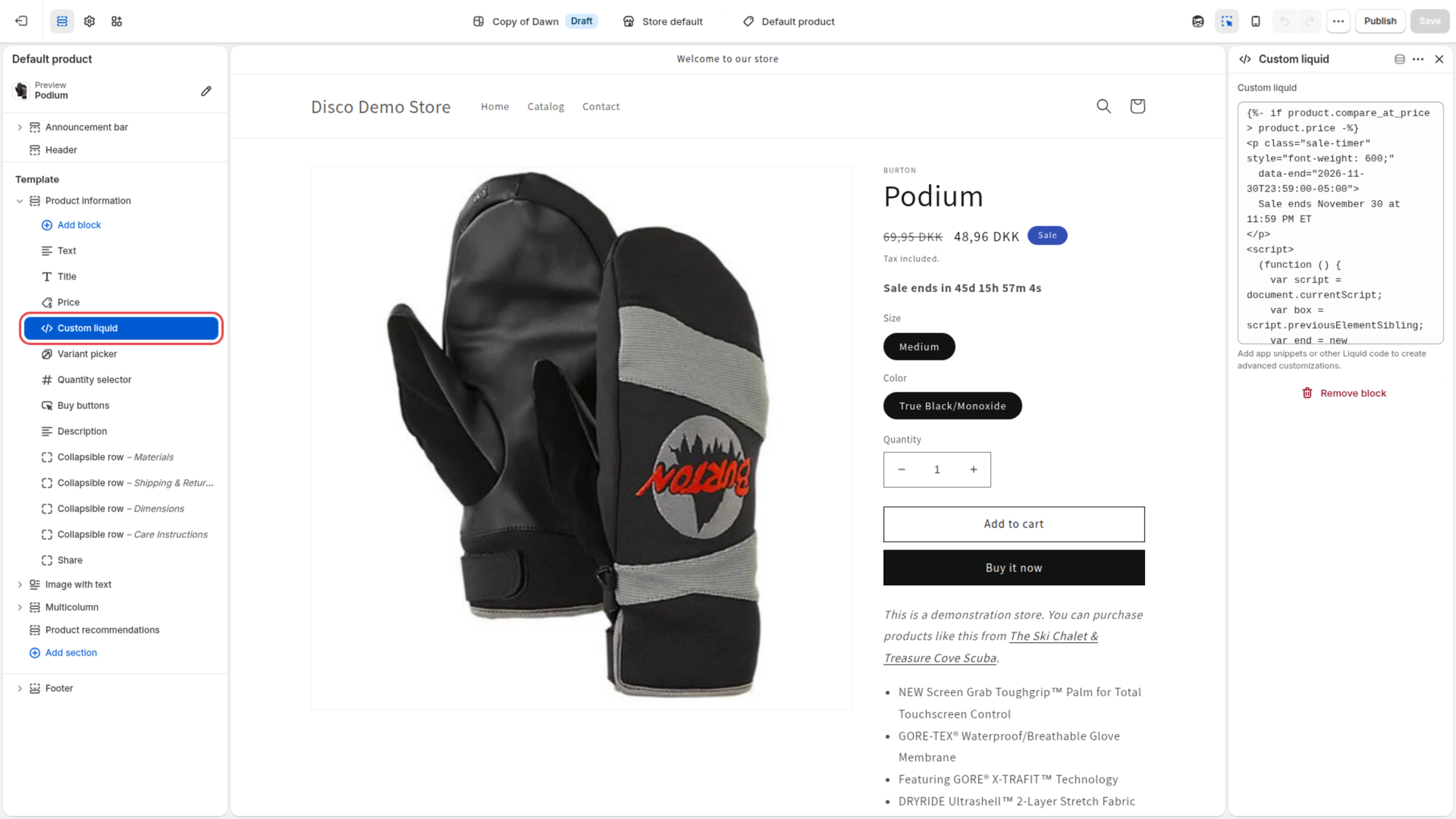 ### What the snippet can't do - It doesn't end the sale or restore prices. At zero the timer disappears, but a $60 product on sale at $45 stays at $45 until you change every **Price** and **Compare-at price** back yourself. - It uses one end date for every product on that template, so a new sale means editing the code again. - If you end the sale early or extend it, the timer shows the old deadline until you edit the code. 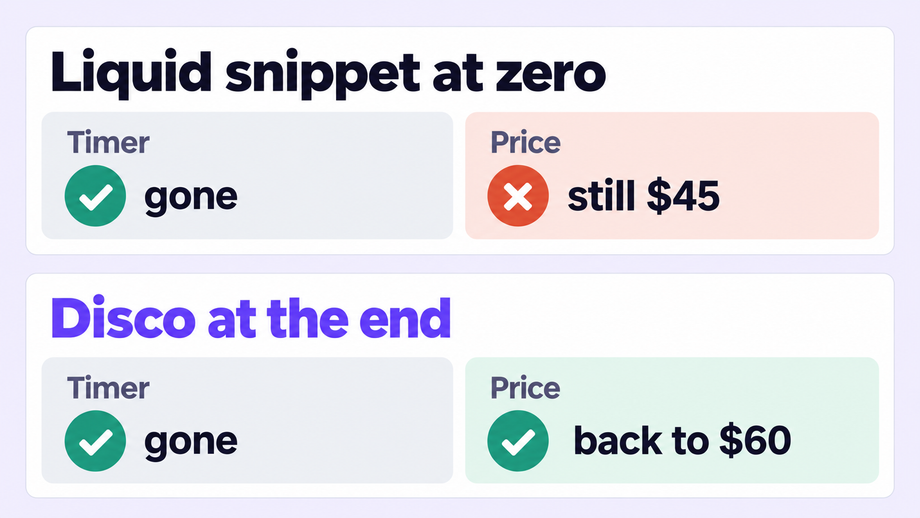 Disco resolves this: it counts down to the **Active dates** and restores the prices automatically. ## How do you add a Shopify announcement bar with a countdown timer? In Disco, on the Lite plan and up, turn on **Show while the sale is active** and **Show countdown timer in announcement**: a thin banner at the top of every page then counts down to the sale's end and disappears with it. Before the sale, use **Show before the sale starts** to collect emails. In Shopify, your theme's **Announcement bar** section takes announcements with a **Text** field and an optional **Link**. It has no timer and no scheduling settings, so you change it by hand at each phase. Disco resolves this with a bar that switches on and off with the sale's dates and carries the countdown. ### How to add a countdown timer to your announcement bar in Disco 1. **Open the sale.** Create it, or open the one you scheduled, with its **Active dates**. 2. **Turn on the live bar.** Turn on **Show while the sale is active** (Lite plan and up, like the bar settings below). 3. **Add the timer.** Turn on **Show countdown timer in announcement**. 4. **Add a teaser (optional).** Turn on **Show before the sale starts** with the **Get notified!** button to collect emails before the start. 5. **Match your theme.** Style the bar in **Disco > Widgets** → **Announcement bar settings**. 6. **Save.** For ready-made teaser, launch and last-hours lines, see our [Shopify Black Friday discount ideas](https://productessentials.app/blog/shopify-black-friday-discount-ideas/). ## Which Shopify Black Friday countdown timer do you need: pre-launch or sale-ending? Run both. A pre-launch Shopify Black Friday countdown timer in the announcement bar runs from the day you save the sale until Friday, November 27, 2026\. Sale-ending timers on product pages and in the bar count down to the end, like 11:59 PM on Monday, November 30, 2026\. In Disco one sale does both. | | Pre-launch timer | Sale-ending timer | | ------------------ | ----------------------------------------------------------------------------------------------- | ------------------------------------------------------------------------------------------------------------------------------ | | **Counts down to** | The sale's start: 12:00 AM, November 27, 2026 | The sale's end: 11:59 PM, November 30, 2026 | | **Shows in** | The announcement bar; the product-page timer shows only while the sale is active | Product pages and the announcement bar | | **Its job** | Get people back at the start; the **Get notified!** button collects emails | Show how long the sale price lasts | | **Runs from** | The moment you save the sale | The sale's start | | **In Disco** | **Show before the sale starts** with **Show countdown timer in announcement**, Lite plan and up | **Show countdown timer on product page** (Starter) and **Show while the sale is active** with the bar timer (Lite plan and up) | 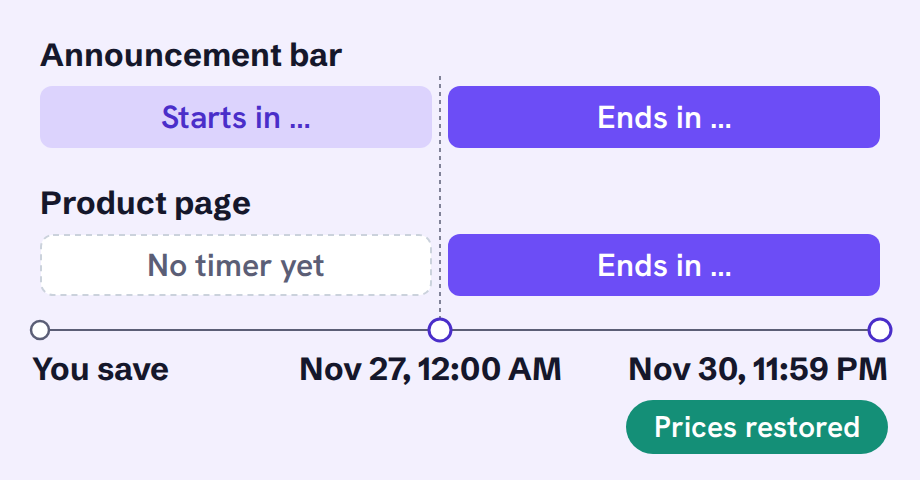 ### How to set up Black Friday countdown timers in Disco 1. **Schedule the weekend.** Set **Active dates** from Friday, November 27, 2026, 12:00 AM to Monday, November 30, 2026, 11:59 PM. 2. **Turn on the pre-launch bar.** Turn on **Show before the sale starts** with **Get notified!** and **Show countdown timer in announcement** (Lite plan and up). 3. **Turn on the sale-ending timers.** Turn on **Show countdown timer on product page** and, for the bar, **Show while the sale is active** (Lite plan and up). 4. **Save it on the day the teaser should start.** The pre-launch bar goes up as soon as you save, so save a week out for a one-week teaser. 5. **Change the last-hours line without stopping the sale.** Use **What do you need to edit?** → **Edit Promotional widgets or End date only**. Keep the deadline you show and don't extend it: [honest countdown timers](https://productessentials.app/blog/countdown-timers/) are the ones shoppers trust. Run a short [flash sale](https://productessentials.app/blog/how-to-run-a-flash-sale-on-shopify/) inside the weekend as a separate sale in Disco: its timer shows on its products, because the widgets of the sale that started last apply. ## Why is your Shopify countdown timer not showing? Your countdown timer is usually missing because the app embed is turned off, the sale has not started yet, or the product is excluded from the campaign. If all three look right, check for theme conflicts and a cached page next. 1. **Check the app embed.** App embeds are switched on per theme, so click **Install app embed** in Disco's Setup guide, or open **App embeds** in the live theme's editor and turn on the **Disco App Embed**, then click **Save** ([Shopify Help Center](https://help.shopify.com/en/manual/online-store/themes/theme-structure/extend/apps?ref=productessentials.app)). 2. **Check that the sale has started.** The product-page timer shows only while the sale is active, so before the start only the **Show before the sale starts** bar appears. 3. **Check that the product is in the campaign.** Look at the **Include products** and **Exclude products / collections** tabs; products added to a collection after the start aren't discounted until you press [**Synchronize**](https://help.productessentials.app/article/14-why-are-products-i-added-to-collection-not-discounted?ref=productessentials.app). 4. **Check that the timer is on.** Make sure **Show countdown timer on product page** is turned on. 5. **Look for theme conflicts.** On a legacy (non-Online Store 2.0) theme the timer is placed with a [snippet](https://help.productessentials.app/article/42-how-to-setup-custom-placement-for-countdown-timer-and-announcement-bar-in-non-online-store-2-0-compatible-shopify-themes?ref=productessentials.app); on a 2.0 theme you can [move it](https://help.productessentials.app/article/36-how-to-move-the-countdown-timer-placement-os-2-0?ref=productessentials.app). Remove any old timer app or snippet from the same page. 6. **Rule out caching.** Your browser can keep an old copy of the page, so open it in a private window after a change. 7. **Check recent product changes.** A CSV product import can remove the timer, so reactivate the sale ([FAQ](https://help.productessentials.app/article/46-faq?ref=productessentials.app)). For the Liquid snippet, the product needs a **Compare-at price** above its **Price**. ## FAQ How to add countdown timer to Shopify product page for free? Disco's free Starter plan includes **Show countdown timer on product page** for up to 30 discounted products and 2 campaigns. The Liquid snippet is free too but doesn't restore prices. Does a Shopify countdown timer without an app end the sale? No. At zero it disappears, but the sale prices stay until you change them back yourself. When should a Shopify Black Friday countdown timer start? Start the pre-launch bar (Lite plan and up) about a week before Black Friday by saving the sale that day. The product-page timer starts on its own at 12:00 AM on November 27, 2026. Why is my Shopify countdown timer not showing after I saved the sale? The product-page timer shows only once the sale starts. If it's live, check the app embed and that the product is in the campaign. Does a Shopify announcement bar with countdown timer show on every page? Disco's bar is a thin banner at the top of every page while the sale runs. You can hide it on some pages with this [help doc](https://help.productessentials.app/article/38-how-to-hide-the-announcement-bar-on-specific-pages?ref=productessentials.app). ## When should you set up your Black Friday countdown timers? Install Disco now, build your Black Friday sale and save it on the day you want the teaser to start, for example a week before November 27, 2026\. Then open a product page in a private window to check that the pre-launch bar (Lite plan and up) is up. [Install Disco from the Shopify App Store →](https://apps.shopify.com/discount-app?referrer=pe&utm%5Fsource=productessentials.app&utm%5Fmedium=blog&utm%5Fcampaign=how-to-add-countdown-timer-to-shopify) --- **Next:** [How to run a flash sale on Shopify](https://productessentials.app/blog/how-to-run-a-flash-sale-on-shopify/) adds a short flash sale to your weekend, and [Shopify Black Friday discount ideas](https://productessentials.app/blog/shopify-black-friday-discount-ideas/) has bar lines for every phase. ### Best Shopify Apps for Black Friday & Cyber Monday (2026) URL: https://productessentials.app/blog/best-shopify-apps-black-friday-cyber-monday-bfcm/ Last updated: 2026-10-18T08:41:26.000Z The best Shopify apps for Black Friday solve the problems most likely to hold your sale back. That could mean scheduling hundreds of price changes, helping visitors find deals, or keeping up with customer questions. This shortlist covers ten BFCM jobs, with one recommended app for each. Start with your existing tools and use it to identify the gaps worth filling. Our selections reflect documented capabilities and the merchant needs each app serves. The first app covers the sale campaign itself, the other nine cover messaging, conversion, and operations. ## The best Shopify BFCM apps at a glance | BFCM job | Recommended app | Most useful when… | | ---------------------------------------------------------------- | ----------------------------------------------------------------------------------------------------------------------------------------------------------------------------------------------------------------------------------------------------------------- | ------------------------------------------------------------------------- | | [Sale campaigns](#1-bfcm-sale-campaigns) | [Disco](https://apps.shopify.com/discount-app?referrer=pe&utm%5Fsource=productessentials.app&utm%5Fmedium=blog&utm%5Fcampaign=best-shopify-apps-black-friday-cyber-monday-bfcm) | You need to coordinate sale prices, timing, and storefront promotion | | [Email and SMS](#2-email-sms-marketing) | [Klaviyo](https://apps.shopify.com/klaviyo-email-marketing?ref=productessentials.app) | You need segmented launches, reminders, and recovery messages | | [Post-purchase upsells](#3-post-purchase-upsells) | [Aftersell](https://apps.shopify.com/aftersell?ref=productessentials.app) | You have useful complementary products to offer | | [Product reviews](#4-product-reviews-social-proof) | [Judge.me](https://apps.shopify.com/judgeme?ref=productessentials.app) | Shoppers need customer evidence to help them choose | | [Search and filters](#5-product-search-filters) | [Searchanise](https://apps.shopify.com/searchanise?ref=productessentials.app) | Your sale assortment is difficult to navigate | | [Back-in-stock alerts](#6-back-in-stock-alerts) | [Notify Me!](https://apps.shopify.com/preorder-back-in-stock?ref=productessentials.app) | Popular products sell out and will be replenished | | [Customer support](#7-customer-support) | [Commslayer](https://apps.shopify.com/commslayer?ref=productessentials.app) | You need a shared inbox and AI assistance with room to add support staff | | [Loyalty and repeat purchases](#8-loyalty-repeat-purchases) | [Smile](https://apps.shopify.com/smile-io?ref=productessentials.app) | Your customers have a reason to buy again | | [Mobile shopping apps](#9-mobile-shopping-apps) | [StoreLab](https://apps.shopify.com/storelab?search%5Fid=eaa9d080-6b95-436e-928a-c3838a33d9b6&surface%5Fdetail=storelab&surface%5Finter%5Fposition=1&surface%5Fintra%5Fposition=5&surface%5Ftype=search&utm%5Fsource=Disco&utm%5Fmedium=blog&utm%5Fcampaign=BFCM) | You want a branded app and push notifications for repeat customers | | [Analytics and attribution](#10-marketing-analytics-attribution) | [Lifetimely](https://apps.shopify.com/lifetimely-lifetime-value-and-profit-analytics?ref=productessentials.app) | You need campaign reporting, profit analysis, and customer lifetime value | ## 1\. BFCM Sale Campaigns Coordinate the sale prices, launch timing, shopping destination, and promotional widgets so shoppers see a consistent offer. ### Disco **Rating & Reviews:** 4.8 ★ ([100+ reviews](https://apps.shopify.com/discount-app/reviews?ref=productessentials.app))  Disco combines scheduled sale pricing with countdown timers, sale badges, and dedicated sale pages. [Disco](https://apps.shopify.com/discount-app?referrer=pe&utm%5Fsource=productessentials.app&utm%5Fmedium=blog&utm%5Fcampaign=best-shopify-apps-black-friday-cyber-monday-bfcm) brings bulk sale pricing and storefront promotion into one campaign workflow, with scheduled price changes and automatic restoration. **Key Features** - **Bulk discounts with filters and exclusions:** choose participating products by collection, tag, vendor, and other filters, while keeping selected items at full price. - **Scheduled campaigns and automatic price restoration:** set the start and end times, with prices restored when the promotion finishes. - **Countdown timers, announcement bars, and sale badges:** show shoppers which products are on sale and when the offer ends. - **Dedicated flash-sale pages and sale collections:** give shoppers a clear destination for browsing the promotion. - **Coming-soon pages and email capture:** build interest before launch and collect signups through the scheduled-sale announcement bar. [Sale pricing](https://help.shopify.com/en/manual/products/details/product-pricing/sale-pricing?ref=productessentials.app) also lets shoppers see the reduced price before checkout. Check your theme’s product and collection pages to confirm the price comparison appears as intended. [From teaser to flash sale: build a Shopify sale page with a waitlist, timer, and announcement bar](https://productessentials.app/blog/shopify-flash-sale-page-waitlist-timer/) walks through that setup. **Example: one BFCM campaign from signup to reset** Suppose you are offering 20% off a selected gift collection: 1. **Before Black Friday:** prepare the assortment, configure the coming-soon page, and enable email capture in the scheduled-sale announcement bar. 2. **At launch:** Disco applies the scheduled prices and displays the configured live sale page and promotional widgets. 3. **At the campaign’s end:** prices revert automatically. Check representative products and the storefront to confirm the sale has closed as planned. That workflow has a direct connection to merchants’ Black Friday experience: ★★★★★ Used this app during Black Friday sale. It was very easy to use and had great features! Support was also very helpful. Will definitely use again for bulk discounts on the site. — Gemma Azzurro, [Shopify App Store review](https://apps.shopify.com/discount-app/reviews?ratings%5B%5D=5&ref=productessentials.app), December 6, 2024 ★★★★★ Downloaded the Disco app to run a Black Friday sale. Blown away by the ease of setup, functionality, and customization options. Exactly what I was looking for. Highly recommend! — BlueRidge Co., [Shopify App Store review](https://apps.shopify.com/discount-app/reviews?ratings%5B%5D=5&ref=productessentials.app), November 28, 2023 **Pricing:** Starter is free for up to 30 discounted products. The flash-sale page is included in Professional, currently $17.99/month, and higher tiers. Choose the plan that covers your catalog and campaign features. [Plan and schedule your BFCM sale with Disco.](https://apps.shopify.com/discount-app?referrer=pe&utm%5Fsource=productessentials.app&utm%5Fmedium=blog&utm%5Fcampaign=best-shopify-apps-black-friday-cyber-monday-bfcm) ## 2\. Email & SMS Marketing Bring subscribers and previous customers back to the sale with relevant launch messages, reminders, and recovery emails. ### Klaviyo **Rating & Reviews:** 4.7 ★ ([3,200+ reviews](https://apps.shopify.com/klaviyo-email-marketing/reviews?ref=productessentials.app)) 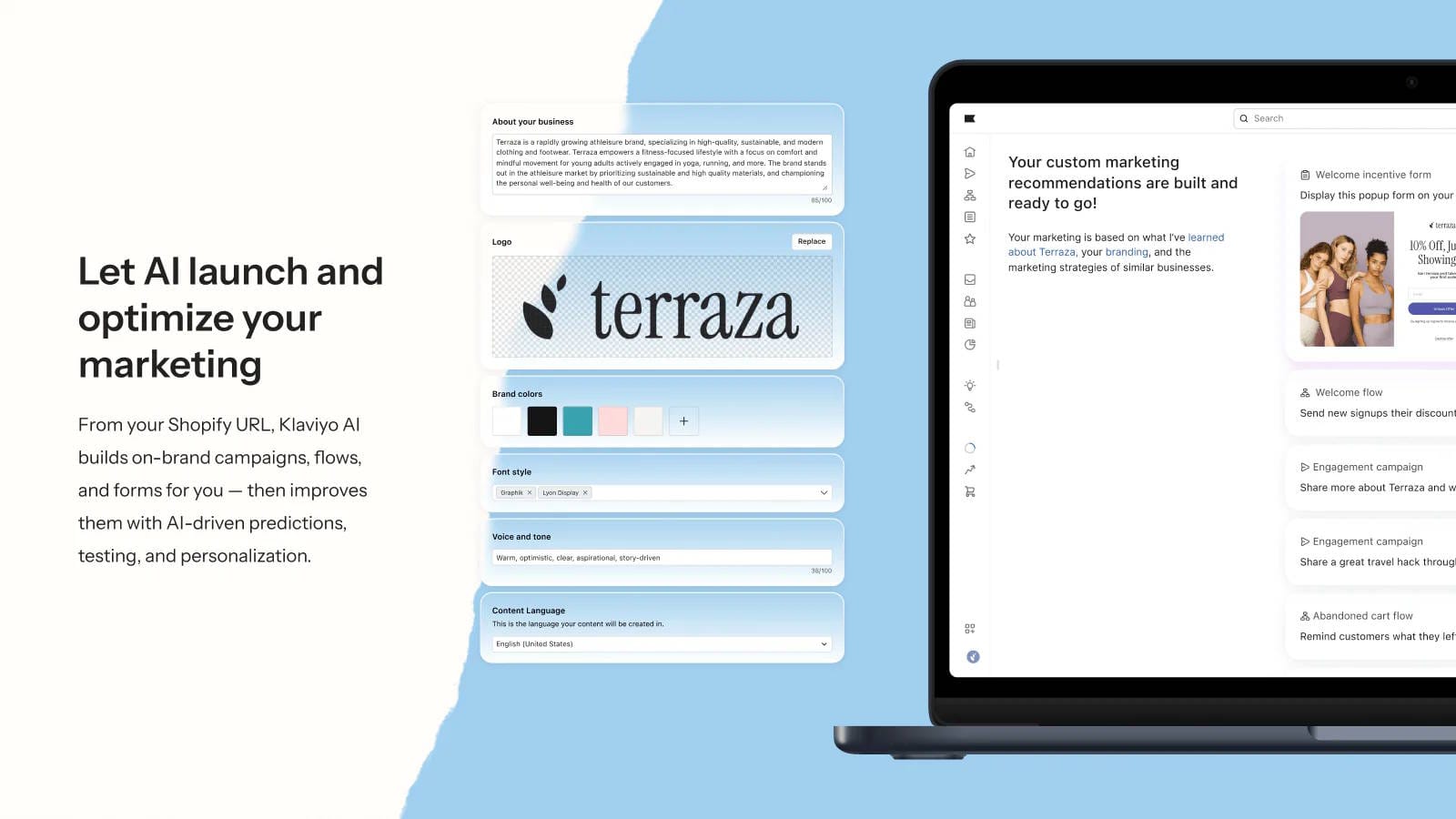 Using Shopify data, Klaviyo supports customer segmentation, campaign sends, and automated cart and browse recovery flows. For BFCM, build a simple sequence: announce the launch, remind engaged subscribers who have not purchased, and send a final message before the offer closes. Give each message a purpose and link to the relevant products or sale page. If you collect campaign interest through Disco, confirm those subscribers reach the intended audience in your email platform before sending. **When to add it:** you need more segmentation or automation than your current messaging setup provides. **Pricing:** email plans start at $20/month for 251–500 contacts. SMS is priced separately, and costs increase with usage. [See Klaviyo’s plans.](https://apps.shopify.com/klaviyo-email-marketing?ref=productessentials.app) ## 3\. Post-Purchase Upsells Increase order value with a useful complementary offer after the customer completes their initial purchase. ### Aftersell **Rating & Reviews:** 4.8 ★ ([1,000+ reviews](https://apps.shopify.com/aftersell/reviews?ref=productessentials.app)) 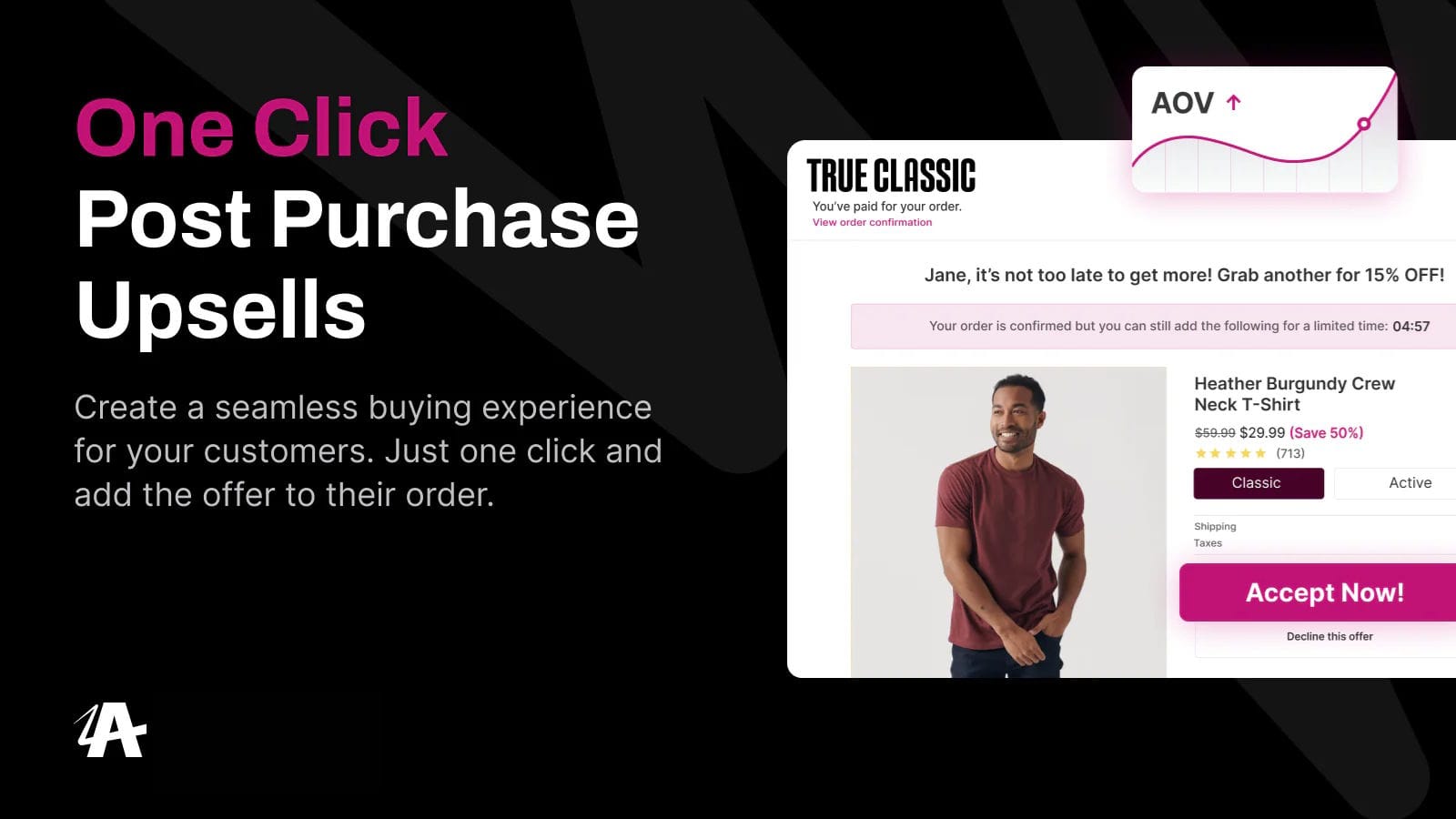 [Aftersell](https://www.aftersell.com/shopify-post-purchase-upsell?ref=productessentials.app) lets eligible customers accept a relevant offer in one click after their initial purchase. You can target offers using factors such as the products purchased and customer history. A BFCM example: someone buys a discounted coffee maker, then receives an offer for compatible filters. The second product should make the first purchase more useful and leave enough margin to justify the offer. **When to add it:** your catalog has natural add-ons and you can test whether shoppers want them. Track additional margin alongside average order value. Post-purchase offers are available beyond Shopify Plus; Aftersell’s checkout upsells require Plus. **Pricing:** post-purchase plans start at $34.99/month and scale with total store order volume. [See Aftersell’s pricing.](https://www.aftersell.com/pricing?ref=productessentials.app) ## 4\. Product Reviews & Social Proof Give shoppers customer evidence that helps them judge product quality, fit, and suitability before buying. ### Judge.me **Rating & Reviews:** 5.0 ★ ([46,600+ reviews](https://apps.shopify.com/judgeme/reviews?ref=productessentials.app)) 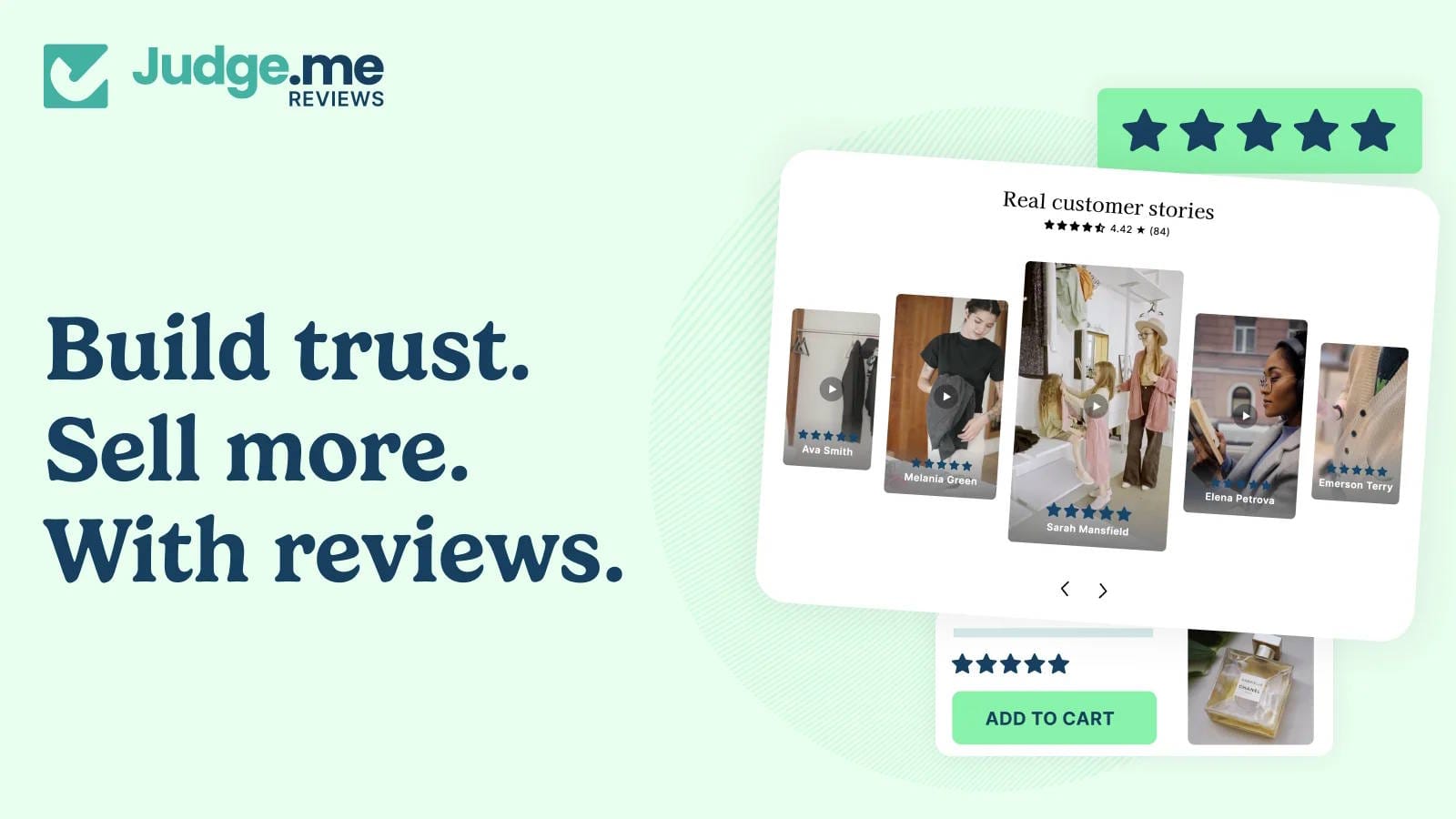 Judge.me collects written, photo, and video reviews and displays them through star ratings and storefront widgets. Before BFCM, check the products you plan to promote. Make their existing customer feedback easy to find, especially on mobile, and ensure review requests are running for fulfilled orders. **When to add it:** you lack an effective way to collect or display product feedback. Allow time to build that evidence before the sale; a new widget starts with the reviews you actually have. **Pricing:** a free plan includes unlimited reviews; Awesome is $15/month with additional features and integrations. [See Judge.me’s plans.](https://apps.shopify.com/judgeme?ref=productessentials.app) ## 5\. Product Search & Filters Help shoppers narrow a large sale assortment to the products, sizes, and prices that suit them. ### Searchanise **Rating & Reviews:** 4.7 ★ ([1,200+ reviews](https://apps.shopify.com/searchanise/reviews?ref=productessentials.app)) 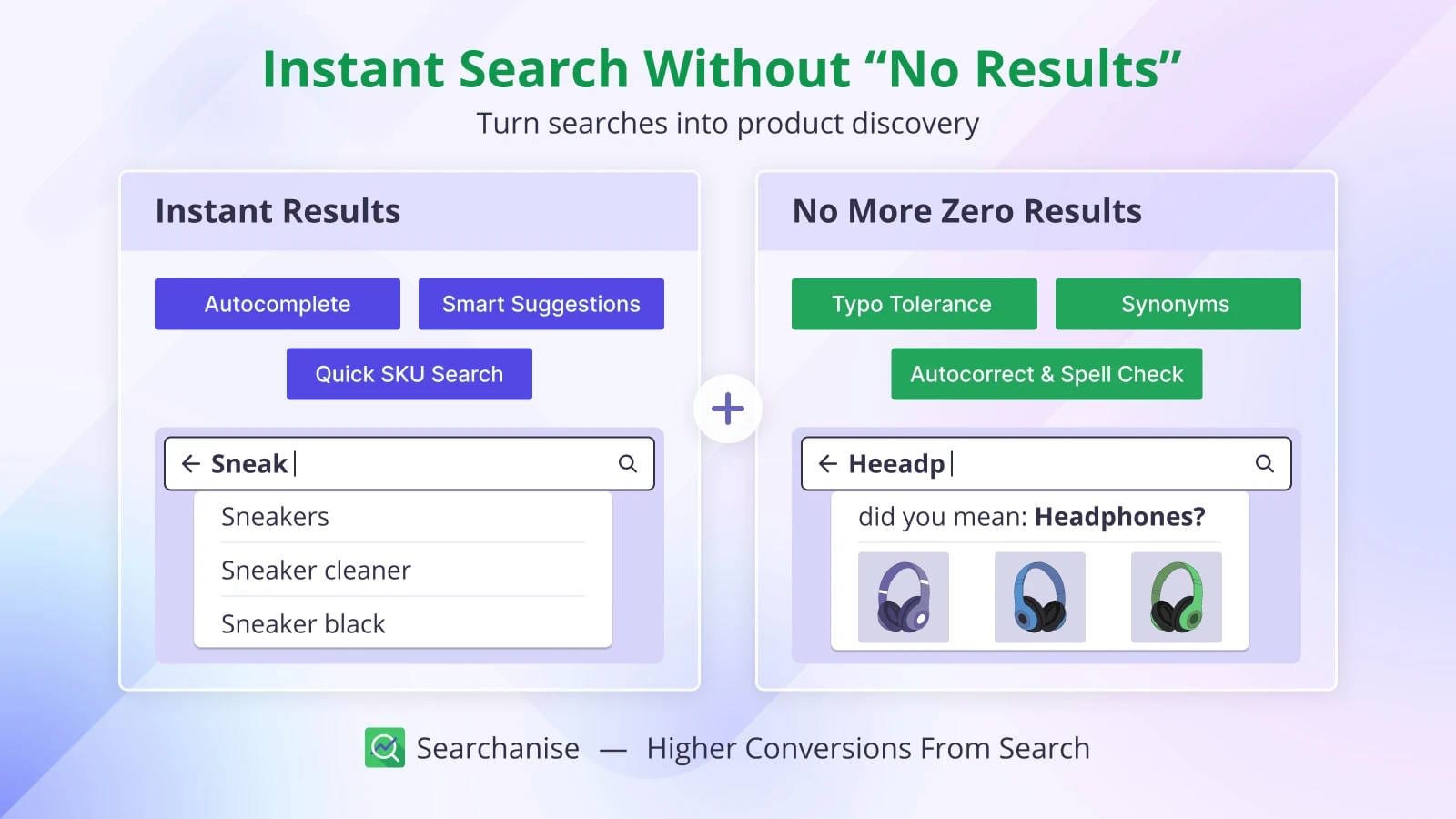 Searchanise combines instant search, collection filters, and merchandising tools to help customers explore your catalog. For a clothing store, useful filters might include size, product type, and price. For a homeware store, room or material could matter more. Choose the attributes customers use to narrow their options. If your promotion uses a sale collection, test its search and filter experience with the campaign active. Confirm that prices, variants, and availability display correctly. **When to add it:** your current navigation leaves shoppers struggling to find suitable products. **Pricing:** Basic is $19/month for up to 1,500 products on non-Plus stores; Shopify Plus pricing differs. [See Searchanise’s plans.](https://apps.shopify.com/searchanise?ref=productessentials.app) ## 6\. Back-in-Stock Alerts Capture demand for sold-out products and let interested shoppers know when they can buy again. ### Notify Me! **Rating & Reviews:** 4.9 ★ ([3,700+ reviews](https://apps.shopify.com/preorder-back-in-stock/reviews?ref=productessentials.app)) 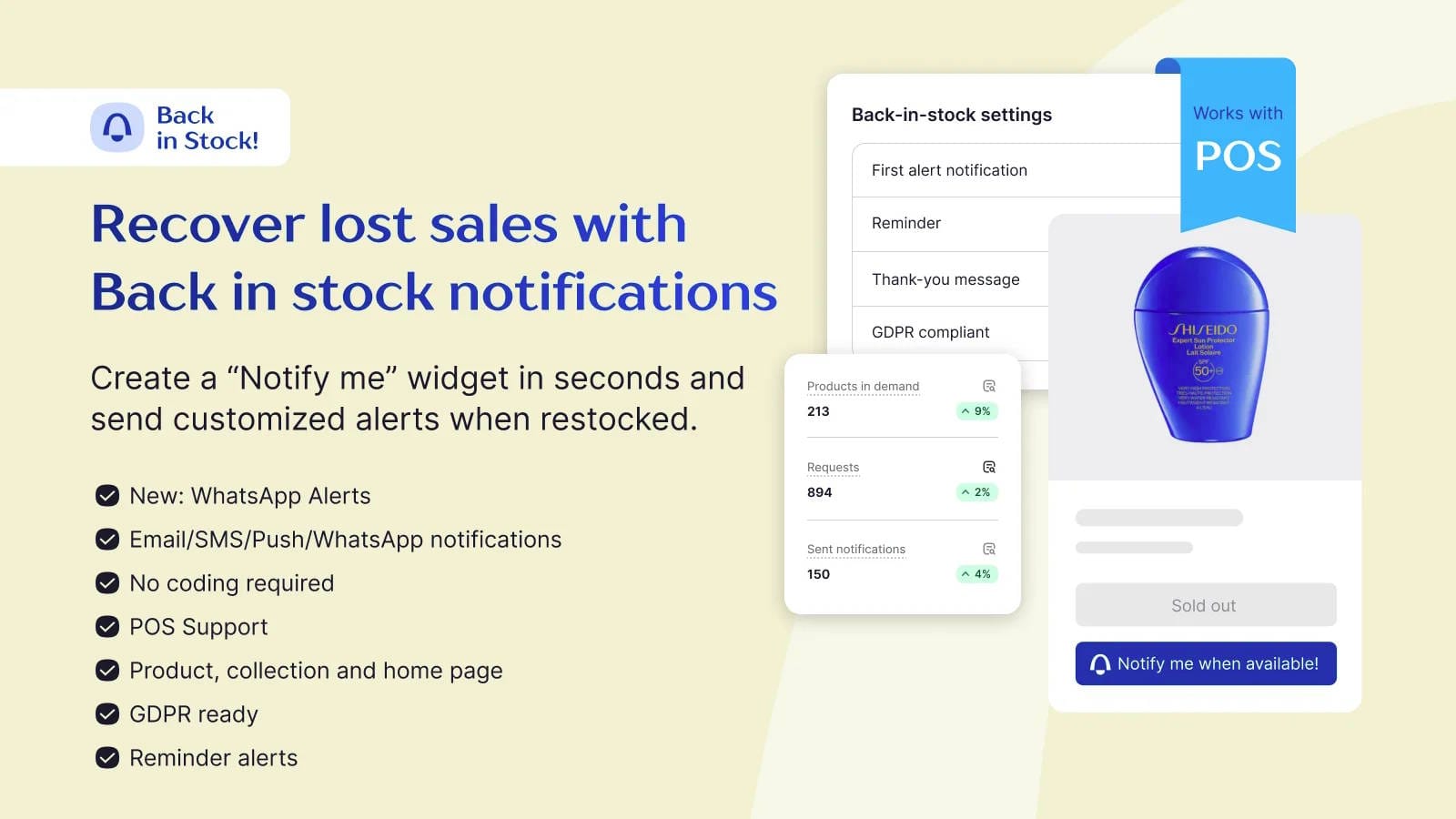 Notify Me! adds product signup options and sends restock notifications through email, SMS, or push. If a popular size sells out on Black Friday and returns during Cyber Week, you can contact the people who wanted it. This product-specific interest serves a different purpose from Disco’s pre-sale campaign waitlist. Make the notification clear about the current offer. A restocked product may have a different price if the original BFCM campaign has ended. **When to add it:** replenishment is expected and your existing tools do not cover the restock workflow you need. **Pricing:** the free plan includes 10 restock notifications. Paid plans offer larger allowances; check messaging charges. [See Notify Me!’s plans.](https://apps.shopify.com/preorder-back-in-stock?ref=productessentials.app) ## 7\. Customer Support Keep customer questions organized and give your team a consistent way to handle the extra BFCM enquiries. ### Commslayer **Rating & Reviews:** 4.9 ★ ([200+ reviews](https://apps.shopify.com/commslayer/reviews?ref=productessentials.app)) 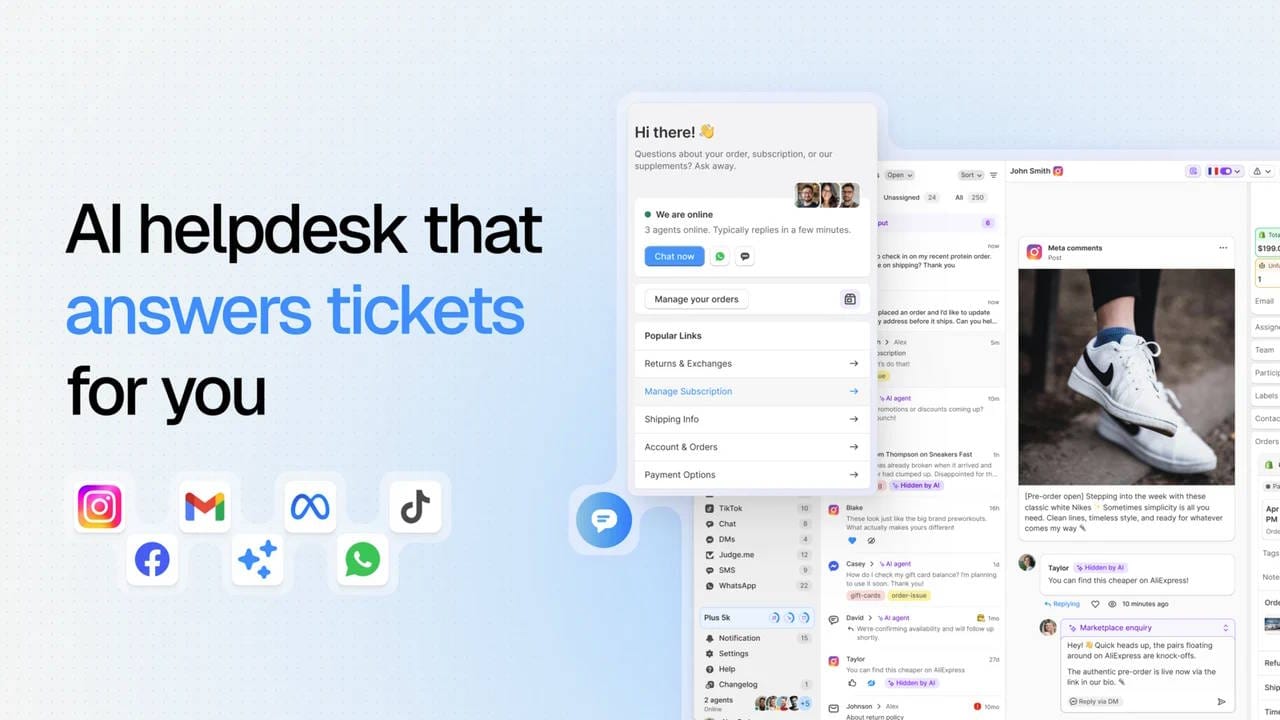 [Commslayer](https://www.commslayer.com/helpdesk-for-shopify?ref=productessentials.app) brings email, live chat, WhatsApp, and social conversations into a shared helpdesk. For BFCM, prepare reply templates covering offer exclusions, shipping expectations, and order status. Give your team and AI agent the same campaign details, including when discounts end and which products qualify. Test those answers before the sale begins. **When to add it:** customer questions are spread across channels and you need a shared inbox with AI assistance. **Pricing:** the free plan includes 300 conversations, 300 AI agent messages, and 300 AI drafts per month. $39/month for 800 conversations, 1,600 AI agent messages, and 1,600 AI drafts. [See Commslayer’s plans.](https://www.commslayer.com/pricing?ref=productessentials.app) ## 8\. Loyalty & Repeat Purchases Give Black Friday customers a clear reason to return for another purchase after the promotion ends. ### Smile **Rating & Reviews:** 4.9 ★ ([4,500+ reviews](https://apps.shopify.com/smile-io/reviews?ref=productessentials.app)) 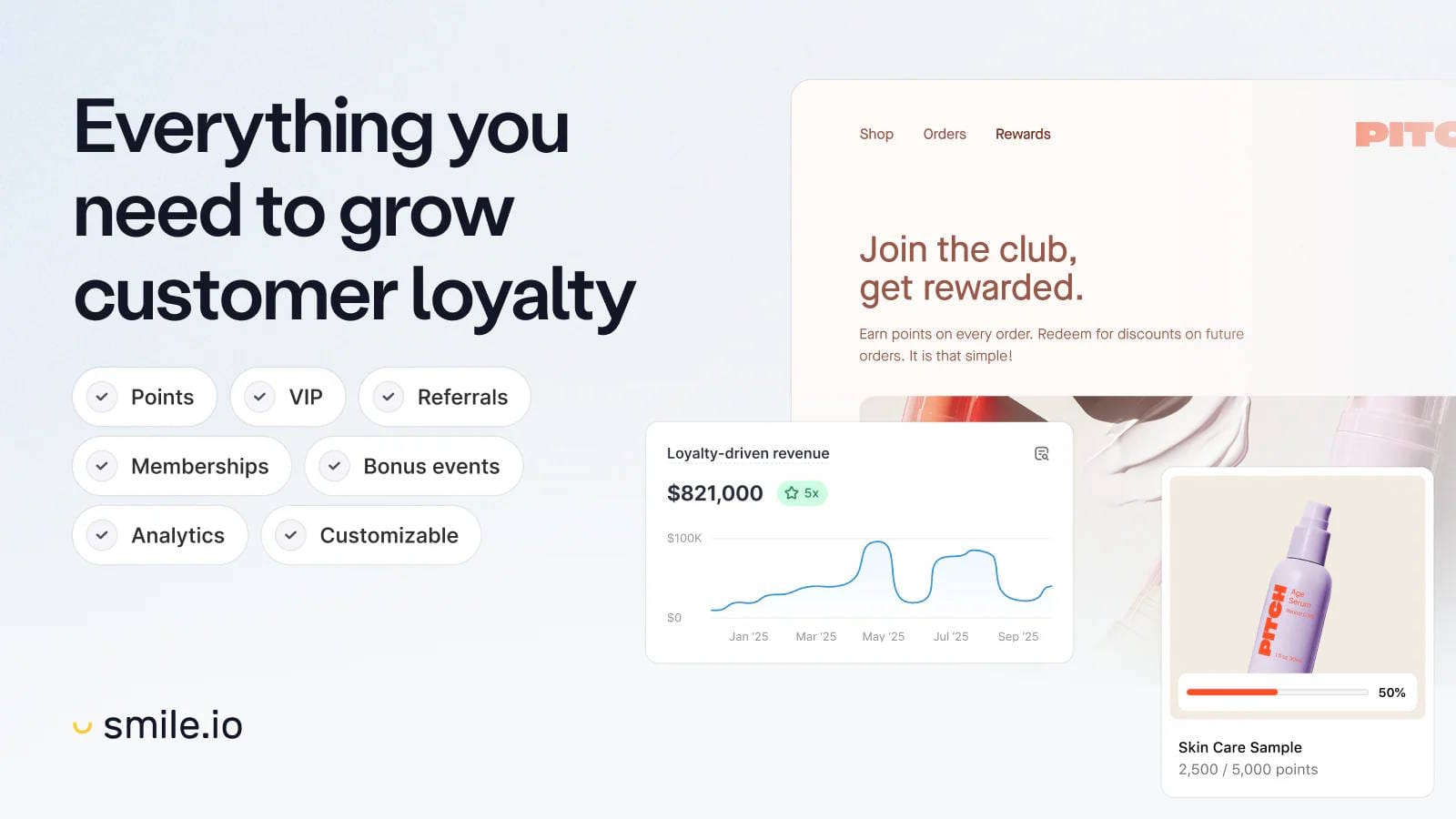 Smile supports points, rewards, referrals, and VIP tiers, with tools to create and manage a loyalty program. A skincare store, for example, could award points on a Black Friday order and explain how customers can redeem them when replenishing their products. Keep the reward easy to understand and make sure the economics work alongside your sale pricing. **When to add it:** customers have a plausible next purchase and your team will continue running the program after BFCM. Loyalty deserves less priority for products bought very infrequently. **Pricing:** the free plan covers up to 200 monthly orders. Paid plans start at $15/month; bonus events and VIP tiers require higher tiers. [See Smile’s plans.](https://apps.shopify.com/smile-io?ref=productessentials.app) ## 9\. Mobile Shopping Apps Give repeat customers a branded app to shop from, and reach them with push notifications when your offer goes live. ### StoreLab’s No-Code Shopify Mobile App Builder **Rating & Reviews:** 5.0 ★ ([38 reviews](https://apps.shopify.com/storelab/reviews?utm%5Fsource=Disco&utm%5Fmedium=blog&utm%5Fcampaign=BFCM))  [StoreLab's Shopify growth service](https://www.storelab-ai.com/?utm%5Fsource=Disco&utm%5Fmedium=blog&utm%5Fcampaign=BFCM) includes using their mobile app builder to grow sales and strengthen customer connections. With its drag-and-drop interface, you can create a branded iOS and Android app without any advanced technical skills. Beyond building your app, StoreLab provides ongoing support, including expert help with push notifications. During Black Friday, these notifications are especially powerful for promoting your deals, alerting shoppers to limited-time offers, abandoned carts, or special discounts to drive urgency and conversions. The app integrated seamlessly with your existing Shopify tools and, when combined with targeted Meta ads, creates a strong Black Friday marketing strategy. Ideal for brands that want to improve sales across the weekend but also retain customers long after the holiday rush. **When to add it:** you want to grow a direct channel to your customers that lasts beyond the holiday rush. Build the app well before BFCM to give customers time to get familiar with it - and make sure your push notification strategy is ready to go. **Pricing:** [Enquire about Shopify growth plans.](https://www.storelab-ai.com/?utm%5Fsource=Disco&utm%5Fmedium=blog&utm%5Fcampaign=BFCM) ## 10\. Marketing Analytics & Attribution Understand which BFCM campaigns bring in orders, what the sale earns after costs, and whether new customers buy again. ### Lifetimely **Rating & Reviews:** 4.9 ★ ([500+ reviews](https://apps.shopify.com/lifetimely-lifetime-value-and-profit-analytics/reviews?ref=productessentials.app)) 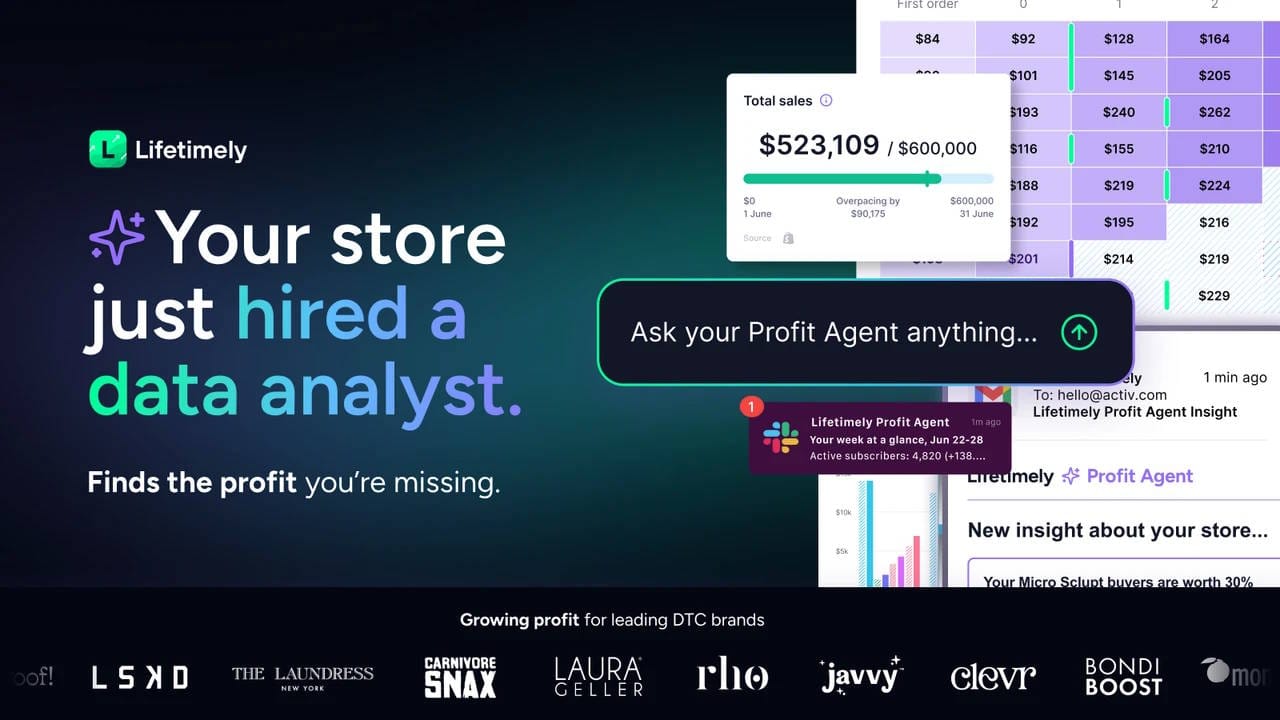 [Lifetimely](https://apps.shopify.com/lifetimely-lifetime-value-and-profit-analytics?ref=productessentials.app) combines profit and loss reporting, marketing analytics, and customer lifetime value. Its [Drill Down report](https://help.useamp.com/article/1089-drill-down-report?ref=productessentials.app) lets you compare ad spend, revenue, and return on ad spend at campaign, ad group, or ad level across Meta, Google, and TikTok. For BFCM, use consistent campaign names and UTM tags on your ads and emails, then filter your reports to the sale dates. Review campaign results alongside the store's profit report, with product, shipping, and advertising costs configured before launch. After the sale, use customer cohorts to follow whether buyers acquired during BFCM return. The Drill Down report uses figures supplied by the ad platforms, while [UTM Explorer](https://help.useamp.com/article/1050-utm-explorer?ref=productessentials.app) uses Shopify order data and campaign tags. Use the same report and attribution settings when comparing Black Friday with Cyber Monday. **When to add it:** you need to evaluate campaign performance, sale profitability, and repeat purchases together, and your existing reports leave those questions unanswered. **Pricing:** the free plan covers up to 50 monthly orders. Paid plans start at $49/month for up to 500 monthly orders, with higher tiers for larger stores. [See Lifetimely’s plans.](https://apps.shopify.com/lifetimely-lifetime-value-and-profit-analytics?ref=productessentials.app) ## Which BFCM Apps Does Your Store Actually Need? Start by writing down the problem you need to solve. “We spend hours changing prices” points toward campaign automation. “Customers cannot find their size in the sale” points toward navigation. “Nobody knows who is handling each enquiry” points toward support. Then check whether your existing tools already solve it. An effective email platform, review system, or helpdesk can stay in place while you improve another part of the campaign. For every addition, account for setup time and expected November usage. Assign someone to configure it, check the customer experience, and monitor it during the sale. Before launch, test the complete journey on mobile: open the campaign message, browse the sale, add a product, and check out. Test the campaign ending too. Include any additional discount codes in that check; [How to stop discount codes from stacking on items already on sale](https://productessentials.app/blog/shopify-stop-discounts-from-stacking/) explains the pricing issue. Use the [2026 BFCM playbook](https://productessentials.app/blog/bfcm-playbook/) for the broader preparation checklist. ## Shopify Black Friday apps FAQ Do I need an app to run a Black Friday sale on Shopify? No. Shopify supports [discount codes, automatic discounts, and product sale prices](https://help.shopify.com/en/manual/discounts?ref=productessentials.app). You can also [schedule start and end dates for amount-off discounts](https://help.shopify.com/en/manual/discounts/discount-types/percentage-fixed-amount?ref=productessentials.app). A campaign app becomes useful when you want to coordinate bulk product-price changes, restoration, and storefront promotion as part of the same workflow. Which app is best for scheduling a BFCM sale? Disco is our recommendation for merchants who want scheduled catalog sale prices, automatic price restoration, and promotional elements such as timers and sale pages. If you only need a straightforward checkout discount with a start and end date, Shopify’s native discount settings may cover the job. How early should I set up my BFCM apps? We recommend choosing your tools several weeks before your promotion and reserving time for a complete test. Start earlier if you need to collect reviews, configure messaging, or establish analytics. For the 2026 calendar, [Black Friday is November 27 and Cyber Monday is November 30](https://productessentials.app/blog/bfcm-playbook/); work backward from your actual launch date if you start sooner. Do I need all ten apps? No. Choose according to your catalog, order volume, budget, and existing setup. A small store may need help scheduling the sale while already having adequate messaging and support. Add specialist tools when you can name the problem they will solve and the result you will use to judge them. ## Start with the part that needs attention first Choose the part of your BFCM campaign that needs attention first, then give yourself time to prepare it. If that is the sale itself, Disco brings product selection, scheduled pricing, and storefront promotion into one workflow. [**Plan and schedule your BFCM campaign with Disco.**](https://apps.shopify.com/discount-app?referrer=pe&utm%5Fsource=productessentials.app&utm%5Fmedium=blog&utm%5Fcampaign=best-shopify-apps-black-friday-cyber-monday-bfcm) --- **Next:** [The 2026 BFCM playbook: plan your biggest sale months ahead](https://productessentials.app/blog/bfcm-playbook/) is the preparation checklist these apps plug into, and [How to schedule a Shopify sale that starts and ends automatically](https://productessentials.app/blog/schedule-shopify-sale-starts-ends-automatically/) shows the campaign setup that Disco handles in this list. ### How to stop discount codes from stacking on items already on sale URL: https://productessentials.app/blog/shopify-stop-discounts-from-stacking/ Last updated: 2026-10-18T08:42:01.000Z You put a product on sale at 20% off. A customer adds it to the cart, types in the 10% welcome code from your popup, and pays 28% less than the regular price. Nothing is broken. That is simply what Shopify does when a code meets a sale price, and during a sale weekend it happens on a large share of orders. ## Why codes stack on sale prices A sale price is not a discount. When you lower `Price` and put the original in `Compare-at price`, whether by hand or with an app, Shopify sees a product that costs $800\. It has no record that it used to cost $1,000. Shopify's discount *combination* settings only govern how discounts combine with each other: product, order, and shipping discounts, codes and automatic ones. A sale price sits outside that system, so those settings can't stop a code from applying to it. Any code the customer is eligible for, welcome, abandoned-cart, loyalty, influencer, affiliate, takes its percentage off the already-reduced price. 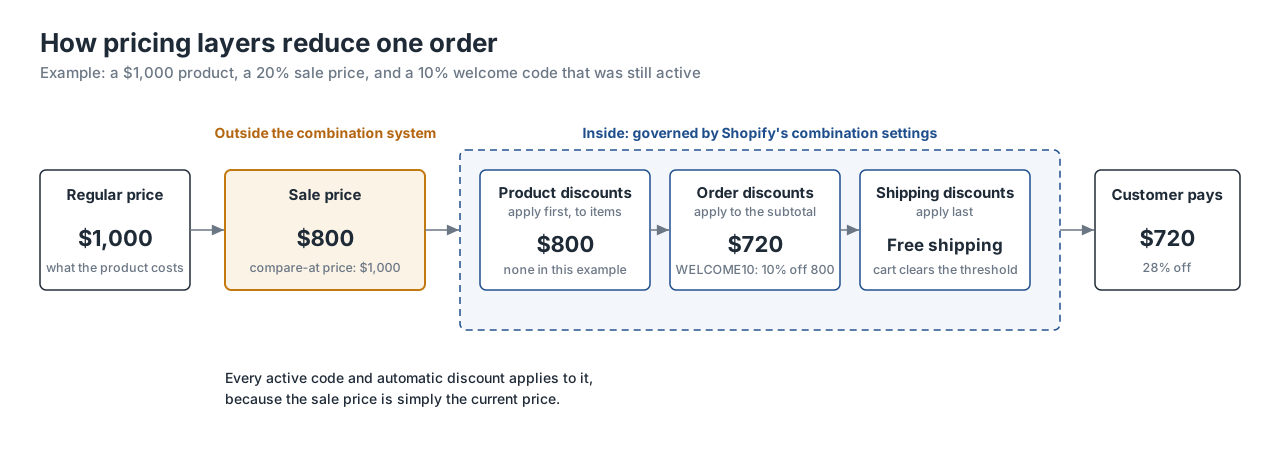 The sale price is a catalog price, not a discount. Shopify's combination rules apply to the layers inside the box, not to the sale price underneath them. ## Block discount codes on sale items with Disco If the sale price should be the floor, turn on one setting in the Disco campaign: **Block discount codes on sale products**, on the Business plan. 1. Open the campaign in Disco (or create one: pick the products by collection, tag, type, or vendor, set the discount and the start and end times). 2. Under **Discount code blocking**, tick **Block discount codes on sale products**. 3. Save. The block is active for as long as the campaign is live, and switches off when the campaign ends and prices are restored. 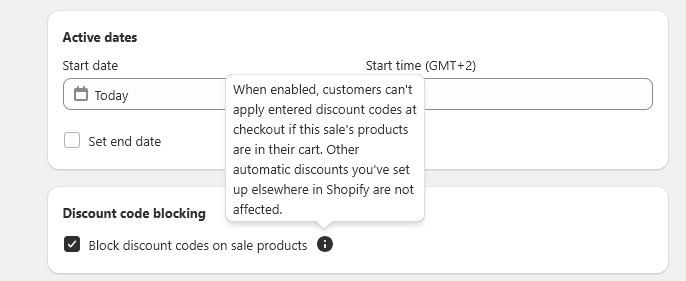 The setting lives in the campaign, next to the active dates. What happens at checkout: 1. The campaign puts the products on sale. 2. A customer adds a sale product to the cart. 3. The customer enters a discount code at checkout. 4. Shopify rejects it. The customer sees: **"Discount codes can't be used with sale items in your cart."** 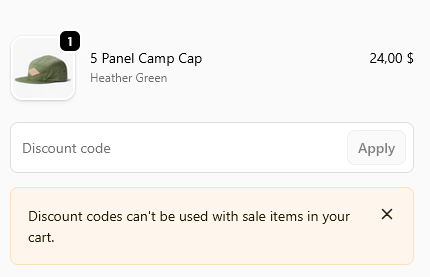 What the customer sees when they try a code with a sale product in the cart. ### The block applies to the whole cart One sale item in the cart blocks discount codes for the entire order, including full-price items sitting next to it. That is usually what you want during a sale: the code was meant for full-price shopping, and the customer already has the sale. If you'd rather full-price items stay code-eligible, the alternative is to keep those products out of the campaign. ### Test it before the sale Some third-party discount apps create codes Shopify can't reject, and those may still go through. Before launch, place test orders on the live store with: - a Shopify-native discount code, - a code created by any other discount app you use, - a cart with only sale items, - a cart mixing sale and regular-price items. Record the expected and actual totals. If an app-created code slips through, pause that code for the sale window in the app that created it. ### Turning the block off Either untick **Block discount codes on sale products** in the campaign, or end the campaign. Codes work again immediately. ## When you'd rather let a code through Blocking isn't always the answer. One situations where you could leave the toggle off: - **A planned extra for loyalty members.** If members are promised 5% on top of everything, price it into the sale depth (a 25% sale plus 5% is what a 30% sale costs you) and let the code apply. ## FAQ Does Shopify stop discount codes from applying to sale items on its own? No. Discount combination settings control how discounts combine with each other. A sale price is a product price, not a discount, so any eligible code applies on top of it unless something blocks the code. Does the block also stop automatic discounts? No. It blocks codes the customer enters at checkout. Automatic discounts you've set up elsewhere in Shopify are not affected, so pause those for the sale window if they shouldn't apply. Codes created by apps that make them non-rejectable may also get through; test them. Can I block codes on some sale products but not others? The block is set per campaign and applies to the whole cart as soon as one blocked-campaign product is in it. To leave some products code-eligible, run them in a separate campaign without the block, or leave them out of the sale. ## Stop Shopify from stacking discount codes on top of your sale prices Decide before the sale whether codes may stack, run the numbers on your headline products, and if the sale price is the floor, enable the block in the campaign and test it with a real code. **Turn on "Block discount codes on sale products" in your next Disco campaign and place one test order with your welcome code.** Discount code blocking is on the Business plan ([compare plans](https://productessentials.app/#pricing)). [Install Disco from the Shopify App Store →](https://apps.shopify.com/discount-app?referrer=pe&utm%5Fsource=productessentials.app&utm%5Fmedium=blog&utm%5Fcampaign=shopify-stop-discounts-from-stacking) --- **Next:** [How to show sale prices on Shopify product pages before checkout](https://productessentials.app/blog/shopify-sales-vs-discount-codes-show-discount-before-checkout/) explains the two mechanisms a code can stack on, and [The 2026 BFCM playbook: plan your biggest sale months ahead](https://productessentials.app/blog/bfcm-playbook/) puts the codes policy from this guide into a full season plan. ### The 2026 BFCM playbook: plan your biggest sale months ahead URL: https://productessentials.app/blog/bfcm-playbook/ Last updated: 2026-10-18T08:41:31.000Z Black Friday 2026 is **Friday 27 November**; Cyber Monday is **Monday 30 November**. The end of the sale is the same for almost everyone. When it *starts* is your choice: Friday itself, a Black Week from Monday 23 November, or early access for your waitlist from mid-November. This playbook counts back from **T-0, the day your prices go public**, using a 27 November launch as the example. Running Black Week? Shift every window a week earlier. Early access? Two weeks. By launch you'll have: - one goal with a number attached, and three product groups tagged - one headline offer, a codes policy, and every phase dated in one timezone - one sale URL, scheduled campaigns, and emails timed after go-live - a rehearsed reset, so the morning after takes care of itself None of it needs code. The campaign brief and weekly checklist at the end turn the plan into assigned tasks. 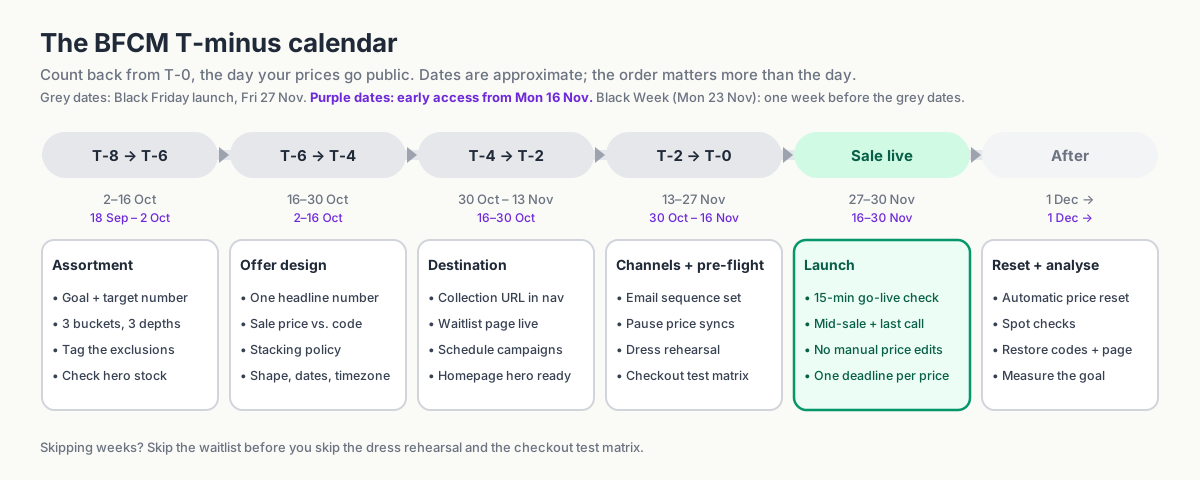 The preparation timeline for a Friday 27 November launch. For a Black Week or an early-access start, shift every window earlier by the same amount. Finish selection, margin checks, setup, and testing before launch week; the launch-and-reset timeline appears later. In this guide 1. [Define the BFCM goal first](#define-the-bfcm-goal-first) 2. [8–6 weeks out: choose the products](#8%E2%80%936-weeks-out-choose-the-products) 3. [6–4 weeks out: design the offer](#6%E2%80%934-weeks-out-design-the-offer) 4. [4–2 weeks out: build the sale destination](#4%E2%80%932-weeks-out-build-the-sale-destination) 5. [The final two weeks: pre-flight](#the-final-two-weeks-pre-flight) 6. [Launch day: one clear deadline](#launch-day-one-clear-deadline) 7. [When BFCM ends](#when-bfcm-ends) 8. [BFCM planning template and weekly checklist](#bfcm-planning-template-and-weekly-checklist) 9. [FAQ](#faq) 10. [Build the campaign before the traffic arrives](#build-the-campaign-before-the-traffic-arrives) ## Define the BFCM goal first Choose one primary goal before picking products or discount levels. It should guide both the offer and how you judge the results. | Primary goal | What goes on sale | Typical depth | The one metric that matters | | ----------------------- | ------------------------------------------- | --------------------------------------- | --------------------------------------- | | **Revenue** | Broad range, bestsellers included | Moderate, one memorable headline | Gross sales vs. target | | **Margin** | Selective, high-margin lines and exclusions | Shallow, or bundled value rather than % | Contribution margin, not revenue | | **Inventory clearance** | Aged stock, discontinued ranges, overstock | Deep, tiered by age | Units cleared and cash recovered | | **Acquisition** | Entry products and gift-able items | Strong on a few hero products | New customers and their share of orders | You can have a secondary goal, but decide which takes priority. A deep sitewide discount might increase revenue while leaving less margin and selling stock you didn't need to clear. Write the goal and the target number at the top of your campaign brief. Everything below refers back to it. ## 8–6 weeks out: choose the products For a 27 November launch: roughly 2–16 October. A week earlier for Black Week; two weeks earlier for early access. Checkpoint One goal with a number, three product groups tagged, exclusions listed, hero stock checked. ### Bestsellers vs. overstock Bestsellers can attract shoppers, but some would sell at full price anyway. Older stock may need a deeper offer to move. Split the sale into three groups: - **Headline products.** A small group of hero items with a strong, visible offer. Their job is to earn the click from the email or the ad. - **Volume products.** The broad middle of the catalog at your standard BFCM depth. Their job is to turn the visit into a bigger basket. - **Clearance products.** Aged or discontinued stock at a deeper discount. Their job is to leave the warehouse. Give each group a discount level that matches its role and margin. For each headline product, compare stock on hand with expected demand and decide what happens if it sells out: feature a replacement, offer a waitlist, or direct shoppers to the rest of the collection. ### Decide the exclusions now The products you *don't* discount matter as much as the ones you do. Typical exclusions: - new arrivals and current-season launches, - low-margin lines where 20% off means selling at a loss, - products with a minimum advertised price from the brand, - gift cards, pre-orders, and services, - items that are already reduced (so you don't discount them twice), - hero SKUs you'd rather protect than devalue. Record the exclusions now so they are part of the setup from the start. ### Organize the products with tags or collections Tag the groups (`bfcm26-headline`, `bfcm26-volume`, `bfcm26-clearance`, `bfcm-exclude`) or organize them into collections. Product type and vendor can also work as filters. These groups make the selection easier to review and reuse, whether you apply prices with the bulk editor, a CSV, or an app. Disco selects campaign products by collection, tag, type, or vendor and lets you add exclusions on top, so a tag-based assortment maps directly onto three campaigns with three discount levels. But the tagging discipline is worth doing whichever tool applies the prices. ## 6–4 weeks out: design the offer For a 27 November launch: roughly 16–30 October. Checkpoint Sale shape chosen, one headline number, a mechanism for each offer, every phase dated in one timezone, codes policy written. ### Choose the shape of your sale Cyber Monday is the deadline whichever shape you choose. What changes is when the price drops, and for whom. | Shape | Prices go public | Trade-off | | ----------------------------- | ------------------------------------------------------------------ | -------------------------------------------------------------------------------------------------------------- | | **Weekend only** | Fri 27 → Mon 30 Nov | Maximum urgency, but four days to make the number and everything happens at once on launch night | | **Black Week** | Mon 23 → Mon 30 Nov | Matches markets where competitors run all week; urgency fades mid-week and margin is exposed for eight days | | **Early access, then deeper** | Waitlist from \~16 Nov at a lighter discount; everyone from 27 Nov | Grows the list and keeps Friday an event; two prices to communicate, and the early one must be visibly lighter | | **Black November** | From 11 Nov (Singles' Day), with BFCM as the finale | Suits large catalogs; a month-long sale is a price, not an event, and reference-price rules bite hardest | The first two shapes are the campaigns you build anyway, one per product group, sharing a start and an end. The last two add a second, lighter layer on the same products. In Disco a product can sit in several campaigns at once and the highest discount wins, calculated from the *original* price: a 20% campaign from 16 November plus a 30% campaign from 27 November gives a $1,000 product an $800 price for the waitlist and $700 from Friday, with nothing to switch over on the night. The timer always counts down to the end of the campaign currently setting the price. The same mechanism gives you a Cyber Week tail without moving a deadline: let the lighter campaign run to 4 December while the headline campaign ends on Monday night, and prices step from 30% to 20% to regular. ### Pick the headline and how each offer applies Choose a headline that matches what shoppers will find. "30% off selected styles, 50% off last season" sets a clearer expectation than "up to 50% off" above mostly 10% reductions. Make the exclusions easy to find. Then decide the mechanism. A **sale price** (`Price` lowered, `Compare-at price` set to the original) is visible on every product page and collection card from the first click. A **discount** (a code or an automatic discount) leaves the product price alone and shows up at checkout. Use the sale price for the headline and for each product group's depth, one campaign per group; use discounts for the extras. [How to show sale prices on Shopify product pages before checkout](https://productessentials.app/blog/shopify-sales-vs-discount-codes-show-discount-before-checkout/) has the detail. Disco handles the catalog-price layer: bulk sale pricing with compare-at display, scheduled start and end, and the storefront elements around it. Build a Buy X Get Y, gift-with-purchase, or free-shipping offer natively in Shopify's Discounts section and run it *alongside* the campaign; those are cart rules, not price changes. Bundles and upsells are a different tool for a different job. 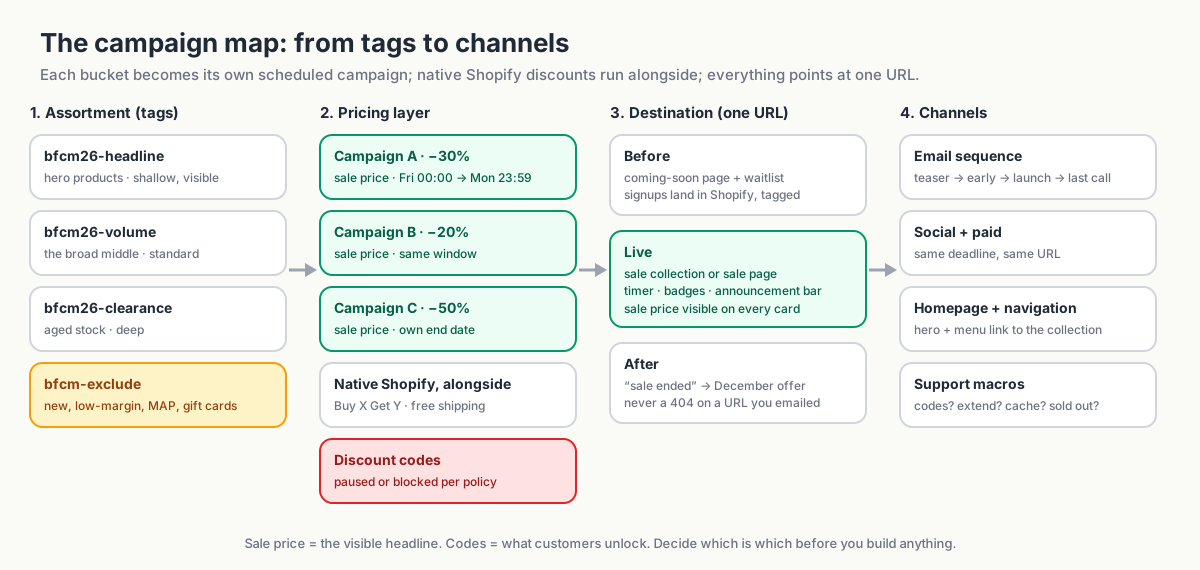 Separate product groups can have different campaign rules, while one sale destination keeps the customer journey consistent. Point email, social, and homepage links to that destination. ### Fix the dates and phases Give each phase a date, time, and timezone. Confirm which timezone the scheduler uses. Here's an example for 2026 using the early-access shape; for a weekend-only sale, drop the early-access row and move the teaser to 13 November: | Phase | When | What's live | | ----------------- | ----------------- | --------------------------------------------------------------------------------------------- | | Teaser | Mon 2 Nov | Coming-soon page, waitlist, announcement bar | | Early access | Mon 16 Nov, 08:00 | Lighter sale price live (or early-access code); waitlist email; timer counting to 27 Nov | | Public launch | Fri 27 Nov, 00:00 | Headline sale price takes over, sale page, badges, launch email; timer now counting to 30 Nov | | Cyber Monday push | Mon 30 Nov, 08:00 | Last-call messaging | | End | Mon 30 Nov, 23:59 | Prices reset (or step down to the Cyber Week campaign), sale page down, timers off | Decide now whether you'll run a Cyber Week tail. Schedule it from the start as its own, lighter campaign with its own end, so the BFCM deadline you've advertised stays true. 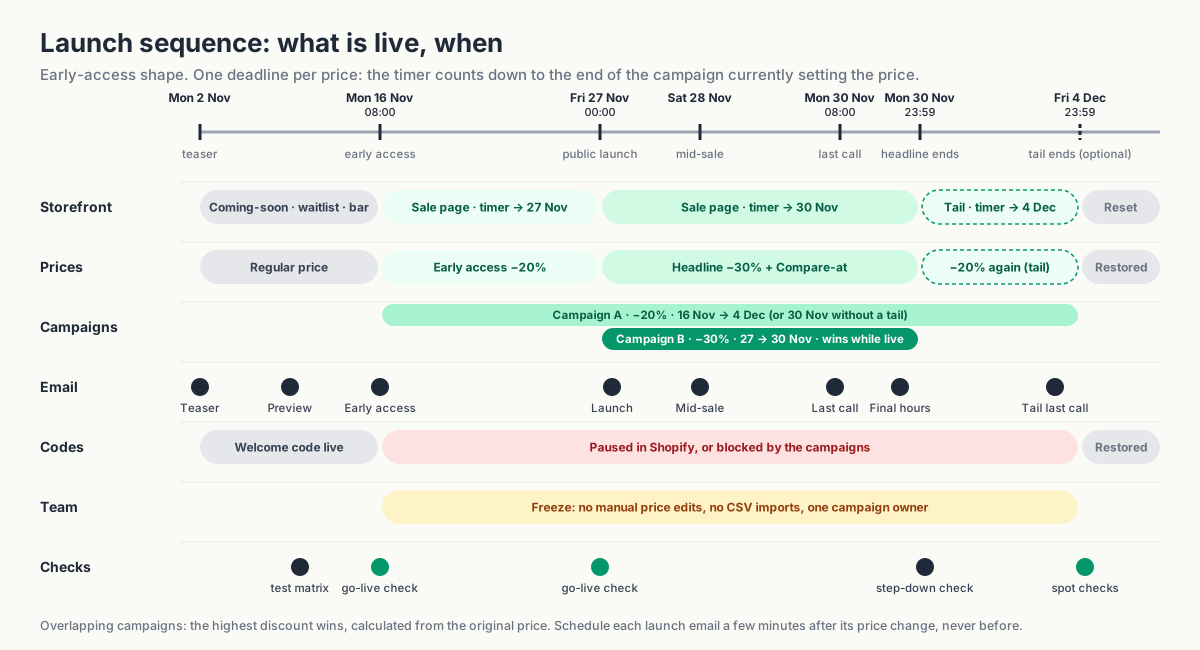 Example launch-and-reset sequence for the early-access shape, with an optional Cyber Week tail. Two campaigns overlap on the same products; the deeper one sets the price and the timer while it is live. For a weekend-only sale, drop the early-access step and the tail. Use one timezone across prices, timers, messages, and emails; send each launch email after checking the live prices. **Reference prices.** In the EU and several other markets, the "before" price you show must reflect the lowest price you charged in a recent window (commonly 30 days). Two consequences: keep the weeks before your first campaign free of *separate* sales on the same products, and make sure your `Compare-at price` is a price you can evidence. A Black Week or early-access phase that runs into Black Friday as one continuous, progressively deeper sale generally keeps the pre-campaign price as the reference, which is also how Disco calculates overlapping campaigns. Check the rules for the markets you sell in; this is not legal advice. ### Decide which codes can stay active Welcome, abandoned-cart, loyalty, influencer, and affiliate codes all apply to the *reduced* price unless you stop them. A 20% sale plus a 10% code is a 28% discount, and during BFCM every one of those codes finds its way to checkout. Run the numbers before you decide. These examples exclude tax and other costs such as payment fees: | Scenario | Selling price | Cost | Contribution | Contribution % | Units needed to match regular contribution | | ---------------------------- | ------------- | ---- | ------------ | -------------- | ------------------------------------------ | | Regular price | $1,000 | $500 | $500 | 50% | 1.0× | | 20% sale price | $800 | $500 | $300 | 37.5% | 1.7× | | 20% sale + 10% welcome code | $720 | $500 | $220 | 30.6% | 2.3× | | … + free shipping ($40 cost) | $720 | $540 | $180 | 25% | 2.8× | The extra code cuts what's left per unit from $300 to $220, so you need about 2.3 times the volume to earn what one unit earned at regular price. Repeat the calculation for your headline products. 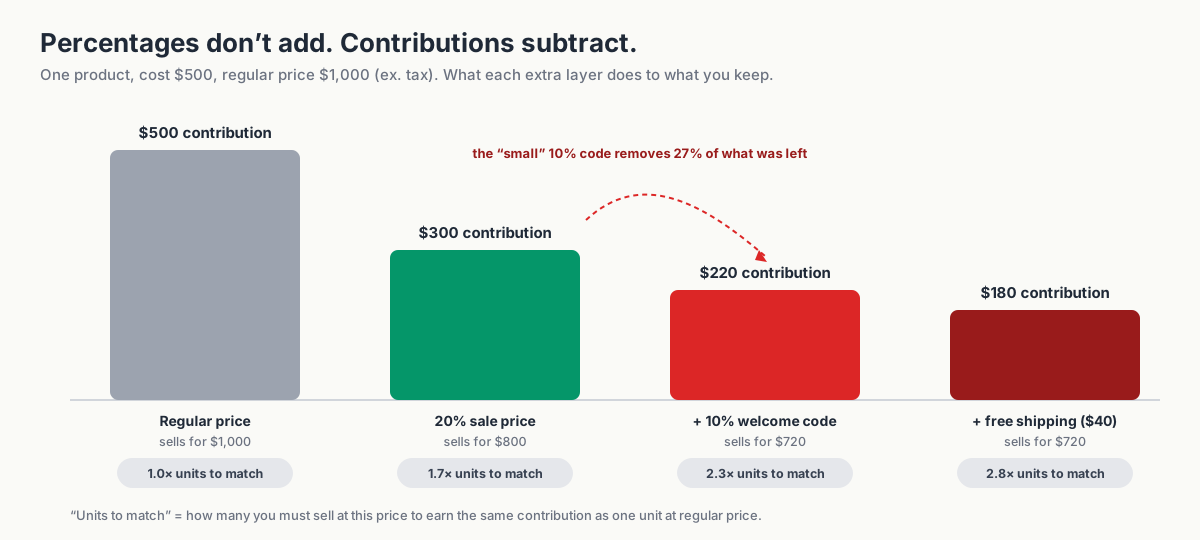 Illustrative contribution after the costs in the worksheet: $500 → 300 → 220 → 180\. Tax, payment fees, and other costs are excluded. At $180 per unit, matching $500 takes about 2.8 times the sales volume. Then pick a policy; most campaigns use more than one: 1. **Pause codes that shouldn't apply.** End the welcome code the day before your first campaign and restart it afterwards; change the popup copy so you aren't promising 10% you won't honour. 2. **Use Shopify's combination settings** for how discounts combine with each other. They don't cover a sale price, which isn't a discount object, so on their own they won't stop a code applying to a reduced price. 3. **Block codes during the campaign.** On the Business plan, Disco can block additional discount codes while a campaign is active; test any automatic discounts separately. 4. **Allow a planned extra discount**, say 5% for loyalty members, and put that reduction in the worksheet and the brief. Write the decision in the brief so marketing, support, and the campaign owner give customers the same answer. [How to stop discount codes from stacking on items already on sale](https://productessentials.app/blog/shopify-stop-discounts-from-stacking/) covers the combination rules and the audit in detail. ## 4–2 weeks out: build the sale destination For a 27 November launch: roughly 30 October – 13 November. Checkpoint The sale URL exists and sits in the menu, the waitlist is live, every campaign is scheduled with a start and an end. ### Give the sale one destination URL Point your emails, ads, social posts, and homepage banner to one sale URL. A collection can work well because you can keep it available after the campaign and reuse it next year. You can build the collection manually or as an automated collection driven by a tag. Disco can generate the sale collection from a campaign's products, and on higher plans auto-tag them so an automated "On sale" collection fills when the campaign starts and empties when it ends. Either way, the collection should exist and be linked in navigation *before* launch, even if it shows "coming soon" until the prices change. ### A coming-soon page and a waitlist A coming-soon page gives interested shoppers somewhere to sign up before launch. Keep the teaser short and explain what joining the waitlist gets them. Disco supports this lifecycle directly: a coming-soon page before the campaign, a scheduled announcement bar that collects email addresses, and a flash-sale page that publishes when the campaign starts and comes down when it ends. Addresses land in your Shopify customer list with tags, so the early-access segment is ready without exporting anything. You can also use a Shopify page, your existing newsletter form, and a customer tag or segment. Have the signup flow ready before you start promoting the waitlist. 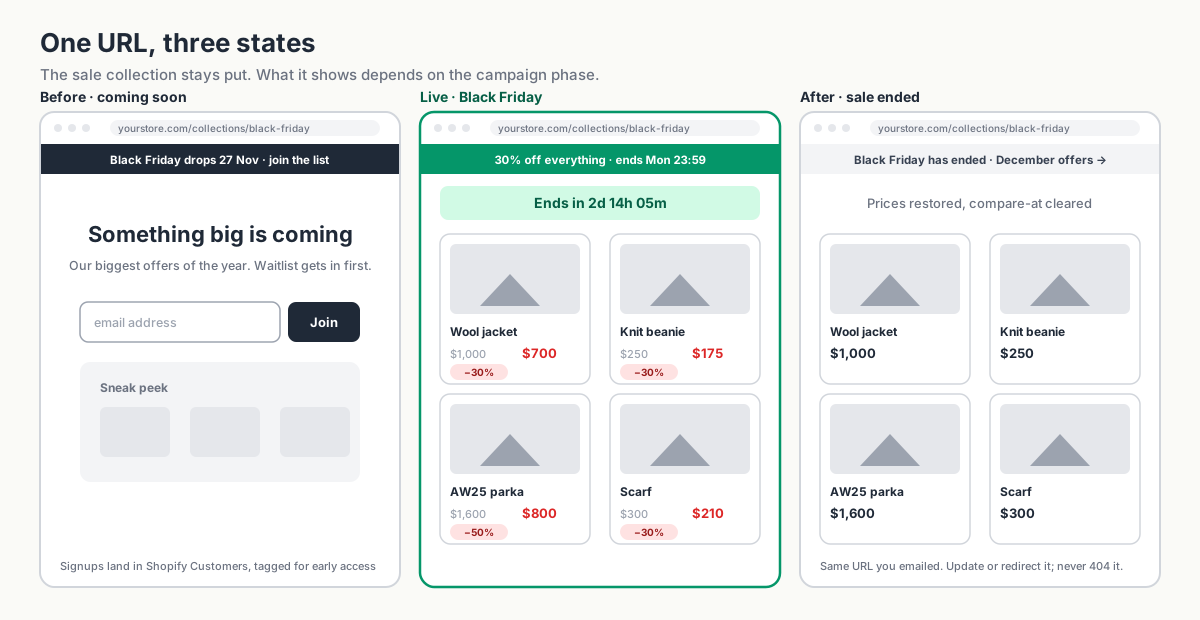 Plan the destination before, during, and after the sale. Use one stable URL or deliberate redirects; verify how your chosen collection or sale page behaves when the campaign ends. ### Homepage and navigation - Add a "Black Friday" link to the main menu pointing at the collection or coming-soon page. - Prepare the homepage hero, but don't rely on publishing theme changes by hand at midnight. Point the hero at the sale collection URL; let the announcement bar and sale page carry the "it's live" state, since those can be scheduled. - Check that your search results and any "recommended products" blocks won't surface excluded products with sale styling by accident. ## The final two weeks: pre-flight For a 27 November launch: roughly 13–27 November. Checkpoint Emails scheduled after go-live, price syncs paused, dress rehearsal and checkout matrix passed, freeze rules communicated. ### Schedule the emails and social Plan messages for each phase. Adapt this sequence to your audience and usual sending frequency; you don't need every send. | Send | Timing | Purpose | | ------------ | --------------------------------------------------------------------------------------------------------- | ----------------------------------------------------------------- | | Teaser | T-14 days | "Something's coming." Drive waitlist signups. | | Preview | T-7 days | Show 3–5 hero products; restate the waitlist benefit. | | Early access | When the early price goes live (T-1 evening for a weekend sale; around T-11 for early access from 16 Nov) | Waitlist only. First look, early-access code if you're using one. | | Launch | T-0, shortly after go-live | Everyone. Headline offer, deadline, link to the collection. | | Mid-sale | T+1 or T+2; one mid-week send for a Black Week | Bestsellers from the first 24 hours, restocks, social proof. | | Cyber Monday | Monday morning | Last call, with the real end time. | | Final hours | Monday, \~6 hours before end | Short. Deadline only. | A longer sale doesn't earn more emails. For a Black Week, add one mid-week send and keep the rest of the sequence; for early access, the price change on Friday is a second launch and deserves its own send. The last-call emails do more work than the launch email. Three things to settle before you schedule: - **One deadline, everywhere.** Timer, announcement bar, email footer, and Instagram story must show the same end time, or you've created a support ticket. - **When email prices update.** Some tools pull prices at send time, others cache them. Schedule the launch email after the price change and check a test send once the sale is live. - **Support replies.** Do codes work, when does it end, what if a price looks wrong, what if it sells out. Share them with whoever handles social comments. ### Find every system that writes prices Other integrations write to the same price fields as your campaign: ERP or inventory systems, supplier apps, marketplace connectors, pricing tools, scheduled imports. If one syncs the regular price after the sale starts, it overwrites the offer, and reapplying the discount won't fix a conflict that repeats on every sync. Fill this table in for your store: | System | Writes prices? | How often | Owner | Action for BFCM | Tested? | | -------------------------- | -------------- | --------- | --------- | ----------------------------------------------------------------- | ------- | | e.g. ERP price sync | Yes | Hourly | Ops | Pause price sync from T-1 to the day after the last campaign ends | ☐ | | e.g. Google Shopping feed | Reads only | Daily | Marketing | Confirm refresh timing after go-live | ☐ | | e.g. Marketplace connector | Yes | On change | Ops | Exclude BFCM products from sync | ☐ | Three fixes, in order of preference: pause the other system's price sync for the sale window; exclude the campaign products from it; or run its sync *before* the campaign starts so the sale price is the last write. Our help article on [why Disco discounts appear, then disappear later](https://help.productessentials.app/article/54-why-disco-discounts-appear-then-disappear-later?ref=productessentials.app) covers the fix, and [Your Shopify sale price keeps reverting? If you use compare-at prices, this is probably why](https://productessentials.app/blog/shopify-sale-price-keeps-reverting/) walks through finding the culprit. 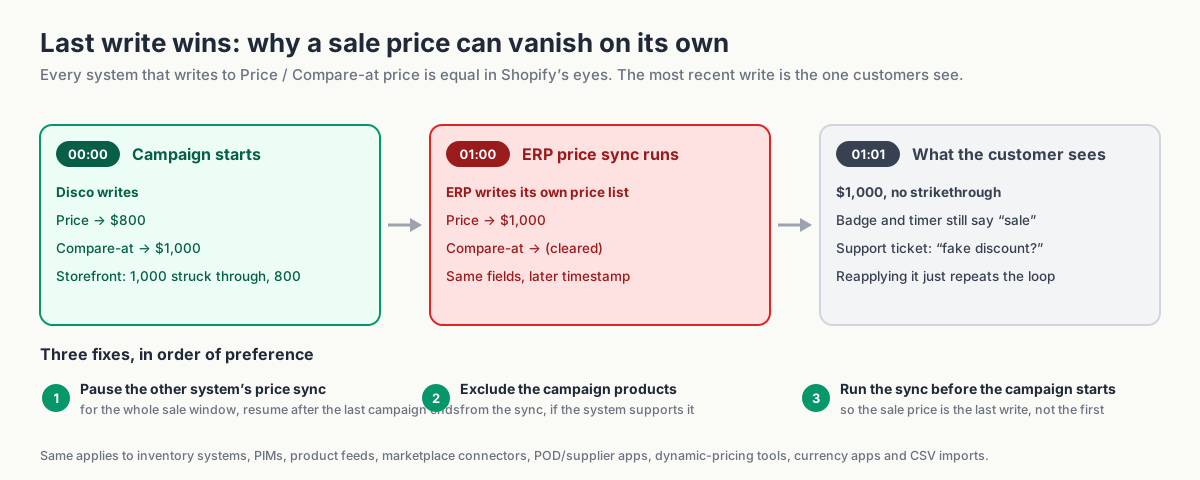 Example of a price-sync conflict. Coordinate every system that writes prices: pause the relevant sync, exclude the sale products, or schedule the sync before launch. Three smaller checks while you're at it: - **Shopify Markets.** Market-specific pricing may not follow a base-price change identically; check one product per market in the rehearsal and at go-live. - **Product feeds and ads.** A feed that refreshed at 22:00 on Thursday advertises full price until it runs again, and ad/landing-page mismatches get products disapproved. Trigger a refresh after go-live. - **Theme and cache.** Confirm compare-at prices and badges show on collection cards and product pages; after launch, check in a private window before blaming the cache. ### Rehearse the launch and the reset A week before, run a real campaign on three to five test products for thirty minutes. Watch the start (prices, badges, timer, bar, sale page), then watch the end (prices restored to the exact original values, compare-at cleared, page unpublished). This is when you discover a missed variant, a wrong timezone, or a plan product limit lower than your assortment. If you use overlapping campaigns, rehearse the overlap too: start the lighter campaign, let the deeper one take over, and watch the price step back down when the deeper one ends. Then run the checkout matrix on the live store with real cart values, and record expected and actual totals: | # | Scenario | Expected result | | - | --------------------------------------- | -------------------------------------------------------- | | 1 | Headline product, no code | Sale price only | | 2 | Headline product + welcome code | Per policy: blocked, or stacked at known cost | | 3 | Excluded product + welcome code | Full price, code applies (or not) per policy | | 4 | Clearance product + abandoned-cart code | Per policy | | 5 | Cart over free-shipping threshold | Shipping discount applies; check it combines as intended | | 6 | Buy X Get Y offer + sale product | Native discount behaves as configured | | 7 | Product in a second market/currency | Sale price and strikethrough render correctly | | 8 | Mobile checkout, any of the above | Same totals as desktop | ### Freeze rules for the sale window - No manual price edits on campaign products while a campaign is scheduled or live. If a price must change, change it through the campaign or after the reset. - No CSV imports touching price columns during the sale window. - Don't uninstall or reinstall pricing apps mid-campaign. - One person owns the campaign; everyone else asks before touching prices. ## Launch day: one clear deadline Checkpoint One deadline everywhere, and a 15-minute check before the launch email goes out. A useful countdown answers a practical question: how long do I have to buy? Set it to the campaign's real end time, and use stock messages only when they reflect actual inventory. What real urgency looks like in a Shopify storefront: - **Countdown timer** on the product page (and the sale collection, if your theme supports it), counting to the *actual* campaign end. Disco's timer is tied to the campaign schedule, so it can't disagree with the end time; with overlapping campaigns it counts to the end of the one currently setting the price. - **Sale badges** on product cards showing the real saving ("Save 30%" or "Save $200"), driven by the compare-at price rather than typed by hand. - **Announcement bar** with the headline and the deadline, linking to the collection. - **Inventory-driven scarcity only when it's true.** If a hero product is down to its last units, say so; if it isn't, don't. Keep the deadline prominent and easy to read. One well-placed timer is enough. ### Go-live check (the first 15 minutes) 1. Open a headline product in an incognito window: sale price, strikethrough, badge. 2. Open the sale collection: every card shows sale styling; excluded products are absent. 3. Timer shows the correct remaining time; announcement bar links to the right URL. 4. Coming-soon page has been replaced by the sale page (or redirects). 5. Place a test order with no code, then one with your welcome code, and confirm the totals match your codes policy. 6. Send the launch email to yourself and check that prices render as sale prices. 7. Check one product in each market you sell to, if you use Shopify Markets. ## When BFCM ends Checkpoint Reset verified, codes restored, sale URL still alive, results measured against the goal. ### How to restore regular prices after your Black Friday sale At the end time, the campaign restores prices and removes the sale elements you enabled. Check the price display, page, timer, badges, announcement bar, and any collection using campaign tags during your rehearsal so you know what to expect after Cyber Monday. If a lighter campaign is still running when the headline campaign ends (the Cyber Week tail), the price steps down to that campaign's sale price, not to the regular price. That is the design, not a failed reset; the original price returns when the last campaign ends. Tell whoever runs the spot checks which state to expect on which morning. ### Spot checks (the morning after a campaign ends) - Ten products across the three groups: price restored, or stepped down to the tail campaign's price if you scheduled one; headline sale styling removed. - Every variant on two multi-variant products. - One product per market. - Search results and recommended-product blocks show no stale sale styling. - Product feed has picked up the restored prices. - Welcome code is active again and the popup copy is back to normal. - The BFCM URL still resolves. It's in every email you sent, so don't let it 404: keep the collection live with a "sale ended, here's what's next" message, or redirect it to your December offer, and update the navigation link. ### Measure the result against your goal Start with the one metric you chose at the top: revenue against target, contribution after product and shipping costs, units cleared, or new customers and their share of orders. Then the diagnostics: units sold per product group, average order value, discount-code usage during the sale (your stacking leak, in $), support tickets by type, stockouts and when they happened, and anything that went wrong with prices, timers, or syncs. Then write down three things to change. Keep the tags, the brief, and the test matrix. Next year starts from here, not from a blank page. ## BFCM planning template and weekly checklist Copy both of these into your planning doc. The brief is one row per decision made above; the checklist is the same plan as dated tasks. Campaign brief | Field | Your answer | | ---------------------------------------------------------------------------------------- | ----------- | | Primary goal and target number | | | Secondary goal | | | Sale shape (weekend / Black Week / early access + deeper / Cyber Week tail) and T-0 date | | | Phases, dates, times, timezone | | | Headline offer (the one number) | | | Group 1: tag / collection → discount | | | Group 2: tag / collection → discount | | | Group 3: tag / collection → discount | | | Exclusions (tag or list) | | | Native Shopify discounts running alongside (BXGY, shipping) | | | Codes policy (which codes apply, which are blocked/paused) | | | Destination URL | | | Email schedule and owner | | | Social and paid schedule and owner | | | Systems that write prices, and the action for each | | | Rollback plan and who verifies it | | | Test campaign date | | | Campaign owner (single name) | | ### Your weekly checklist **T-8 to T-6 weeks** - ☐ Primary goal and target number agreed and written down - ☐ Products sorted into headline / volume / clearance groups - ☐ Exclusions decided and tagged - ☐ Groups organized with tags or collections in Shopify - ☐ Inventory depth checked for headline products; sell-out plan agreed **T-6 to T-4 weeks** - ☐ Sale shape chosen and T-0 date set; planning calendar shifted to match - ☐ Headline number chosen - ☐ Mechanism decided for each offer element (sale price vs. native discount) - ☐ Dates, times, timezone fixed; Cyber Week tail scheduled or ruled out - ☐ Reference-price rules checked for your markets - ☐ Codes policy written **T-4 to T-2 weeks** - ☐ Sale collection created and linked in navigation - ☐ Coming-soon page and waitlist live - ☐ Announcement bar scheduled - ☐ Homepage hero prepared - ☐ Campaigns built and scheduled (one per group, plus the overlapping early-access or tail campaign if you use one) with start and end times **T-2 weeks to launch** - ☐ Email sequence written and scheduled (launch email timed *after* go-live) - ☐ Social and paid assets ready, all pointing to one URL - ☐ Support macros written - ☐ Price-writing systems table completed; syncs paused, excluded, or re-timed - ☐ Feed refresh timing confirmed - ☐ Dress-rehearsal campaign run and reset verified (including the overlap, if you use one) - ☐ Checkout test matrix completed on the live store - ☐ Freeze rules communicated to the team **Launch and during** - ☐ 15-minute go-live check completed - ☐ Mid-sale email sent; restocks and sell-outs handled - ☐ Last-call sends timed to the real end **After** - ☐ Reset verified with spot checks - ☐ Codes and popup restored - ☐ Landing-page state updated - ☐ Analysis completed against the primary goal - ☐ Three changes for next year written down ## FAQ When should I start planning Black Friday on Shopify? Eight weeks out is comfortable; six is workable; four means skipping the waitlist phase and accepting some risk on the technical side. Whatever you skip, don't skip the dress rehearsal and the checkout test matrix. Should I use a sale price or a discount code for the headline offer? Sale price. The headline has to be visible on product and collection pages, and only a change to `Price` and `Compare-at price` does that. Use codes for what codes are good at: early access, loyalty, influencers, and anything you want the customer to unlock rather than see. Can I run different discounts on different products at the same time? Yes. Give each product group its own campaign, selection, discount, and schedule. Disco supports campaigns running at the same time, and the same product can sit in more than one; the highest discount applies. With the bulk editor or CSV, you'd apply and restore each group's prices separately. What if I want to extend the sale? Decide before launch. If you want a Cyber Week tail, schedule it as a separate, lighter campaign from the start; in Disco it can overlap the headline campaign and simply outlast it, so prices step down rather than snapping back. Moving a deadline you've already counted down damages the credibility of every future timer. Do I need an app for Black Friday? If you have a small catalog, one discount level, and someone happy to change prices at midnight and again on Tuesday, Shopify's bulk editor and a CSV backup will do. An app earns its place when there are more products than you want to edit and reverse by hand, more than one discount level, a hard start and end time, storefront elements like timers and badges, or a codes policy you need enforced rather than hoped for. ## Build the campaign before the traffic arrives Give yourself a launch day spent checking a finished campaign. Tag the products, agree the offer and the shape of the sale, schedule the start and end, and test the reset while there's still time to change things. Start with the brief above and assign an owner to each task. **Install Disco, create the sale collection, and schedule the start and end well in advance.** The free plan is enough to build and test a small campaign today; for larger plans, see our current plans page. [Install Disco from the Shopify App Store →](https://apps.shopify.com/discount-app?referrer=pe&utm%5Fsource=productessentials.app&utm%5Fmedium=blog&utm%5Fcampaign=bfcm-playbook) --- **Next:** [How to schedule a Shopify sale that starts and ends automatically](https://productessentials.app/blog/schedule-shopify-sale-starts-ends-automatically/) walks through the scheduling and reset this playbook relies on, and [Bulk discounts in Shopify: put hundreds of products on sale without CSV](https://productessentials.app/blog/shopify-bulk-discounts/) covers applying the three discount levels to a large catalog. ### From teaser to flash sale: build a Shopify sale page with a waitlist, timer, and announcement bar URL: https://productessentials.app/blog/shopify-flash-sale-page-waitlist-timer/ Last updated: 2026-10-18T08:41:43.000Z Most flash sales on Shopify are launched the same way. Someone lowers a few hundred prices, sends an email, and hopes. Two days later, someone raises the prices again. Ideally the right ones, ideally at the right time. That treats a flash sale as a price change. The sales that move the needle treat it as a launch: a run-up where customers learn it's coming, a live window where every touchpoint points at the same offer, and a clean ending where the deadline is honored and the store returns to normal without anyone staying up until midnight. This guide walks through that sequence and ends with a day-by-day timeline you can copy. Each step notes what Shopify can do on its own and where automation pays off. We built [Disco](https://productessentials.app/#features) for exactly this sequence, so it's the app in the examples. ## A flash sale has three phases Before touching a single price, name the three states your store will be in. | Phase | What the customer sees | What has to happen in the store | | -------------- | --------------------------------------------------------------------------------------------- | ---------------------------------------------------------------------------------------------------------------------- | | **Pre-launch** | "Something is coming Thursday. Want early access?" | Coming-soon page live, announcement bar teasing the date, waitlist capturing emails, prices still normal | | **Live** | Sale prices with the original struck through, a timer, a badge, and one obvious place to shop | Prices switched, sale page published, sale collection populated, announcement bar updated, discount-code rules decided | | **Expired** | Normal prices, no timer, no stale "SALE" badges | Prices reset, sale page removed, widgets off, waitlist segment ready for next time | The price change is one item in that table. The rest is timing, and the two transitions (normal → live, live → normal) are where flash sales go wrong: a timer still counting after prices reset, a "SALE" badge on a product back at full price, a coming-soon page still in the menu on launch day. Those aren't pricing mistakes. They're sequencing mistakes. 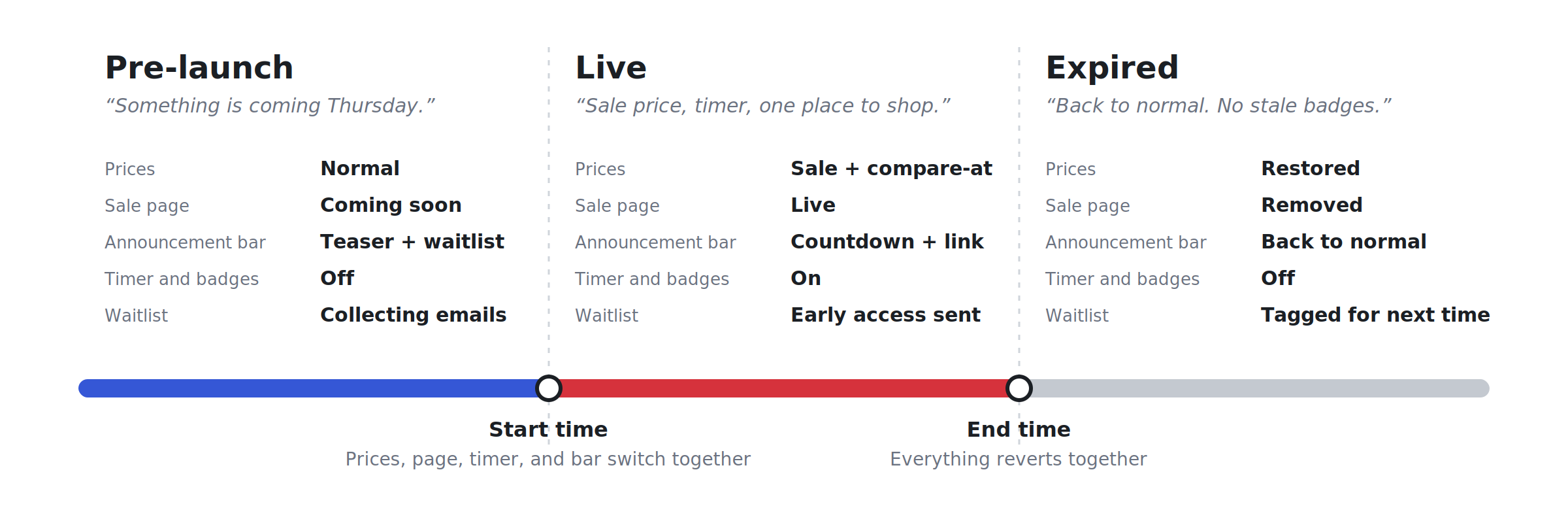 ## Pre-launch: build a coming-soon destination A teaser only works if it has somewhere to send people: a single page that says what's coming, when, and why someone should hand over their email. **Say three things.** The *when* (date and start time, in your customers' time zone), the *what* (which collection, roughly how deep the discount goes), and the *why join* (early access, first pick before popular sizes sell out). You don't have to reveal exact prices. "Up to 40% off the autumn collection, Thursday at 8 PM" is specific enough to be credible and vague enough to keep the launch interesting. **Tease heroes, not leftovers.** Three to six bestsellers people already want. Clearance items sell on the strength of the sale; the heroes are what make people sign up. **Keep the form to one field.** Email only, a line on what they'll get ("one email when it goes live, one before it ends"), and a confirmation that they're on the list. **In Shopify:** create a page, add your theme's newsletter section, and remember to hide or swap it at launch. **In Disco:** the flash-sale page has a coming-soon state that runs before the campaign, and every email it collects lands in your Shopify customer list with campaign tags, ready to use in Shopify Email, Klaviyo, or whatever you already send from. At the start time, the live sale page publishes on its own. Setup is in the [flash-sale page help doc](https://help.productessentials.app/article/32-flash-sale-page?ref=productessentials.app). ## Announcement bar before launch The page is the destination; the bar is the signpost every visitor sees, whichever page they land on. That's why it needs discipline: one message, one date, one action. *Autumn flash sale starts Thursday 8 PM → Join the waitlist.* Not "Free shipping over $50 | New arrivals | Sale coming Thursday | Follow us." If the bar already carries a free-shipping message, decide which matters more for the next seven days. Date first, offer second, action last. **In Shopify:** most themes have an announcement bar section that can link to your page; you edit it by hand at launch and again at the end. **In Disco:** the announcement bar follows the campaign dates and can capture emails right in the bar, so a visitor on any product page can join the waitlist without leaving. Set the pre-launch message to collect emails and the live message to point at the sale; both switch off with the campaign. Widget availability varies by plan, so check the [current plans](https://productessentials.app/#pricing). 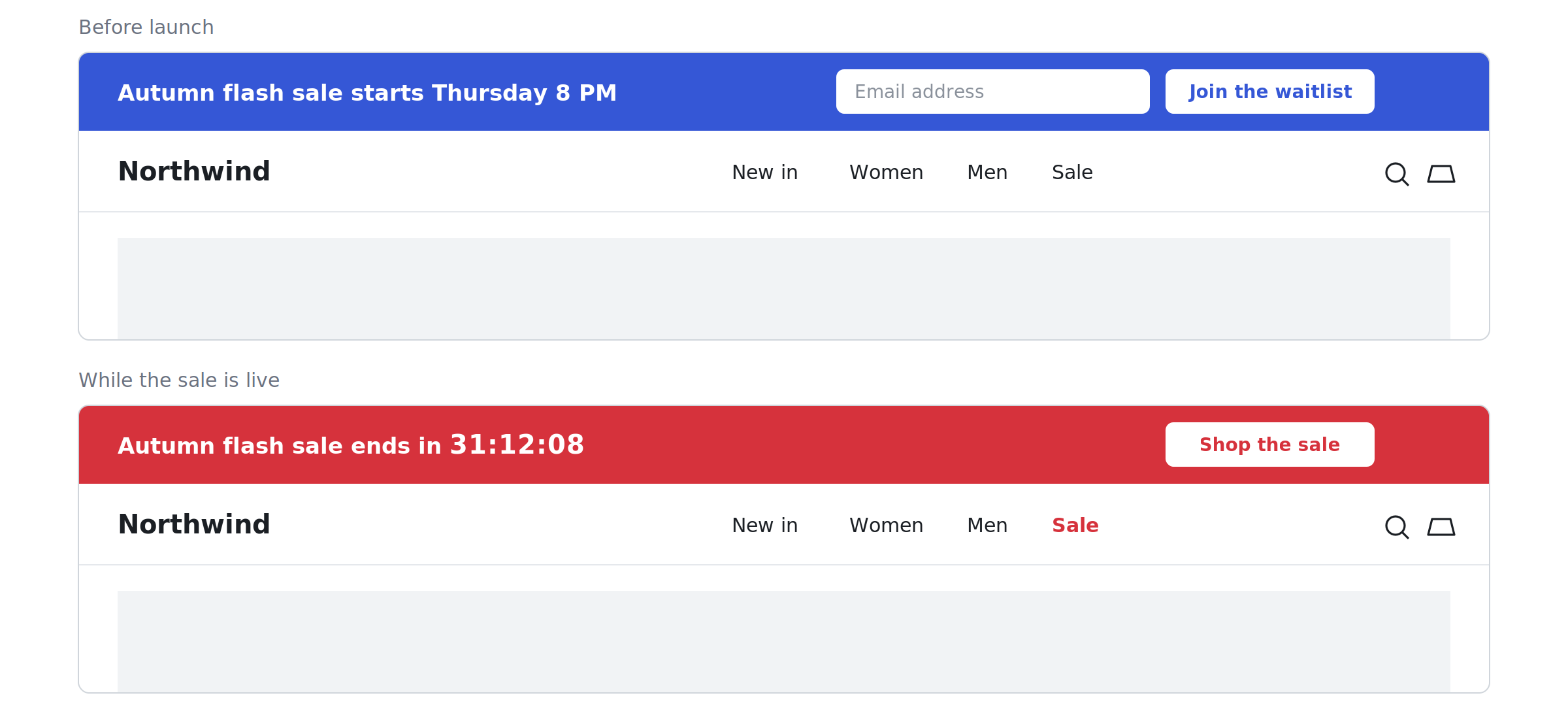 ## Launch: switch the destination to the sale page Launch should be one coordinated switch, not six manual edits. At the start time, four things need to be true at once: 1. **Prices are switched.** Each sale product shows the new price with the original as the compare-at price, so the saving is visible on the product and collection page, not just at checkout. If that distinction is new, [Shopify sales vs. discount codes](https://productessentials.app/blog/shopify-sales-vs-discount-codes-show-discount-before-checkout/) explains it. 2. **The sale page is live**, ideally at the same URL you've been sending people to all week. 3. **Navigation points to it.** A "Sale" item in the menu, the homepage hero, the announcement bar link. One click from anywhere. 4. **Discount-code rules are decided.** A 10% welcome code on top of a 30% sale price means the sale price was never your floor. Decide whether codes stack, and if not, block them for the window. The [discount stacking article](https://productessentials.app/blog/shopify-stop-discounts-from-stacking/) has the math. **In Shopify:** bulk-edit prices and compare-at prices (or import a CSV), publish the page, edit the menu, update the bar, all at the same moment. Fine for a small catalog during working hours. Hard at 8 PM on a Thursday with 400 variants. **In Disco:** the campaign carries the start time, the product selection (by collection, tag, vendor, or type, with exclusions), the discount, and the widgets. At the start time it writes the prices, publishes the page, turns on the timer, badges, and bar, and can auto-tag the sale products so a collection picks them up. The [scheduling guide](https://productessentials.app/blog/schedule-shopify-sale-starts-ends-automatically/) covers what happens at each moment. **Test it first.** Run a one-product campaign that starts ten minutes from now. Watch the price change, the compare-at price appear, the page publish, the badge show. Let it end and confirm everything reverts. Ten minutes of testing beats a support ticket at 8:07 PM. ## Countdown timer and badges Urgency is why a flash sale outperforms a regular sale. It's also the easiest place to lose trust. **Put the timer where the decision happens:** on the sale page, on product pages near the price, and in the announcement bar so it follows the visitor. The customer who clicks through from the homepage should see the same deadline where they add to cart. **Make the deadline real.** The timer must count down to the actual campaign end, the same moment prices reset. Timers that restart on every visit and sales "extended by popular demand" every time teach customers that your deadlines are decoration (and can count as a misleading practice in some markets). The safeguard: timer, price change, and page state driven by one end time. Separate settings maintained by hand drift. **Badges** make sale products findable in a mixed collection and reinforce the compare-at price. Keep them consistent with the actual discount (no "up to 50%" on a product that's 20% off) and make sure they disappear when the campaign ends. A stale sale badge on a full-price product is the most visible post-sale mistake there is. In Disco, the timer and badges are tied to the campaign's start and end, which is what keeps them honest; the timer is on the free plan, badges on paid tiers ([current plans](https://productessentials.app/#pricing)). 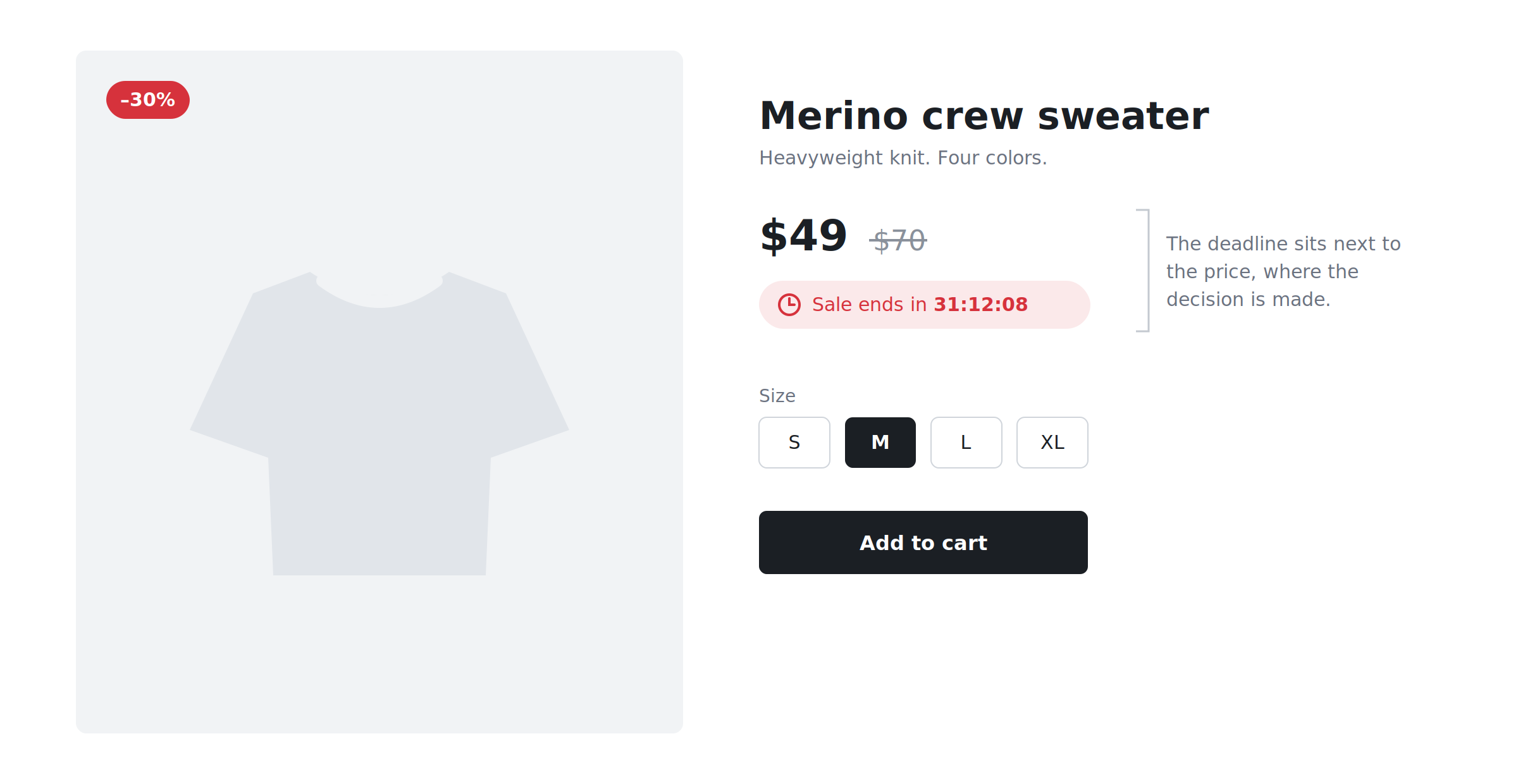 ## Use the sale collection as the channel hub Every channel during the live window needs one link, and it should be the sale collection: the URL stays the same from campaign to campaign, products and badges are right there, customers can filter by size without leaving, and when the sale ends the URL can carry a "next sale" waitlist rather than a dead end. **Keep it populated automatically.** The failure mode is a collection missing the products you added last-minute. The fix: Disco auto-tags every product in the campaign, and a Shopify automated collection with the condition "product tag is equal to *flash-sale*" picks them up the moment they're tagged and drops them when the tag goes. Setup is in the [sale-collection article](https://productessentials.app/blog/sale-collection-everywhere/) and the [auto-tagging help doc](https://help.productessentials.app/article/6-add-products-on-sale-to-existing-collection?ref=productessentials.app). | Channel | Message | Link | | ------------------------ | --------------------------------------------------------------------------------------------------- | --------------- | | Email, waitlist first | "You're in. The sale is live for 48 hours." At the start time, 10 minutes before the general blast. | Sale collection | | Email, everyone | "Autumn flash sale: 48 hours, up to 40% off." | Sale collection | | Paid social | Hero product, the discount, the deadline. Nothing else. | Sale collection | | Organic social / stories | Countdown sticker matching the real end time; link in bio. | Sale collection | | Homepage hero | Same headline as the email; timer if your theme supports one. | Sale collection | Give the waitlist a real head start: their email at the start time, the general blast ten minutes later. Never send "live now" before prices have switched. That's the first broken promise of the sale. ## After the deadline This is where the promise is kept. Whoever bought at 7:50 PM needs to see the sale really ended at 8; whoever arrives at 8:10 PM needs normal prices and no timer. **Stop the campaign.** Prices revert, compare-at prices clear, badges and timer disappear, the sale page unpublishes or switches to an ended state, the bar returns to normal. In Disco that's the scheduled end time doing its job. In Shopify it's the launch edits again, in reverse. **Check within the hour:** three sale products back to normal price; the sale collection empty or as intended; the sale URL not showing a live timer; the announcement bar and homepage hero; any blocked discount codes active again if they should be; and, if you use a feed, marketplace, or price-sync app, that it hasn't re-applied stale prices ([help doc](https://help.productessentials.app/article/54-why-disco-discounts-appear-then-disappear-later?ref=productessentials.app)). **Don't leave a dead URL.** Point it to a "sale has ended, join the list for the next one" page, redirect it to bestsellers, or let it become the next coming-soon page. The waitlist is now a tagged segment in Shopify, the best starting point for the next launch. ## Mini example: a 48-hour flash sale, from first teaser to close Autumn flash sale, live from Thursday 8 PM to Saturday 8 PM. Adjust the dates and discount; keep the shape. | When | What happens | Message | | -------------------------------- | ---------------------------------------------------------------------------------------------------------------------------------------------------------------- | --------------------------------------------------------------------------------------- | | **Thursday, one week before** | Campaign built and scheduled: products by collection with exclusions, 30% off, Thu 8 PM to Sat 8 PM, discount codes blocked. One-product test run and reverted. | — | | **Saturday, 5 days before** | Coming-soon page goes live. Announcement bar switches to the teaser. First organic post. | "Autumn flash sale: Thursday 8 PM. Join the waitlist for early access." | | **Monday, 3 days before** | Email to the full list. Paid social teaser starts. | "Three days. Up to 40% off the autumn collection. The list gets in first." | | **Wednesday, the day before** | Reminder to non-openers. Story with a countdown sticker set to Thursday 8 PM. | "Tomorrow at 8 PM. The list hears first." | | **Thursday 8:00 PM — launch** | Campaign starts: prices switch, sale page publishes, timer, badges, and bar go live, collection fills via auto-tagging. Waitlist email goes out the same minute. | Waitlist: "You're in. Live now, 48 hours only." Bar: "Ends in 47:59:12 → Shop the sale" | | **Thursday 8:10 PM** | General email. Paid social switches to live creative. | "The autumn flash sale is live. 48 hours, up to 40% off." | | **Friday 8 PM — halfway** | Email to non-purchasers. Low-stock note only if it's true. | "24 hours left. Popular sizes are going." | | **Saturday noon — 8 hours left** | Last-chance email. | "Final 8 hours. Ends tonight at 8 PM." | | **Saturday 8 PM — end** | Campaign ends: prices reset, page unpublished, widgets off. Post-sale check. | Bar returns to its everyday message. | | **Tuesday, 3 days after** | Thank-you to buyers; next-sale teaser to the waitlist. | "Thanks for shopping. Want first access next time? You're already on the list." | Every message names the deadline, and every link goes to the same collection. That's the whole method. ## Two common questions **Do I need a paid plan for the sale page?** At the time of writing, the flash-sale page and auto-tagging start at the Professional plan; scheduling, the countdown timer, and the sale collection are on the free plan. See [current plans](https://productessentials.app/#pricing). **Does this work for Black Friday?** Yes. Same three phases, bigger scale, more competition for attention, which makes the waitlist and the single-hub link more valuable, not less. The [BFCM playbook](https://productessentials.app/blog/bfcm-playbook/) covers the seasonal specifics. --- **Create your next flash sale as a campaign, not just a price change.** Build the coming-soon page, waitlist, announcement bar, timer, and sale page on a plan that supports them, and let the start and end times do the work. [See current plans](https://productessentials.app/#pricing) · [Install Disco from the Shopify App Store](https://apps.shopify.com/discount-app?referrer=pe&utm%5Fsource=productessentials.app&utm%5Fmedium=blog&utm%5Fcampaign=shopify-flash-sale-page-waitlist-timer) --- **Next:** [How to schedule a Shopify sale that starts and ends automatically](https://productessentials.app/blog/schedule-shopify-sale-starts-ends-automatically/) is the campaign schedule every phase above hangs off, and [The 2026 BFCM playbook: plan your biggest sale months ahead](https://productessentials.app/blog/bfcm-playbook/) runs this same three-phase flow at Black Friday scale. ### Shopify Black Friday discount ideas: 12 offers and how to set them up URL: https://productessentials.app/blog/shopify-black-friday-discount-ideas/ Last updated: 2026-10-18T08:41:37.000Z Good Shopify Black Friday discount ideas fit your margins and stock, not the loudest number on the street. Seven of the 12 cut the price: a storewide sale, collection tiers, a kit, price points, doorbusters, rolling flash sales and a Cyber Monday-only collection. Four apply in the cart: Buy X Get Y, spend tiers, free shipping and a gift with purchase. Early access lets your list shop first. Black Friday 2026 is November 27\. We make [Disco](https://productessentials.app/#features), the sale app in the how-to steps. 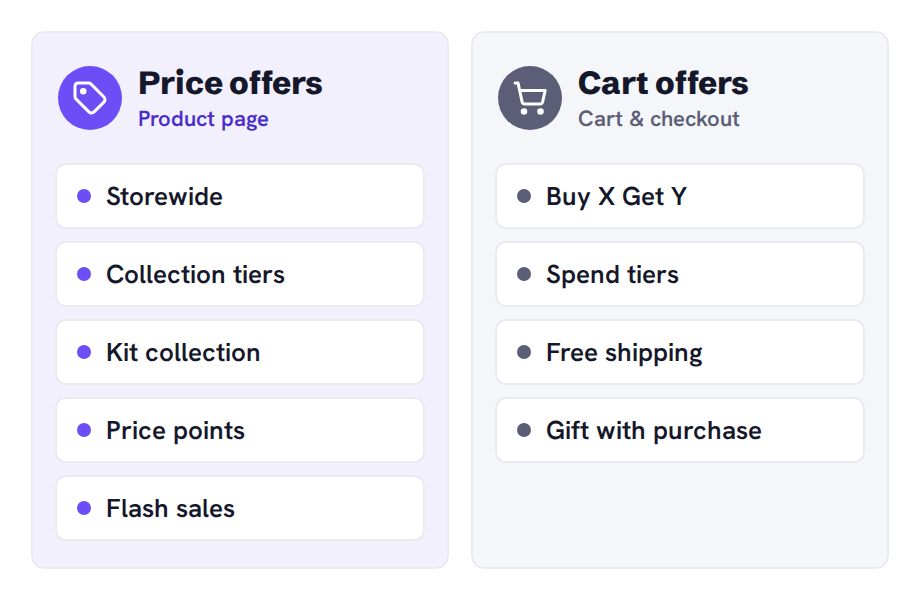 Price offers show on the product page. Cart offers appear only in the cart and at checkout. In this guide 1. [Which storewide and collection sales work for Black Friday?](#which-storewide-and-collection-sales-work-for-black-friday) 2. [What are good Shopify Black Friday flash sale ideas?](#what-are-good-shopify-black-friday-flash-sale-ideas) 3. [What should a Shopify Cyber Monday flash sale offer?](#what-should-a-shopify-cyber-monday-flash-sale-offer) 4. [Which Black Friday offers raise order value?](#which-black-friday-offers-raise-order-value) 5. [Which Black Friday offer fits your store type?](#which-black-friday-offer-fits-your-store-type) 6. [When is a sale app better than Shopify discounts?](#when-is-a-sale-app-better-than-shopify-discounts) 7. [What are good Shopify Black Friday announcement bar examples?](#what-are-good-shopify-black-friday-announcement-bar-examples) 8. [Shopify Black Friday discount ideas FAQ](#shopify-black-friday-discount-ideas-faq) 9. [When should you set up your Black Friday offers?](#when-should-you-set-up-your-black-friday-offers) ## Which storewide and collection sales work for Black Friday? Start with a storewide percentage, tiered collections, a discounted kit or fixed price points. Disco schedules these as sale prices on product and collection pages without a code, then restores the original prices when the sale ends. To let your email list shop first, give subscribers a code instead. ### 1\. Storewide percentage off A storewide "20% off everything" fits when margins are healthy. The margin risk is high, because bestsellers get discounted too. At 20% off, a $40 product that costs $20 drops from $20 profit to $12. In Shopify you can use an automatic [Amount off orders](https://help.shopify.com/en/manual/discounts/discount-types/percentage-fixed-amount?ref=productessentials.app) discount, but it shows savings only in the cart. Disco resolves this by displaying the sale price, with the original struck through, on product and collection pages. #### How to set up 20% off everything in Disco 1. **Click Create sale**, then choose **Same discount** and **Percentage**: 20. 2. **Choose All products** under **Include products**, then set the **Active dates**. 3. **Exclude bestsellers** under **Exclude products / collections** (Lite and up). ### 2\. Tiered discounts across 2–3 collections When margins differ by collection or stock age, tier the sale: 15% off new arrivals, 25% off core lines and 40% off last season. The margin risk is low to medium, because deep cuts go where stock must move. In Shopify you can set one automatic discount per collection to [combine](https://help.shopify.com/en/manual/discounts/discount-combinations?ref=productessentials.app) with other **Product discounts**, but the savings show only in the cart. Disco resolves this by displaying each collection's tier as a struck-through price. #### How to tier discounts across collections in Disco 1. **Create one Same discount campaign per collection** (three need Lite). 2. **Give each campaign its collection** and percentage. 3. **Give all three the same Active dates.** ### 3\. A discounted kit collection If products sell together, such as a grinder and beans, make them a discounted kit collection. The margin risk is medium, because shoppers can still buy the cheapest piece alone. A true bundle, one product at one price, needs an app such as [Shopify Bundles](https://help.shopify.com/en/manual/products/bundles/shopify-bundles?ref=productessentials.app). In Shopify you can give the kit collection an automatic discount, but the saving shows only in the cart. Disco resolves this by showing sale prices on product pages and building the collection for you. #### How to build a discounted kit collection in Disco 1. **Click Create sale** and select the kit's products. 2. **Enter the kit name** as the **Title**. 3. **Use Create collection** to build the kit collection under that name. ### 4\. Fixed price points Gift shoppers often think in budgets, so try one price such as "everything $25" for accessories with similar costs. The margin risk is uneven, because one price can push some products below cost. In Shopify you can bulk-edit **Price** and **Compare-at price** ([sale pricing](https://help.shopify.com/en/manual/products/details/product-pricing/sale-pricing?ref=productessentials.app)), but you change them back by hand. Disco resolves this by restoring the original prices when the sale ends. #### How to set a fixed price point in Disco 1. **Click Create sale**, choose **New price** and enter 25. 2. **Select the accessories** and set the **Active dates**. 3. **Exclude products where $25 is below cost** under **Exclude products / collections** (Lite and up). ### 5\. Early access for your list If you have an email list, or time to grow one, let subscribers shop a few days early. The margin risk is low if the early offer is lighter than the public one. Shopify and Disco do different jobs here. The early offer is a Shopify discount code limited to **Customer segments**, with active dates, because Disco's sale prices show to everyone. Disco builds the list before the sale. #### How to collect an early-access list in Disco 1. **Create the public sale** with its **Active dates**. 2. **Turn on Show before the sale starts** (Lite and up). The bar collects email addresses. ## What are good Shopify Black Friday flash sale ideas? Good Shopify Black Friday flash sale ideas are short, deep offers on a few products with a real end time. Two work well: doorbuster hours on hero products, and rolling sales across collections. Schedule each in Disco with exact **Active dates** and a countdown timer on the product page. Where two Disco sales cover a product, the higher discount applies. A Shopify [automatic discount](https://help.shopify.com/en/manual/discounts/discount-methods/automatic-discounts?ref=productessentials.app) still applies on top of a Disco price. ### 6\. Doorbuster hours If you hold deep stock of 3–5 hero products, cut them hard for a few hours, such as 8 AM to 11 AM on Friday. The margin risk is high per unit, but the stock and hours cap it. In Shopify you can schedule an **Amount off products** discount, but its settings have no countdown timer. Disco resolves this with a timer shown only while the sale runs, and prices go back at 11 AM on their own. #### How to run doorbuster hours in Disco 1. **Set the Active dates** from 8 AM to 11 AM on Friday. 2. **Turn on Show countdown timer on product page.** ### 7\. Rolling collection flash sales If your catalog is broad, put one collection on sale after another, so shoppers keep checking back. The margin risk is lower than storewide, because each collection is discounted briefly. In Shopify you can create one automatic discount per window, but each shows savings only in the cart. Disco resolves this by showing the sale price and a countdown on the product page. #### How to rotate collection flash sales in Disco 1. **Create one campaign per collection** (more than two need Lite). 2. **Set back-to-back Active dates** for each. 3. **Turn on Show countdown timer on product page.** ## What should a Shopify Cyber Monday flash sale offer? A Shopify Cyber Monday flash sale should offer something new, not a repeat of Friday. Put a held-back collection on sale for Monday only as its own Disco campaign, and say so in the bar. Friday's buyers then don't see their purchase undercut. ### 8\. A Cyber Monday-only collection Choose that collection, such as accessories or a gift range, before Friday. The margin risk is medium if you keep the depth at or below Friday's. In Shopify you can put an **Amount off products** discount on that collection, but the savings appear only in the cart. Disco resolves this by showing Monday's sale prices on product pages until the campaign ends. #### How to set up a Cyber Monday-only collection in Disco 1. **Create a separate campaign** for the collection. 2. **Set Monday-only Active dates**, as the [scheduling guide](https://productessentials.app/blog/schedule-shopify-sale-starts-ends-automatically/) shows. 3. **Turn on Show countdown timer on product page.** ## Which Black Friday offers raise order value? Buy X Get Y, spend tiers, free shipping and gifts with purchase raise order value. They apply in the cart, so pair them with a price offer. Cart offers stack on sale prices. Two Shopify discounts add up only when [set to combine](https://help.shopify.com/en/manual/discounts/discount-combinations?ref=productessentials.app). ### 9\. Buy X Get Y Buy X Get Y suits consumables and multiples, such as "buy 2 candles, get a third free." The margin risk is medium: buy one, get one free is half off both items. **Set it up in Shopify:** a [Buy X get Y](https://help.shopify.com/en/manual/discounts/discount-types/buy-x-get-y?ref=productessentials.app) discount. Set **Customer buys** and **Customer gets**, with the value at **Free** or a percentage. ### 10\. Spend more, save more If average orders sit just under a round number, tiers such as "$10 off $75, $25 off $150" give shoppers a reason to add more. The margin risk is medium, because the cut applies on top of any sale prices. **Set it up in Shopify:** one **Amount off orders** automatic discount per tier, each with a **Minimum purchase amount**. With combinations off, the [best tier applies](https://help.shopify.com/en/manual/discounts/discount-combinations?ref=productessentials.app). ### 11\. Free shipping over a threshold If shipping costs put shoppers off at checkout, offer free shipping over a threshold. The margin risk is the shipping you pay, so set the threshold above your average order value. **Set it up in Shopify:** an automatic [Free shipping](https://help.shopify.com/en/manual/discounts/discount-types/free-shipping?ref=productessentials.app) discount with a **Minimum purchase amount**. ### 12\. Gift with purchase If you'd rather not cut prices, offer a low-cost gift shoppers value, such as samples or a tote, "free with orders over $100." The margin risk is low if the gift is cheap. **Set it up in Shopify:** a **Buy X get Y** discount with the gift at **Free**. Shoppers must add the gift to the cart themselves; adding it automatically needs a gift-with-purchase app. ## Which Black Friday offer fits your store type? Match the offer to what you sell and its margin. Consumables suit Buy X Get Y and kits. Seasonal fashion fits collection tiers. Thin-margin electronics suit free shipping or a few doorbusters. Small-batch stores can skip deep cuts and offer early access. | Store type | Start with | Why | | --------------------------- | -------------------------------------------------------- | ------------------------------------------------------- | | Fashion and apparel | Tiered collections (2), rolling flash sales (7) | Last season can go deep while new arrivals stay shallow | | Beauty and skincare | Buy X Get Y (9), gift with purchase (12) | Refills and samples cost little and bring shoppers back | | Coffee, food and drink | Kit collection (3), spend more, save more (10) | Products go together, so baskets grow easily | | Home and gifts | Fixed price points (4), Cyber Monday-only collection (8) | Gift shoppers browse by budget | | Electronics and accessories | Doorbuster hours (6), free shipping threshold (11) | Thin margins, so keep deep cuts to a few products | | Handmade or small batch | Early access (5), gift with purchase (12) | Limited stock goes to loyal buyers without deep cuts | | Large catalog, many brands | Storewide (1) with exclusions, rolling flash sales (7) | One message, with low-margin lines left out | ## When is a sale app better than Shopify discounts? A sale app is better when shoppers should see the sale price, with the original struck through, on product and collection pages. Disco writes that price and restores the original when the sale ends. For cart offers, or savings shown only in the cart, Shopify's discounts are enough. | Need | Shopify on its own | Disco | | --------------------------------------------------------------------------- | ----------------------------------------------------------------------------------------------------------------------------------------------------------------------------------------------------------------------- | ------------------------------------------------------------------------------------------------------------- | | Sale price with the original struck through on product and collection pages | Bulk-edit **Price** and **Compare-at price**, then change them back after the sale. A discount needs [a third-party app](https://help.shopify.com/en/manual/discounts/discounts-faq?ref=productessentials.app) for this | Writes both at the start date and puts them back at the end | | Start and end on a schedule | Automatic discounts have active dates, but show only in the cart and at checkout | Starts and ends the sale on its own at the **Active dates** | | Countdown timer on the product page | Not part of Shopify's discount settings | **Show countdown timer on product page** | | Announcement bar | Theme bar, changed by hand at each phase | **Show before the sale starts** and **Show while the sale is active** (Lite and up) follow the campaign dates | | Discount codes on sale items | A code applies on top of a sale price | **Block discount codes on sale products** (Business plan) | ## What are good Shopify Black Friday announcement bar examples? Good Shopify Black Friday announcement bar examples fit a phone screen and state the offer or a real deadline. This one does both: "Doorbusters until 11 AM ET: 40% off five bestsellers." Write a line for each phase: a teaser, the launch, the last hours and Cyber Monday. Disco's bar updates automatically on the campaign's dates. **Teaser** - Black Friday starts Friday, November 27\. Get notified first. - Our biggest sale of the year opens in 3 days. - Black Friday preview: 25% off outerwear from November 27. **Launch** - Black Friday is live: 25% off everything, no code needed. - 20% off coffee, 30% off brewing gear. Prices already reduced. - Doorbusters until 11 AM ET: 40% off five bestsellers. **Last hours** - Last hours: Black Friday prices end tonight at 11:59 PM ET. - Final day of our Black Friday sale. Ends 11:59 PM ET. - 6 hours left at 25% off. Then prices go back. **Cyber Monday** - Cyber Monday only: 30% off accessories until 11:59 PM ET. - New for Cyber Monday: the gift shop at 20% off, today only. - Last day of Cyber Week deals. Everything ends at 11:59 PM ET. In Shopify you can edit the theme's [Announcement bar](https://help.shopify.com/en/manual/online-store/themes/customizing-themes/common-customizations/add-announcement-banner?ref=productessentials.app), but only by hand in the theme editor, at each phase. Disco resolves this with two bar states that follow the campaign's dates. ### How to schedule your announcement bar in Disco 1. **Turn on Show before the sale starts** (Lite and up) for the teaser. 2. **Turn on Show while the sale is active** for the launch, with **Show countdown timer in announcement** (Lite and up). 3. **Change the line for the last hours** with **Edit Promotional widgets or End date only**, which keeps the sale running. Checkpoint Every deadline in the bar matches the timer, the emails and the real end of the sale. ## Shopify Black Friday discount ideas FAQ What are the best Shopify Black Friday discount ideas for a small store? Offers that protect margin: a few doorbusters, a kit collection or a gift with purchase. These Shopify Black Friday discount ideas keep deep cuts to the products you choose instead of the whole catalog. How deep should a Shopify Black Friday flash sale go? Only as deep as each product's cost allows. At 40% off, a $40 product that costs $20 still makes $4 a unit; at 50% off, it makes nothing. How do I set up a Shopify Cyber Monday flash sale? Run a separate Disco campaign on one collection with **Active dates** from 12:00 AM to 11:59 PM on November 30\. A Shopify automatic discount with the same dates also works, but shows the saving only in the cart. Can I copy these Shopify Black Friday announcement bar examples as they are? Yes, once you change the offer, dates and time zone to match your campaign. Can a sale price and a discount code apply to the same product? Yes. A sale price isn't a discount, so Shopify's combination settings won't stop a code applying on top; pause those codes or turn on Disco's **Block discount codes on sale products** on the Business plan ([how it works](https://help.productessentials.app/article/53-how-disco-discount-code-blocking-works?ref=productessentials.app)). ## When should you set up your Black Friday offers? Before November, so there's time to test. Pick two or three of these ideas, work out the margin on each, and set them up. Disco schedules the price offers and puts every price back when they end. [The setup guide](https://help.productessentials.app/article/45-creating-a-sale-with-widgets-and-landing-page?ref=productessentials.app) walks through it. [**Schedule your Black Friday sale with Disco.**](https://apps.shopify.com/discount-app?referrer=pe&utm%5Fsource=productessentials.app&utm%5Fmedium=blog&utm%5Fcampaign=shopify-black-friday-discount-ideas) --- **Next:** [The 2026 BFCM playbook](https://productessentials.app/blog/bfcm-playbook/) turns your offer into a dated plan, and [our stacking guide](https://productessentials.app/blog/shopify-stop-discounts-from-stacking/) keeps a sale price and a code from adding up. ### How to show sale prices on Shopify product pages before checkout URL: https://productessentials.app/blog/shopify-sales-vs-discount-codes-show-discount-before-checkout/ Last updated: 2026-10-18T08:41:58.000Z You've set up a 20% discount in Shopify. The campaign email is out, the social posts are live, and then the first customer message arrives: *"Your site says 20% off, but the product still shows full price?"* Nothing is broken. The discount is real. The customer just can't see it yet, because Shopify discounts and Shopify sale prices are two different mechanisms that show up in two different places. Understanding that difference is the single most useful thing you can learn before your next sale, so that's where this guide starts. By the end you'll know: - why a discount code or automatic discount usually only appears at checkout, - what `Price` and `Compare-at price` actually do, - three ways to run an offer in Shopify and what each one looks like to the customer, - how to set a sale price manually, and - how to automate the whole thing, including putting prices back, when you're running a timed campaign across many products. ## Why don't Shopify discounts show on product pages? ### Product price vs. checkout discount Shopify stores a price for each product variant. Your theme uses it on product pages, collection cards, search results, and in the cart. A code or automatic discount applies a rule to the cart without changing that stored price. The saving appears when the rule applies, usually at checkout and sometimes in the cart, depending on your setup. Product and collection pages generally keep showing the regular price. [Shopify's sale-pricing documentation](https://help.shopify.com/en/manual/products/details/product-pricing/sale-pricing?ref=productessentials.app) makes the same distinction: if you want a sale price to be visible on product and collection pages, you use the product's compare-at price. If you want strikethrough savings to appear earlier in the journey for a code or automatic discount, Shopify points you toward a third-party app or a custom solution. For a storewide offer that shoppers should see immediately, start with sale pricing. 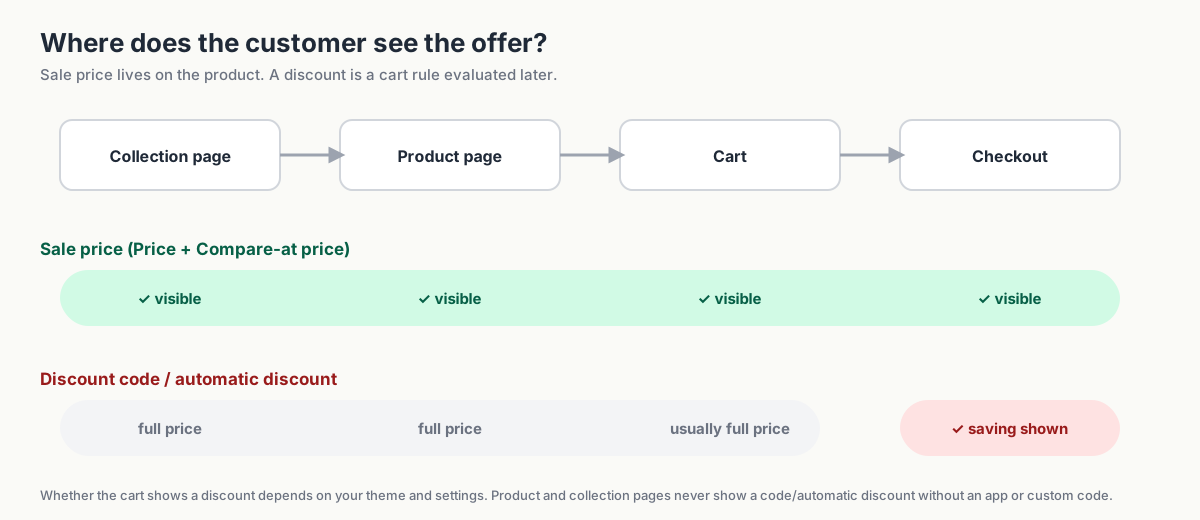 Sale pricing makes the offer visible on product and collection pages where your theme supports it. Codes and automatic discounts show savings when applied in the cart or checkout; an app or custom solution is needed to show those savings earlier. ### What `Price` and `Compare-at price` mean Open any product in Shopify admin and you'll see two fields in the Pricing section: - **Price** — what the customer pays right now. This is the number used at checkout. - **Compare-at price** — the original or reference price. When this field is *higher* than `Price`, most themes treat the product as on sale: they show the compare-at price struck through, the current price next to it, and often a "Sale" badge or a "Save 20%" label. The basic rule is `Compare-at price` \> `Price`. A higher compare-at value tells a supporting theme to display the product as on sale. That puts the saving beside the product, **where shoppers are deciding whether to buy**. 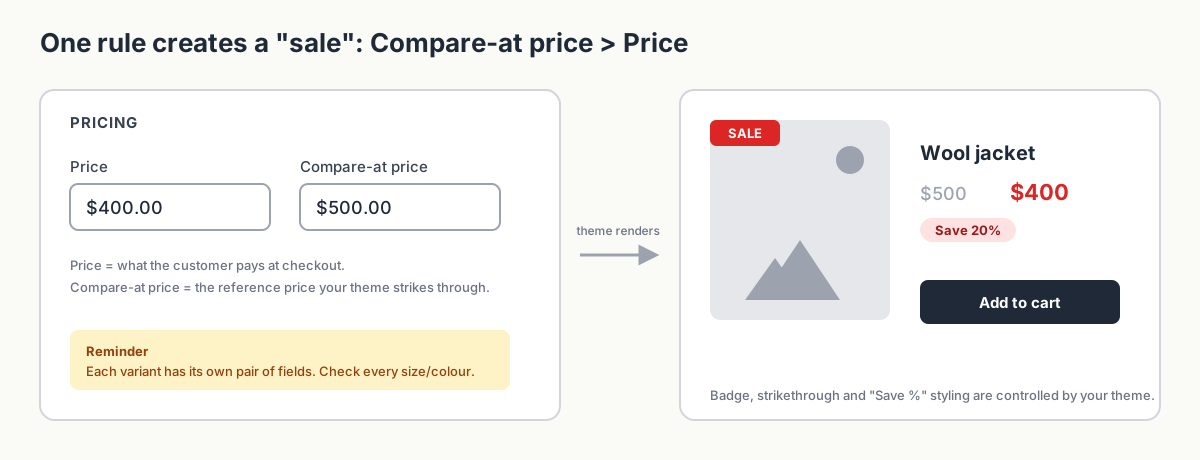 For a 20% sale on a $500 jacket, set Price to 400 and Compare-at price to 500\. Check that your theme displays the saving. ## Shopify sale prices vs. discount codes: what's the difference? Each option suits a different kind of campaign. You may use all three at different times. 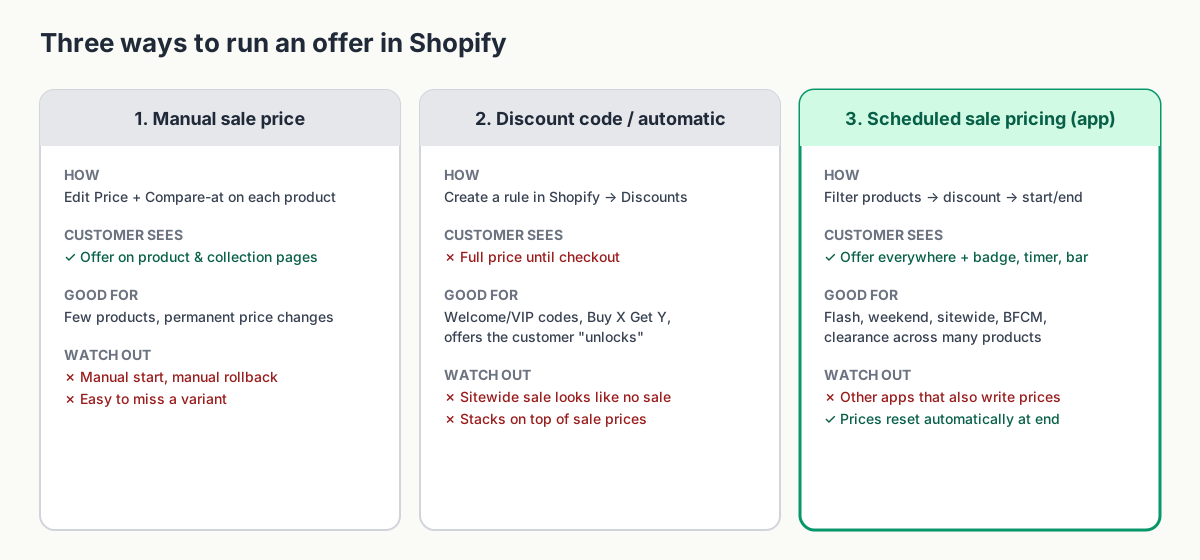 Choose the method by the offer and the work involved: manual prices, a checkout discount, or a scheduled price change and reset. ### 1\. Manual sale price You edit `Price` and `Compare-at price` on each product or variant, either one at a time or with Shopify's bulk editor. **What the customer sees:** The reduced price throughout the purchase, with the original price struck through wherever your theme supports it. **Best for:** Small catalogs, a handful of products, or a permanent price change. **What to plan for:** Someone must change the prices at the start and restore them at the end. Keep a record of the originals and check every variant so no discount lingers after the deadline. ### 2\. Automatic discount or discount code You create a discount in Shopify's Discounts section: a code (`WELCOME10`) or an automatic discount (20% off everything in the "Summer" collection). Shopify lets you set start and end dates on discounts, and you can control how discounts combine with one another. **What the customer sees:** Full price on product and collection pages. The saving appears once the discount is applied, typically at checkout. **Best for:** Welcome offers, VIP and influencer codes, loyalty rewards, and other discounts customers unlock. Shopify also supports Buy X Get Y offers. **What to plan for:** Explain when the saving applies. A "20% off this weekend" banner above full-price products can leave shoppers unsure whether the offer works. ### 3\. Scheduled sale pricing with an app An app writes to the same `Price` and `Compare-at price` fields you'd edit manually, but does it for all the products you select, at the exact time you choose, and reverses it automatically when the campaign ends. It can also add the storefront elements that manual editing can't: sale badges, countdown timers, announcement bars, and a sale collection or landing page. **What the customer sees:** The same sale pricing as a manual edit, plus any badges, timers, or banners you enable. **Best for:** Flash sales, weekend sales, sitewide sales, clearance, and Black Friday—especially when there are more products than you want to edit by hand. **What to plan for:** Test the app with your theme and any integrations that update prices. A scheduled sync from another system can overwrite the sale. ## How to show sale prices on Shopify product and collection pages For a few products, you can set the offer directly in Shopify admin. ### Example: $500 → $400 Say you sell a jacket at $500 and want to run it at 20% off. 1. In Shopify admin, go to **Products** and open the jacket. 2. In the **Pricing** section, set **Price** to `400`. 3. Set **Compare-at price** to `500`. 4. Save. Your storefront will now show $500 **$400**, and most themes will add a sale badge automatically. When this sale ends, set **Price** back to `500` and clear **Compare-at price**. Then check the product page and collection card to confirm the sale styling has gone. ### Variant and collection pitfalls - **Variants have their own prices.** A jacket in five sizes has five sets of price fields. Editing one size leaves the other four unchanged. Check every row in the variant table or bulk editor. - **Collections don't hold prices.** Putting products into a "Sale" collection doesn't change anything about their price. The collection is a display container; the sale status still comes from the compare-at field on each product. - **Each price needs its own calculation.** Across 300 products, calculating and entering a 20% reduction takes time. A spreadsheet or campaign tool can handle the arithmetic. - **Rollback is entirely on you.** Shopify won't remember the old price. Export a CSV before you start, or keep a spreadsheet of original prices, so you can restore them accurately. ### How your theme displays sale prices and sale badges The compare-at field tells the theme "this is on sale." What the theme does with that information is up to the theme: - whether it shows a strikethrough at all, - whether it displays a "Sale" badge and what it says, - whether it shows the saving as a percentage, an amount, or both, - whether the sale styling appears on collection cards or only on the product page. If you've set a compare-at price and see nothing, check your theme settings before assuming the data is wrong. Some themes have sale badges turned off by default, and a few older or heavily customized themes don't render compare-at prices on collection pages. ## How to automate Shopify sale prices with Disco Disco automates timed sales across a group of products. It updates the same Shopify price fields you'd edit by hand, then restores prices when the campaign ends. Here's the workflow for the same 20% jacket sale, extended to the whole outerwear range. 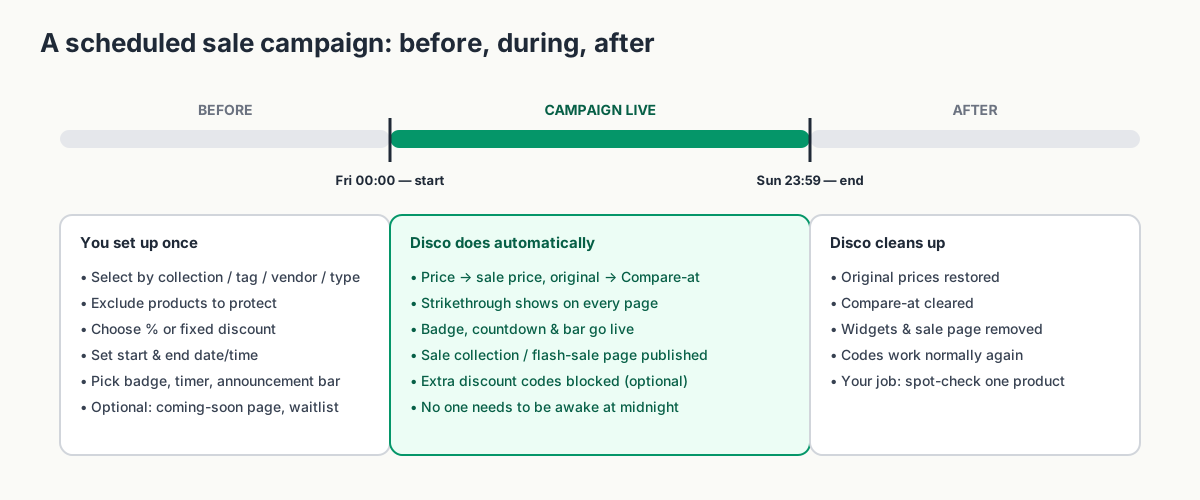 Configure the products, offer, and schedule once. Disco changes the prices at the start and restores them at the end; check both transitions. ### Select products via collection, tag, vendor, or type Instead of opening products one by one, you pick them by filter: the "Outerwear" collection, everything tagged `aw26`, everything from a specific vendor, or a product type. You can exclude products you don't want touched, for example new arrivals or items already reduced, so a sitewide sale doesn't accidentally discount your bestsellers twice. ### Set the discount Choose a percentage or a fixed amount. Disco calculates the new `Price` for every selected product and variant and records the original price as the `Compare-at price`, so the strikethrough and sale styling appear automatically in your theme. ### Schedule the start and end Set a start date and time and an end date and time. Nobody needs to be online when the sale goes live at 00:00 or ends at 23:59\. Multiple campaigns can be scheduled in parallel, so your weekend sale and your month-end clearance can run on different product groups without stepping on each other. ### Show the sale price, badge, and timer Because the price is on the product, it shows everywhere your theme shows prices. On top of that, Disco can add: - a **sale badge** on product cards, - a **countdown timer** on the product page, - an **announcement bar** across the store, including a scheduled version that can capture emails before the sale opens, - an auto-generated **sale collection** so customers can browse everything on offer in one place, and - on higher plans, a dedicated **flash-sale page** that publishes when the campaign starts and comes down when it ends. ### Revert to the original price after the campaign When the end time arrives, Disco restores every product to its pre-campaign price and clears the compare-at value. No spreadsheet, no Monday-morning cleanup, and no accidental permanent discount on the jacket that was supposed to go back to $500. On the Business plan, Disco can also block discount codes during a sale. Check this before launch: a 20% sale price plus a 10% welcome code gives the customer 28% off the original price. ## When should you use sale prices, automatic discounts, or discount codes? Match the method to the offer. If you combine sale prices with codes, calculate the total saving first. Use this as a starting point, not a rulebook. Plenty of stores run a sale price *and* keep a small welcome code live at the same time; the point is to do it deliberately. | Campaign | Best mechanism | Why | | ------------------------------------------------------- | ---------------------------------------- | ----------------------------------------------------------------------------------- | | Always-on welcome code (e.g. 10% for newsletter signup) | Discount code | You want the offer to be unlocked, not advertised on every product. | | VIP, influencer, or partner codes | Discount code | Targeted, trackable, and shouldn't change catalog prices. | | Buy X Get Y / free gift with purchase | Shopify's native Buy X Get Y discount | It's a cart rule, not a price change. | | Permanent price reduction | Manual price edit | No end date means no rollback problem. | | One-off sale on a handful of products | Manual compare-at price | Fast enough by hand; just remember to reverse it. | | Flash sale (hours) | Scheduled sale pricing (Disco) | Precise start/end, visible urgency, automatic reset. | | Weekend or sitewide sale | Scheduled sale pricing (Disco) | Hundreds of products, visible everywhere, no manual rollback. | | Black Friday / Cyber Monday | Scheduled sale pricing + selective codes | Sale price for the headline offer; block or limit stacking codes to protect margin. | | Clearance | Scheduled sale pricing with exclusions | Filter by tag or vendor, protect current-season stock, revert what doesn't sell. | A useful rule of thumb: **if the customer should see the offer on the product page, change the price. If the customer should unlock the offer, use a discount.** ## Common questions before you launch ### Why isn't the compare-at price showing? Work through these in order: 1. **Is `Compare-at price` actually higher than `Price`?** Equal or lower values don't trigger sale styling. 2. **Did you set it on every variant?** Check the variant table, not just the first row. 3. **Is your theme configured to show it?** Look for sale badge and "show compare-at price" settings in the theme editor, especially for collection cards. 4. **Is another system overwriting the price?** If the sale price appears and then disappears minutes or hours later, something else is writing to the product (see the next question). 5. **Are you looking at a cached page?** Hard-refresh or check in an incognito window. ### Can a coupon stack on top of the sale price? By default, yes. A discount code applies to whatever the current price is, and a sale price is just the current price. So a 20% sale plus a 10% code gives the customer 28% off, and Shopify has no way of knowing that wasn't your intention. You have two levers. Within Shopify, you can review which discounts are active during the sale and adjust their combination settings or pause them. Within Disco, you can block **discount codes for the duration of the campaign**. For high-traffic sales like BFCM, do both and test with a real code before launch. 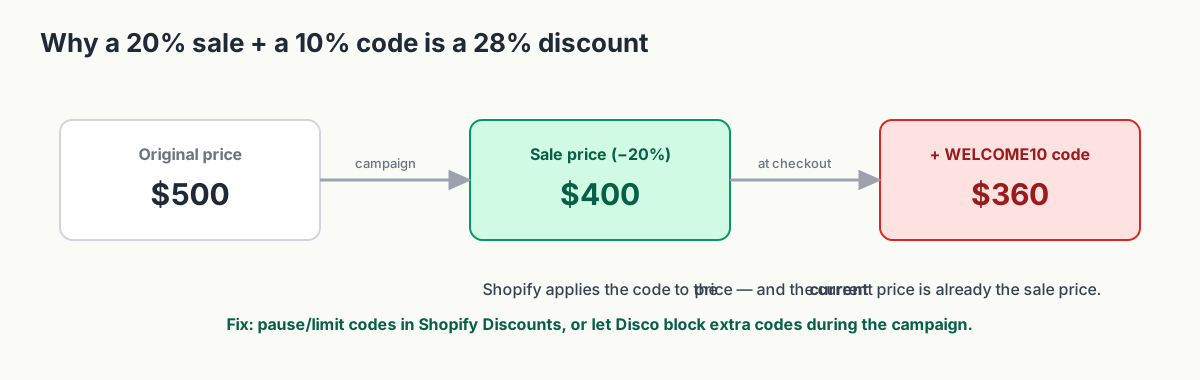 An eligible 10% code applies to the reduced $400 price, taking it to $360\. That is 28% off the original $500. How to audit every active code and block the ones that shouldn't stack is covered in [How to stop discount codes from stacking on items already on sale](https://productessentials.app/blog/shopify-stop-discounts-from-stacking/). ### What about Shopify Markets? If you sell in multiple markets with market-specific pricing or price adjustments, a sale price change on the base product may not behave the way you expect in every market. Before any campaign, check one product in each active market and confirm the price and strikethrough render correctly. If you use a currency or markets app that also writes prices, treat it like any other price-syncing system and test it against a small campaign first. ### The sale price appeared and then disappeared. What happened? Disco and manual edits both write to Shopify's product price fields. So do ERPs, inventory systems, product feeds, marketplace connectors, dropshipping apps, and CSV imports. When two systems write to the same field, the most recent write wins. If your ERP syncs prices every hour, it can quietly reset your sale an hour after it starts. Pause that system's price sync for the sale window, exclude the campaign products, or schedule the sync before launch. Otherwise, it can overwrite the sale again on its next run. Our help article on [why Disco discounts appear, then disappear later](https://help.productessentials.app/article/54-why-disco-discounts-appear-then-disappear-later?ref=productessentials.app) covers the fix; [Your Shopify sale price keeps reverting? If you use compare-at prices, this is probably why](https://productessentials.app/blog/shopify-sale-price-keeps-reverting/) walks through finding the culprit. ### Do I need an app for this at all? Not always. If you have 15 products and run two sales a year, Shopify's bulk editor plus a CSV backup is a perfectly good workflow. An app earns its place when campaigns are frequent, time-sensitive, or larger than you're comfortable editing and reversing by hand, or when you want badges, timers, and a sale page without custom theme work. ## Start with a small test campaign **Try a small campaign with Disco's free plan.** Pick ten products and schedule a one-hour sale for tomorrow morning. Check how the offer looks on your product pages, test the cart, and watch the original prices return when it ends. You'll have a repeatable setup for your next sale. [Install Disco from the Shopify App Store →](https://apps.shopify.com/discount-app?referrer=pe&utm%5Fsource=productessentials.app&utm%5Fmedium=blog&utm%5Fcampaign=shopify-sales-vs-discount-codes-show-discount-before-checkout) For plan limits and pricing, see our current plans page. --- **Next:** [Shopify compare-at price: how to show strikethrough pricing](https://productessentials.app/blog/shopify-compare-at-price-complete-guide/) is the field-by-field guide to the sale-price mechanism, and [How to schedule a Shopify sale that starts and ends automatically](https://productessentials.app/blog/schedule-shopify-sale-starts-ends-automatically/) shows how to set it, time it, and reset it without touching prices by hand. ### How to put your entire Shopify store on sale (without CSV) URL: https://productessentials.app/blog/shopify-bulk-discounts/ Last updated: 2026-10-18T08:41:38.000Z To put your entire Shopify store on sale in Disco, click **Create sale**, choose **All products**, and set the discount and **Active dates**. Then exclude what must stay at full price. Shoppers see the sale price with the original struck through before checkout. Every price goes back when the sale ends. In this guide 1. [How do you put your entire Shopify store on sale at once?](#how-do-you-put-your-entire-shopify-store-on-sale-at-once) 2. [How do you put a collection on sale in Shopify?](#how-do-you-put-a-collection-on-sale-in-shopify) 3. [How do you exclude products from a sale on Shopify?](#how-do-you-exclude-products-from-a-sale-on-shopify) 4. [Method 1: change sale prices with Shopify's bulk editor](#method-1-change-sale-prices-with-shopifys-bulk-editor) 5. [Method 2: bulk change Shopify prices with a CSV file](#method-2-bulk-change-shopify-prices-with-a-csv-file) 6. [Check these before changing hundreds of prices](#check-these-before-changing-hundreds-of-prices) 7. [Which method should you use to put your store on sale?](#which-method-should-you-use-to-put-your-store-on-sale) 8. [Frequently asked questions](#frequently-asked-questions) 9. [Get the next bulk sale off your to-do list](#get-the-next-bulk-sale-off-your-to-do-list) ## How do you put your entire Shopify store on sale at once? In Disco, one sale covers the whole store: click **Create sale**, **Same discount**, **All products**, then the discount and **Active dates**. Disco writes each product's sale price and keeps the original in the compare-at price. Shoppers see the saving before checkout, and Disco restores every price when the sale ends. In Shopify you can use an automatic **Amount off orders** discount or bulk-edit **Price** and **Compare-at price**. The discount applies [in the cart and at checkout](https://help.shopify.com/en/manual/discounts/discount-methods/automatic-discounts?ref=productessentials.app); [crossed-out prices on product pages](https://help.shopify.com/en/manual/discounts/discounts-faq?ref=productessentials.app) need a third-party app. The bulk edit lacks an end date, leaving you to reset prices manually. Disco resolves this by showing the sale price on product and collection pages and restoring every price when the sale ends. Read our guide on [how to show sale prices on Shopify product pages before checkout](https://productessentials.app/blog/shopify-sales-vs-discount-codes-show-discount-before-checkout/). Here's how the three options compare, from browsing to the end of the sale: | | Disco | Automatic discount | Bulk edit or CSV | | ---------------------------- | --------------------------------------------------------- | -------------------------------- | ----------------------------------------------------------------------------------------------------------- | | Product and collection pages | Sale price, original struck through | Full price | Sale price, original struck through | | Cart and checkout | Sale price | Discount applied | Sale price | | Discount codes on top | **Block discount codes on sale products** (Business plan) | Follow your combination settings | Can still apply ([stop stacking](https://productessentials.app/blog/shopify-stop-discounts-from-stacking/)) | | When the sale ends | Prices restored automatically | Stops on its end date | You reset every price | 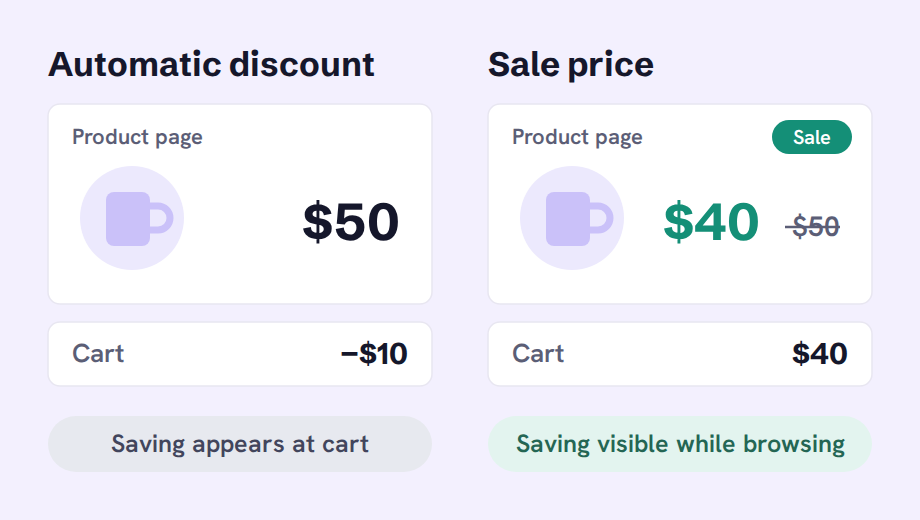 The same offer, seen at two different moments: in the cart, or while browsing. ### How to put your entire store on sale in Disco Before you start, check your plan's discounted-product limit: Starter covers 30 products, Lite 300, Professional 1,500, Business 7,500 and Unlimited has no limit ([compare plans](https://productessentials.app/#pricing)). 1. **Click Create sale**, then choose **Same discount**. 2. **Pick the discount type**: choose **Percentage**, **Amount off** or **New price**. Turn on **Round to nearest** for clean prices. 3. **Choose All products** on the **Include products** tab. 4. **Name it in Title**: Disco uses this in the admin and on the sale page. 5. **Set the Active dates**: the exact start and end date and time ([how scheduling works](https://productessentials.app/blog/schedule-shopify-sale-starts-ends-automatically/)). 6. **Add the storefront pieces**: **Show countdown timer on product page**, the announcement bar's **Show while the sale is active** (Lite plan and up), or **Create collection** for a sale collection. Fixed international prices are not discounted. Help doc: [storewide sale](https://help.productessentials.app/article/7-how-to-create-storewide-sale?ref=productessentials.app). ## How do you put a collection on sale in Shopify? In Disco, choose **Select products, collections, tags or types** on the **Include products** tab, pick the collection, then set the discount and **Active dates**. Each product in it shows the sale price before checkout and goes back to full price when the sale ends. Products added to the collection after launch need **Synchronize**. In Shopify you can create an automatic **Amount off products** discount for **Specific collections**, or filter the collection in **Products** and bulk-edit prices. The discount shows savings only in the cart and at checkout. The bulk edit has no end date. Disco resolves this by showing the sale price on product pages and restoring the original price when the sale ends. ### How to put a collection on sale in Disco 1. **Click Create sale** and choose **Same discount**. 2. **Pick the collection**: on **Include products**, choose **Select products, collections, tags or types**. To select by product data instead, use **Add product(s) by tag, type, title or vendor**. 3. **Set the discount**: choose **Percentage**, **Amount off** or **New price**. 4. **Set the Active dates** and save. 5. **Press Synchronize** if you add products to the collection while the sale runs. A different discount per collection means one sale per collection. Starter includes 2 sales, Lite 10\. A different discount per product within one sale requires **Different discounts**, available from Professional. Help doc: [sale on a collection](https://help.productessentials.app/article/8-create-sale-on-specific-collection?ref=productessentials.app). ## How do you exclude products from a sale on Shopify? In Disco, open the **Exclude products / collections** tab and add the products or whole collections that must keep full price. The sale skips them even when they match **All products** or a filter. Tick **Exclude draft and archived products** too. Exclusion rules come with the Lite plan and up. In Shopify you build a [smart collection](https://help.shopify.com/en/manual/products/collections/automated-collections/auto-select?ref=productessentials.app) with the condition **Tag** **does not include** `no-sale`, then apply an automatic **Amount off products** discount to it. The saving shows only in the cart and at checkout. With the bulk editor you leave products unselected, but reset every other price by hand. Disco resolves this by skipping excluded products, showing sale prices on product pages and restoring prices when the sale ends. ### How to exclude products from a sale in Disco 1. **Set what's included first**: choose **All products** or a collection. 2. **Open Exclude products / collections** and add the items to keep at full price, such as new arrivals or low-margin lines. 3. **Tick Exclude draft and archived products**. 4. **Set the Active dates** and save. Set exclusions before launch: changing products on a running sale needs **Edit entire sale**, which causes a brief sale downtime. On Starter, narrow the selection with a collection or filter instead. Help docs: [exclude products](https://help.productessentials.app/article/9-exclude-products-from-sale?ref=productessentials.app), [exclude a collection](https://help.productessentials.app/article/28-how-to-exclude-collection-from-sale?ref=productessentials.app). ## Method 1: change sale prices with Shopify's bulk editor The bulk editor is the tool most merchants reach for first, and for small sales it's the right call. To use it: 1. In **Products**, filter and select the products for your sale. 2. Click **Bulk edit** to open the table of products and variants. 3. Open **Columns** and add **Compare-at price** beside **Price**. 4. Enter the original and sale prices for each variant, then save. **Where it's good:** - It's free and built in, so there's nothing to install and nothing new to learn. - Changes are live the moment you save. - A small collection is easy to review in one table. **Where it starts to hurt:** - Large selections take more checking. If you work in batches, keep track of which products you've updated and include all their variants. - Prepare the new prices first. For a percentage sale, calculate the values in a spreadsheet before pasting them into the editor. - Rollback is entirely manual. When the sale ends, someone has to put every `Price` back and clear every `Compare-at price`, by hand, from a record of the original prices that you had to remember to keep. - There's no clock. The sale starts when you click save and ends when you click save again. **Use the bulk editor when:** you have fewer than about 50 products, the sale is a one-off, the end time doesn't need to be exact, and you're happy to do the rollback yourself. ## Method 2: bulk change Shopify prices with a CSV file CSV works well when you already manage product data in spreadsheets. It gives you room to calculate and review many prices, but the import needs careful checking. The workflow is: 1. Export the products and keep an untouched backup. 2. In a working copy, copy the current prices into the compare-at column. 3. Calculate the sale prices and check the results. 4. Test a small import before updating the full selection. 5. At the end of the sale, restore prices from the backup, accounting for any other changes made since the export. **Where CSV makes sense:** - Permanent repricing, where there is no "end" to roll back to. - Catalog restructures where you're changing many fields at once, not just price. - Teams that already manage the catalog in spreadsheets and have a clear owner for the file. **The risks you need to manage:** - **Check every included column.** An import can overwrite more than prices. Accidental blanks or misplaced formulas can affect other product data. - **Matching is unforgiving.** A changed handle or a variant that doesn't line up creates duplicates or silently skips products. - **Formatting breaks prices.** Decimal commas versus decimal points, currency symbols, or a spreadsheet "helpfully" reformatting a column can turn 249.00 into something Shopify rejects, or worse, accepts. - **Allow time for processing.** Someone must start both imports, and a large import may continue running after your intended launch time. - **Rollback is a second import.** If you restore by re-importing the original file, any price you legitimately changed *during* the sale gets reverted too. If you use CSV, keep the untouched export as your rollback file, and always test the import on a filtered export of ten products before you run it on the full catalog. **Use CSV when:** the change is permanent or structural, you have a data owner, and precise start and end timing doesn't matter. ## Check these before changing hundreds of prices Run this check before the sale, whichever method you choose. - **Test on ten products first.** Every method, every time. Check the product page, the collection page, and the cart, then end the test and verify the reset. - **Check every variant, not just the parent product.** Sizes and colors sometimes carry their own prices. Make sure the sale applied to all of them and that `Compare-at price` is higher than `Price` on each; Shopify won't show a strikethrough otherwise. - **Find everything that writes prices.** ERP, inventory sync, PIM or product feed apps, marketplace connectors, supplier and print-on-demand apps, dynamic-pricing tools, currency apps, and other bulk editors. Shopify keeps the latest write to the price fields, so any of these can put your prices back mid-sale. Pause the sync, exclude the sale products, or move the sync job to before the campaign starts. ProductEssentials has a [dedicated help doc on price-sync conflicts](https://help.productessentials.app/article/54-why-disco-discounts-appear-then-disappear-later?ref=productessentials.app) with the exact steps. ## Which method should you use to put your store on sale? Use Disco for a timed storewide or collection sale that shows the saving on product pages, skips specific products and resets itself. Use the bulk editor for small sales you reset by hand. Choose CSV for permanent repricing. Pick an automatic discount when a cart-only saving is enough. | Your sale | Use | | --------------------------------------------------------------------------------------------------------- | -------------------------- | | A few products, one-off, you'll reset prices yourself | Shopify bulk editor | | A permanent price change or catalog restructure | CSV import | | A storewide or collection offer where a saving shown only in the cart is fine | Shopify automatic discount | | A timed storewide or collection sale with sale prices on product pages, exclusions and an automatic reset | Disco | ## Frequently asked questions Does Disco replace Shopify's bulk editor? Use the bulk editor or CSV for permanent price changes. Disco suits temporary sales that need a scheduled start, storefront promotion, and an automatic reset. Can I run a percentage on one group and a fixed amount on another? Yes. Each campaign has its own discount rule, and you can run multiple campaigns at the same time, so "25% off Autumn" and "$100 off all boots" can run side by side with different products, different timing, and different exclusions. How to put a collection on sale in Shopify and add products later? In a Disco sale, choose the collection under **Select products, collections, tags or types**. Products added to the collection after the sale starts are only discounted once you press **Synchronize**. How to exclude products from a sale on Shopify after it has started? In Disco, use **Edit entire sale** and add them on the **Exclude products / collections** tab. The sale is deactivated and reactivated with the new settings, so expect a brief sale downtime. How to put entire Shopify store on sale for Black Friday? Run a short ten-product test sale first, then set up one Disco sale with **All products** and **Active dates** from Black Friday, November 27, 2026, through Cyber Monday, November 30, 2026\. Every price goes back when the sale ends. ## Get the next bulk sale off your to-do list Choose the method that fits the whole job: setting prices, checking the offer, and restoring the originals. For a timed campaign, [create a free Disco campaign](https://apps.shopify.com/discount-app?referrer=pe&utm%5Fsource=productessentials.app&utm%5Fmedium=blog&utm%5Fcampaign=shopify-bulk-discounts) and test it on ten products. Once the launch and reset work as expected, use that setup for the larger sale. **Next:** [How to schedule a Shopify sale that starts and ends automatically](https://productessentials.app/blog/schedule-shopify-sale-starts-ends-automatically/) covers the timing and the reset for the campaign you just built, and [The 2026 BFCM playbook: plan your biggest sale months ahead](https://productessentials.app/blog/bfcm-playbook/) is where a bulk sale becomes a season plan. ### Shopify compare-at price: how to show strikethrough pricing URL: https://productessentials.app/blog/shopify-compare-at-price-complete-guide/ Last updated: 2026-09-09T07:27:50.000Z Two fields decide whether a Shopify product looks like it's on sale: `Price` and `Compare-at price`. There is no "on sale" checkbox, no sale status, and no separate sale-price field. When the compare-at value is higher than the price, your theme draws a strikethrough and, usually, a badge. When it isn't, nothing happens. That one relationship sits behind most of the sale-related questions merchants ask: "the original price isn't showing," "the product still looks on sale after I changed the price back," "the discount disappeared an hour after launch," and "customers are getting my sale price *and* a coupon on top." Every one of them comes back to how these two fields work, who writes to them, and what the theme does with them. This is the reference guide we link to whenever another article mentions original price, sale price, or strikethrough pricing. By the end you'll know: - exactly what `Compare-at price` is and isn't, - what gets stored and what gets charged during a sale, with a worked $1,000 → $750 example, - how compare-at pricing differs from a discount code, - how to change one product, and how to change hundreds, - a step-by-step checklist for when the original price refuses to show, - what happens when customers use discount codes on top of a sale price, and - how to automate both the change and the reset so compare-at prices only exist while the campaign is live. In this guide 1. [What is compare-at price in Shopify?](#what-is-compare-at-price-in-shopify) 2. [A 25% sale, from setup to reset](#a-25-sale-from-setup-to-reset) 3. [Compare-at price vs. discount code](#compare-at-price-vs-discount-code) 4. [How to show strikethrough pricing in Shopify](#how-to-show-strikethrough-pricing-in-shopify) 5. [How to bulk edit compare-at prices in Shopify](#how-to-bulk-edit-compare-at-prices-in-shopify) 6. [Why is my Shopify compare-at price not showing?](#why-is-my-shopify-compare-at-price-not-showing) 7. [Can shoppers use a code on top of the sale price?](#can-shoppers-use-a-code-on-top-of-the-sale-price) 8. [How to automate compare-at price changes in Shopify](#how-to-automate-compare-at-price-changes-in-shopify) 9. [FAQ](#faq) 10. [Make the saving clear—and the reset automatic](#make-the-saving-clearand-the-reset-automatic) ## What is compare-at price in Shopify? ### What is the difference between price and compare-at price? Open any product in Shopify admin and look at the Pricing section. You'll find two fields that matter for sales: - **Price** is what the customer pays. It's the number Shopify uses in the cart, at checkout, on the order, and in your sales reports. Every variant has one. - **Compare-at price** is the reference price displayed beside the current price. It helps shoppers see the saving; it doesn't determine what they pay. Most themes use the same basic rule: when `Compare-at price` is higher than `Price`, show sale styling. That usually means a struck-through reference price beside the current price, and may include a badge. The details depend on your theme and its settings, as explained in [Shopify's sale-pricing documentation](https://help.shopify.com/en/manual/products/details/product-pricing/sale-pricing?ref=productessentials.app). 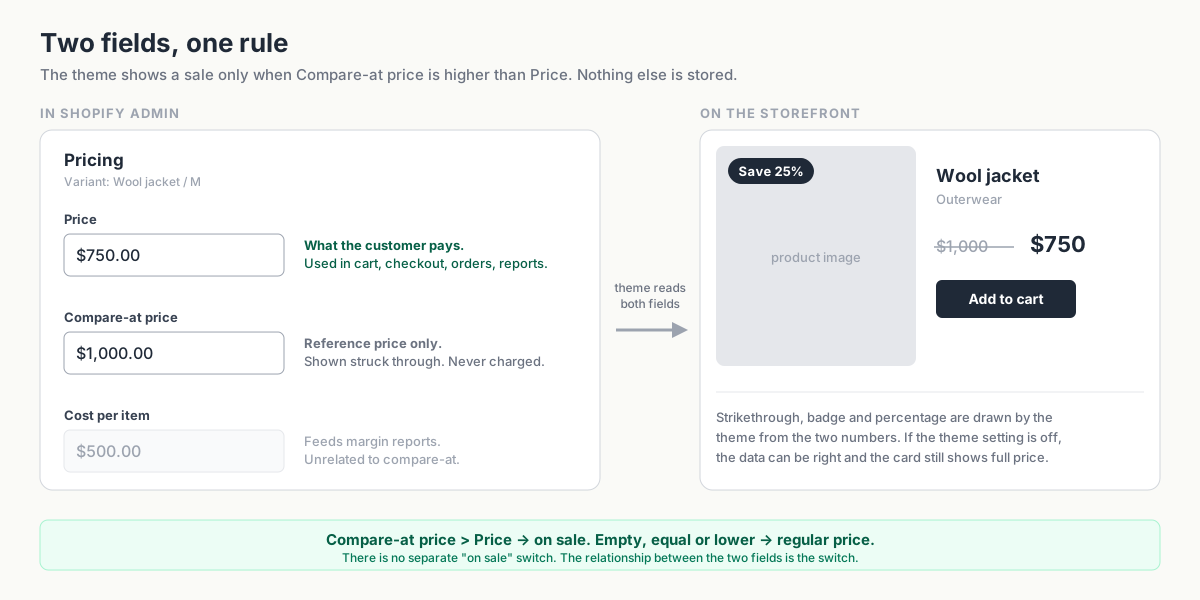 Set Price to $750 and Compare-at price to $1,000\. A supporting theme shows the original price crossed out beside the sale price; the badge and styling depend on the theme. Keep three things in mind: 1. **The two values control sale styling.** Lower `Price` and set an appropriate higher reference price to display the offer. Restore the original setup when the sale ends. 2. **Each variant has its own values.** A jacket in five sizes has five sets of price fields. Changing one size leaves the others unchanged. 3. **Other systems can overwrite your edits.** Check any app or integration that updates prices if an offer disappears unexpectedly. ## A 25% sale, from setup to reset Take a wool jacket that normally sells for $1,000\. At 25% off, its sale price is $750\. With no additional discounts or charges, the two fields work like this: | | Before the sale | During the sale | After the sale | | ---------------------------- | --------------- | --------------------------------- | -------------- | | **Price** | 1,000 | **750** | 1,000 | | **Compare-at price** | *(empty)* | **1,000** | *(empty)* | | What the customer sees | $1,000 | ~~$1,000~~ **$750** \+ "Save 25%" | $1,000 | | What the customer is charged | $1,000 | $750 | $1,000 | | What lands in reports | 1,000 | 750 | 1,000 | During the sale, `Price` drops to 750 and `Compare-at price` shows 1,000\. Afterward, `Price` returns to 1,000 and the compare-at field is cleared. ### What reaches the cart and your reports It helps to picture the four places a price passes through: - **The variant** holds the price and compare-at values. - **The theme** reads them to display the offer and calculate any savings badge. - **The cart and checkout** use the current price, with any applicable discounts, shipping, and taxes. The compare-at value doesn't set the amount charged. - **Orders and reports** reflect the sale transaction. Product cost comes from the separate `Cost per item` field. 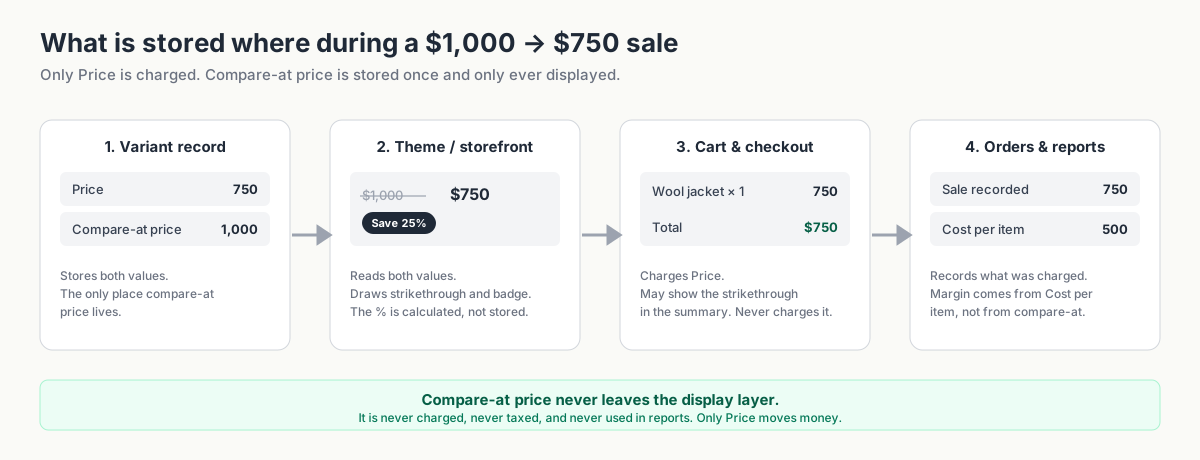 Compare-at price is a reference for the display, not an extra charge. Price supplies the selling amount; eligible discounts, taxes, and shipping affect the final checkout total. Decide how to handle rounding before changing many prices: 25% off $999 is $749.25\. Also keep `Cost per item` separate from `Compare-at price`. One records your product cost; the other displays a reference price to shoppers. ## Compare-at price vs. discount code ### Where and when the customer sees the savings A sale price and a code can produce the same final price, but shoppers see them at different stages. A **sale price** changes the product's current price. Supporting themes show the struck-through original on product and collection pages, and the reduced price carries through to checkout. A **discount code or automatic discount** is a rule Shopify applies to the cart. The product's stored price never changes. The customer sees full price on the collection and product pages, and the saving appears once the discount is applied, which is typically at checkout. | Where the customer is | Sale price (compare-at) | Discount code / automatic discount | | --------------------- | ----------------------------------------- | ------------------------------------------- | | Collection page | Strikethrough + sale price | Full price | | Product page | Strikethrough + sale price | Full price | | Cart | Sale price (strikethrough on many themes) | Full price, or a discount line once applied | | Checkout | Sale price | Discount line and reduced total | | Order confirmation | Sale price | Original price minus discount | Use sale prices for offers shoppers should see while browsing, such as weekend sales or clearance. Use codes for offers customers unlock, such as welcome or VIP discounts. Shopify's native discounts also cover offers such as Buy X Get Y. 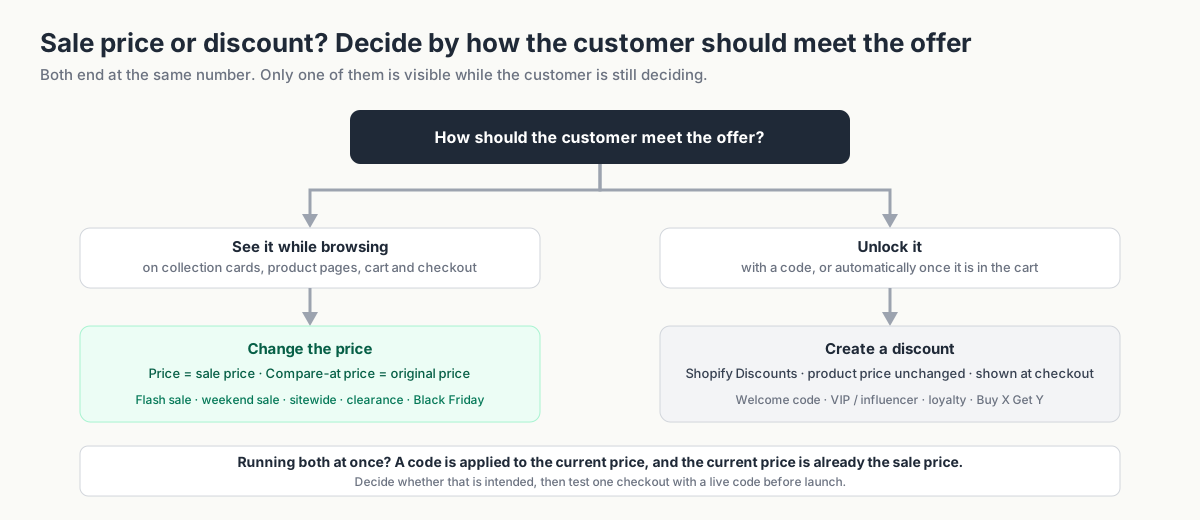 Use sale pricing for a visible product-page offer, or a discount rule for code-based and conditional offers. An app or custom solution can display discount-rule savings earlier in the shopping journey. For a comparison by campaign type, see *How to show sale prices on Shopify product pages before checkout*. ## How to show strikethrough pricing in Shopify For a single product or a handful, admin is the fastest tool. 1. Go to **Products** and open the product. 2. If the product has variants, open the variant you want to change, or use the variant table at the bottom of the product page. If it has no variants, the Pricing section is on the product itself. 3. In **Pricing**, set **Price** to the sale price, for example `750`. 4. Set **Compare-at price** to the original price, for example `1000`. 5. Repeat for every variant that should be on sale. 6. Save, then open the product in the storefront and check both the product page and its collection card. To end this sale, set **Price** back to `1000` and clear the compare-at field. Check the storefront afterward to confirm the product looks as it did before the offer. If you're going to edit more than a few products by hand, write the original prices down first. Shopify doesn't keep a price history you can restore from. ## How to bulk edit compare-at prices in Shopify Choose a method based on how many prices you're changing and whether you need a scheduled reset. ### Shopify bulk editor From the Products list, select the products, choose **Edit**, and add the **Compare-at price** column if it's hidden. You can then type or paste values across many rows at once. Variants appear as separate rows, so a 40-product sale can easily become 200 rows. The bulk editor suits small selections and occasional changes. Calculate the sale prices first and keep a record of the originals. You'll need to restore them when the sale ends. ### CSV export and import Export your products, change the `Variant Price` and `Variant Compare At Price` columns in a spreadsheet, and import the file back. This scales to thousands of variants and lets you use formulas for the discount math. Check product matching, columns, and number formatting carefully before importing. Keep the original export, test a small file first, and coordinate with anyone else editing the catalog. Allow time for the import to finish at both the start and end of the sale. ### Scheduled campaigns with an app Disco lets you select products by collection, tag, vendor, or type, calculate the discount, and schedule the price change and reset. It can also manage campaign elements such as badges, a countdown, an announcement bar, and a sale collection. | | Bulk editor | CSV | Scheduled campaign | | --------------------------------------------- | --------------------------- | ---------------------------------- | ------------------------------------- | | Sweet spot | 5–50 products, one-off | Hundreds to thousands, one-off | Any size, recurring or time-boxed | | Discount math | Manual | Spreadsheet formulas | Automatic | | Starts at a set time | No | No | Yes | | Automatic reset | No | No (re-import your backup) | Yes | | Storefront extras (badges, timers, sale page) | No | No | Yes | | Main risk | Slow; easy to miss variants | One bad file overwrites everything | Other apps writing prices; test first | For examples by catalog size, see *Bulk discounts in Shopify: put hundreds of products on sale without CSV*. For the scheduling steps, see *How to schedule a Shopify sale that starts and ends automatically*. ## Why is my Shopify compare-at price not showing? Start with the affected variant, then check how your theme and other integrations use its prices. ### 1\. Check that the reference price is higher `Compare-at price` must be strictly higher than `Price`. Equal values, a lower value, or an empty field all mean "not on sale." Check the specific variant you're looking at, and check for import artefacts: a compare-at price of "1.000" read as one krone, a stray currency symbol, or a decimal comma where Shopify expected a point. ### 2\. Check every variant in the sale The product page shows the selected variant's price. The collection card usually shows the first available variant, or the lowest price with a "From" prefix. If you put size M on sale and the card shows size S, you'll see full price. Open the variant table and confirm every row that should be on sale has both values. ### 3\. Check theme settings for missing strikethrough prices or sale badges The compare-at field only tells the theme the product is on sale. Whether the theme draws anything is a theme setting. In the theme editor, look for options such as "Show sale badge," "Show compare-at price," or "Sale price display" (the names vary by theme). Some themes show the strikethrough on the product page but not on collection cards by default, and some page-builder sections don't read compare-at prices at all. If the product page looks right but the collection card doesn't, check the collection's theme settings and how it handles mixed variant prices. ### 4\. Check variant pricing when compare-at prices are missing on collection pages If only some variants are reduced, many themes show the collection card as regular-priced, or show "From $750" without a strikethrough. That's expected behavior. If the whole product should read as on sale, reduce every variant. ### 5\. Check market-specific prices If you sell in several markets, check how prices are set for each one. Percentage-based market adjustments generally follow the base price, but market-specific fixed prices set through a price list override the base price and won't change just because you edited the default variant. Before any campaign, open one product in each active market and confirm the strikethrough renders. If you use a currency or markets app that writes prices, treat it as one of the systems in the next step. ### 6\. Check for another app updating prices If the offer appeared and then vanished, look for a scheduled price update. Inventory and ERP systems, supplier apps, marketplace connectors, pricing tools, and CSV imports can all update the same fields. Check which jobs ran around the time the price changed. Pause the conflicting price sync for the sale, exclude campaign products, or move the job to before launch. Otherwise, the next sync can undo the offer again. [When a Shopify discount disappears: troubleshooting price sync](https://productessentials.app/blog/shopify-discount-disappeared-price-sync/) walks through the diagnosis. ### 7\. Rule out a cached page Hard-refresh, or open the page in an incognito window. If you have a CDN or a caching app in front of the store, purge it. If everything above checks out and the storefront still shows full price, this is the last thing to rule out before contacting your theme's support. 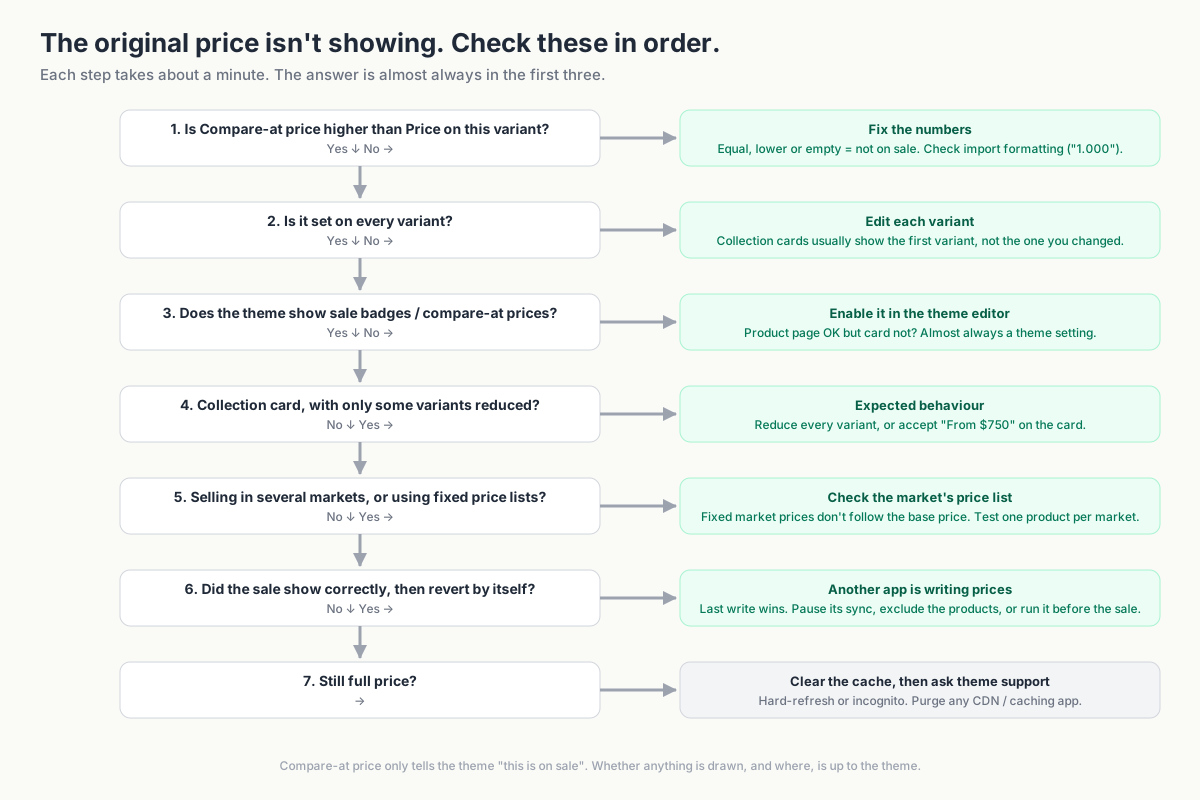 Work through three groups of checks: price data, storefront display, and overrides. Mixed variant prices can affect collection cards; also check the theme. Use the detailed troubleshooting steps below. ## Can shoppers use a code on top of the sale price? Yes, if the code's conditions are met and you haven't blocked it. With the jacket priced at $750, an eligible `WELCOME10` code takes another 10% off that amount. Shopify's combination settings govern how discounts combine with each other; a reduced catalog price sits outside those rules. Here's what that does to the jacket: | | Regular price | Sale only | Sale + 10% code | | ------------------------------- | ------------- | --------- | --------------- | | Customer pays | $1,000 | $750 | $675 | | Discount vs. original | 0% | 25% | 32.5% | | Contribution margin (cost $500) | $500 | $250 | $175 | The total discount rises from 25% to 32.5%, while the amount left after product cost falls from $250 to $175—a 30% drop. Account for shipping, fees, and other costs before deciding whether to allow the code. To manage extra discounts: - **Pause or restrict the codes** in Shopify Discounts for the sale window. - **Adjust combination settings** so, for example, order-level codes can't combine with product discounts. This helps if you're using native discounts alongside sale prices, but again, it doesn't see the sale price itself. - **Block additional discount codes during the campaign** in Disco, then test any automatic discounts separately. An extra loyalty discount may be part of the offer. Calculate it in advance and test checkout with a live code before launch. [Stop discount stacking and protect margin](https://productessentials.app/blog/stop-discount-stacking-shopify/) covers the full audit. ## How to automate compare-at price changes in Shopify For a timed sale, Disco handles the updates to `Price` and `Compare-at price`, then restores prices at the end. Your theme displays the offer using the same fields as a manual edit. ### 1\. Select products in bulk Choose products by collection, tag, product type, or vendor, and add exclusions for anything that shouldn't move: new arrivals, low-margin lines, items already reduced. The free Starter plan covers a small campaign; larger catalogs and more simultaneous campaigns sit on the paid plans (see current plans for the limits). ### 2\. Set the discount Pick a percentage or a fixed amount. Disco calculates the new `Price` for every selected variant and records the pre-campaign price as the `Compare-at price`, so the strikethrough and the "Save 25%" label appear automatically in your theme. ### 3\. Schedule the start and end Set the start date and time and the end date and time, and confirm the timezone. The campaign goes live at 00:00 on Friday whether or not anyone is awake, and ends at 23:59 on Sunday the same way. Multiple campaigns can run in parallel on different product groups. ### 4\. Add the storefront elements Turn on a sale badge, a countdown timer on the product page, and an announcement bar. Disco can also generate a sale collection so every discounted product is browsable in one place, and, on higher plans, a dedicated flash-sale page that publishes when the campaign starts and comes down when it ends. ### 5\. Let the reset happen At the end time, Disco restores every variant's original `Price` and clears the `Compare-at price`. The jacket goes back to $1,000, the badge disappears, and nothing is left for Monday morning. 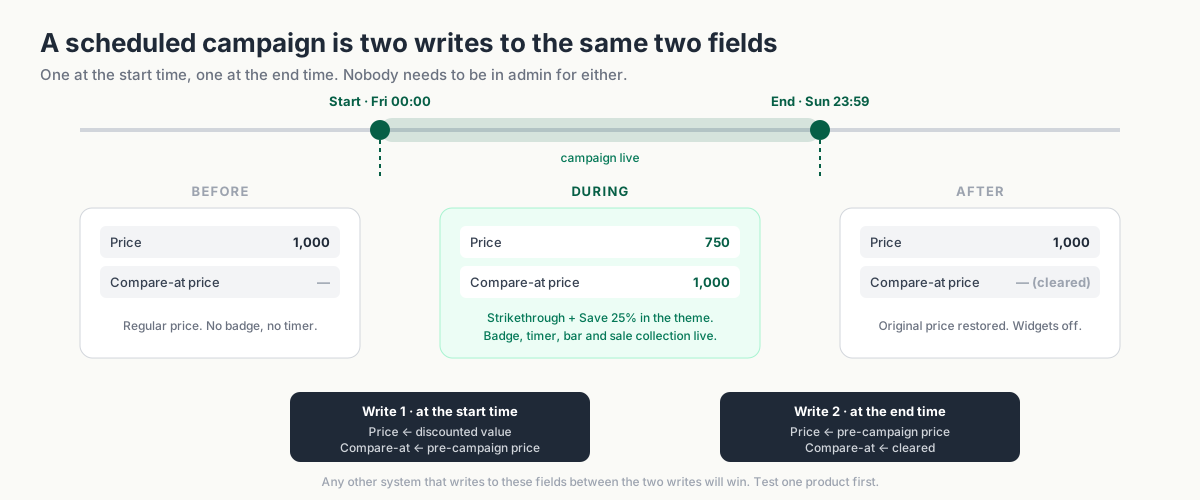 Example with no compare-at value before the sale. Verify both fields after the reset. If a product already has a compare-at price, record it and test how the campaign handles that value. Before the first full sale, test a few products for an hour. Include a product with several variants and one with an existing compare-at price. Record their original values and check the full start-to-reset cycle across your theme and markets. ## FAQ Is compare-at price the same as MSRP or RRP? Not technically. It's a free-form reference field, and Shopify doesn't check what you put in it. Many merchants use it permanently for a recommended retail price, which makes every product look on sale all the time. That works against you twice: your actual sales don't stand out, and, depending on where you sell, a reference price that never reflected a real selling price can create legal exposure. Use compare-at for genuine prior prices, and keep it empty the rest of the time. Are there rules about what I can show as the original price? Often, yes. In the EU, including Denmark, when you announce a price reduction, the "before" price you show generally has to be the lowest price you applied in the 30 days before the reduction, and other jurisdictions have their own reference-pricing rules. This isn't legal advice, but it's a good reason to keep a record of what each product actually sold for before a sale, and to think twice about running back-to-back campaigns on the same products. Does compare-at price affect checkout? The compare-at value doesn't set the amount charged. Checkout uses the current product price and applies any eligible discounts, taxes, and shipping charges. Can I schedule a compare-at price change natively in Shopify? Shopify lets you schedule *discounts* with start and end dates. The standard product editor has no scheduler for price fields. Shopify Plus stores can use Shopify's [Launchpad app](https://help.shopify.com/en/manual/promoting-marketing/create-marketing/launchpad?ref=productessentials.app) for timed product price changes. Other stores can use a sale-pricing app or custom automation to handle the start, end, and reset. What if another app changes prices during my sale? The most recent write wins, so whichever system runs last sets the price the customer sees. Identify the app (the timing of the reversal usually points to a sync schedule), then disable its price sync for the sale, exclude the affected products, or move its sync to run before the campaign starts. If you're a Disco user and the price still reverts after those changes, send the product URL, the timestamp, and the list of apps that write prices to support. How do I remove a compare-at price after a sale? If the field was empty before the sale, clear it when you restore the regular price. If it already held a reference price, record that value before launch and verify how your campaign handles it at reset. Does compare-at price show up in Google Shopping and other feeds? Typically, yes. Shopify's Google & YouTube channel and most feed apps map the compare-at price to the feed's regular price and `Price` to its sale price whenever a compare-at value is present. Check your feed's field mapping so a permanent RRP in the compare-at field doesn't advertise a permanent sale in your ads. ## Make the saving clear—and the reset automatic Set the two price fields, check every selected variant, and confirm that shoppers can see the offer. **Use Disco to schedule the changes and the reset** when you're ready to run a timed campaign. Start with a small group so you can check both ends of the sale before expanding it. [Install Disco from the Shopify App Store →](https://apps.shopify.com/discount-app?referrer=pe&utm%5Fsource=productessentials.app&utm%5Fmedium=blog&utm%5Fcampaign=shopify-compare-at-price-complete-guide) For plan limits and pricing, see our current plans page. --- **Next:** [How to schedule a Shopify sale that starts and ends automatically](https://productessentials.app/blog/schedule-shopify-sale-starts-ends-automatically/) sets and clears the compare-at price on a timer, and [Bulk discounts in Shopify: put hundreds of products on sale without CSV](https://productessentials.app/blog/shopify-bulk-discounts/) does it for the whole catalog at once. ### Your Shopify sale price keeps reverting? If you use compare-at prices, this is probably why URL: https://productessentials.app/blog/shopify-sale-price-keeps-reverting/ Last updated: 2026-10-18T08:41:51.000Z You set the sale up. You opened a product page to check: strikethrough price, sale badge, all there. Then a customer emails, or you spot it yourself the next morning: full price again, no compare-at, no badge. You re-apply the discount. A few hours later it's gone again. If you run sales by changing the product's **Price** and **Compare-at price**, whether by hand, with the bulk editor, through a CSV, or with a sale app like Disco, this is almost always the same issue: another system in your stack writes to those same two fields, and Shopify keeps whatever was written last. This post covers why it happens, which apps to suspect, how to find the culprit in about twenty minutes, and how to make sure it doesn't come back. ## The short version: last write wins 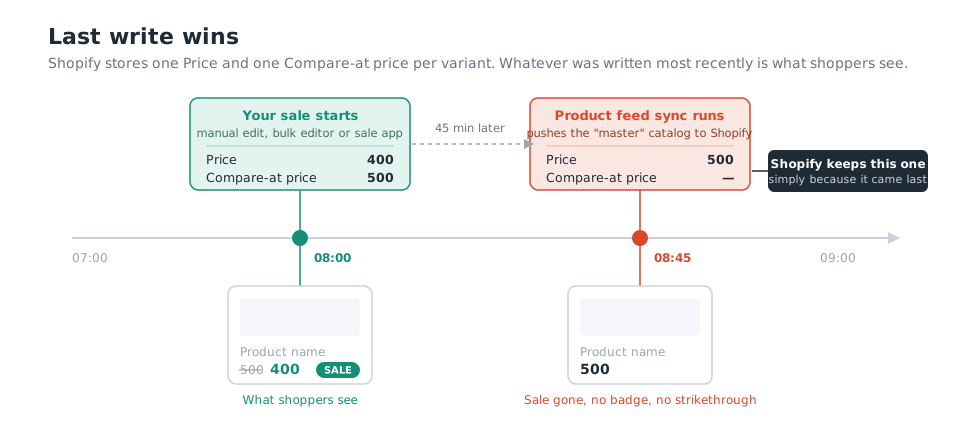 A sale price set with compare-at isn't a rule that sits on top of your catalog. It *is* your catalog. Shopify stores exactly one Price and one Compare-at price per variant, and any app with permission to edit products can change them. There's no merging and no "this one is on sale, leave it alone" flag. The most recent write is what's stored, and what shoppers see. So when your ERP pushes its nightly catalog at 02:00, it has no idea a sale is running. It sees a Price of 400 where its own master data says 500, "corrects" it, and blanks the compare-at field because its own record doesn't have one. As far as the storefront is concerned, the sale never happened. Two things follow from this: - **How you set the sale price doesn't matter.** Manual edit, bulk editor, CSV, Disco: the sync can't tell the difference and doesn't care. This isn't a bug in the sale app or in Shopify. It's two systems disagreeing about who owns the price. - **Re-applying the discount only resets the clock.** Next sync run, same result. That's why the usual "just apply it again" advice feels like it works for a day and then doesn't. One thing that is *not* on this list: discount codes and automatic discounts. Those live in Shopify's discount system and never touch the product's price fields. If a code stopped working, you have a different problem, and the [sales vs. discount codes](https://productessentials.app/blog/shopify-sales-vs-discount-codes-show-discount-before-checkout/) post is the better place to start. ## The usual suspects 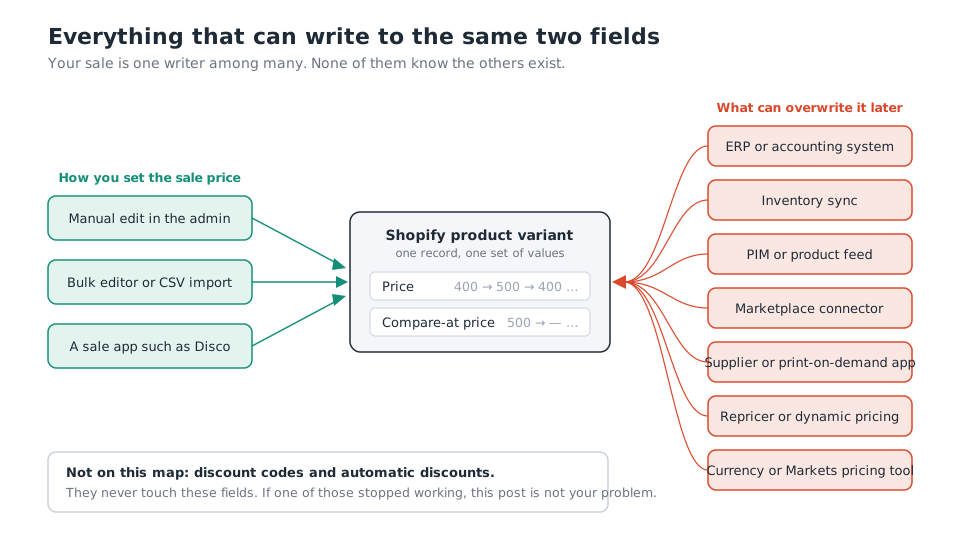 Work through your app list with this question: *does it have permission to edit products, and does it ever push prices?* The usual answers, roughly in order of how often they turn out to be the cause: - **ERP or accounting system.** Usually the "source of truth" for the business, and therefore the system most likely to overwrite Shopify on a schedule. - **Inventory sync apps.** Many sync price alongside stock levels by default, even if you only ever wanted the stock part. - **PIM or product feed tools.** They push the whole product record, price included. - **Marketplace connectors.** Some are two-way and copy the marketplace price back into Shopify. - **Supplier, dropshipping and print-on-demand apps.** They recalculate your retail price whenever the supplier's cost changes. - **Repricers and dynamic-pricing tools.** Changing prices is their whole job. They'll "fix" yours. - **Currency and Shopify Markets pricing tools.** Can rewrite base or per-market prices. - **CSV imports and the bulk editor.** The human version. A colleague re-uploading last week's spreadsheet overwrites every price in it. A useful tell: if the price flips back at the same time every day, or on a round hour, you're looking at a scheduled sync. If it flips back within minutes of you saving a product, you're looking at an app that reacts to product updates. ## Find the culprit in about twenty minutes 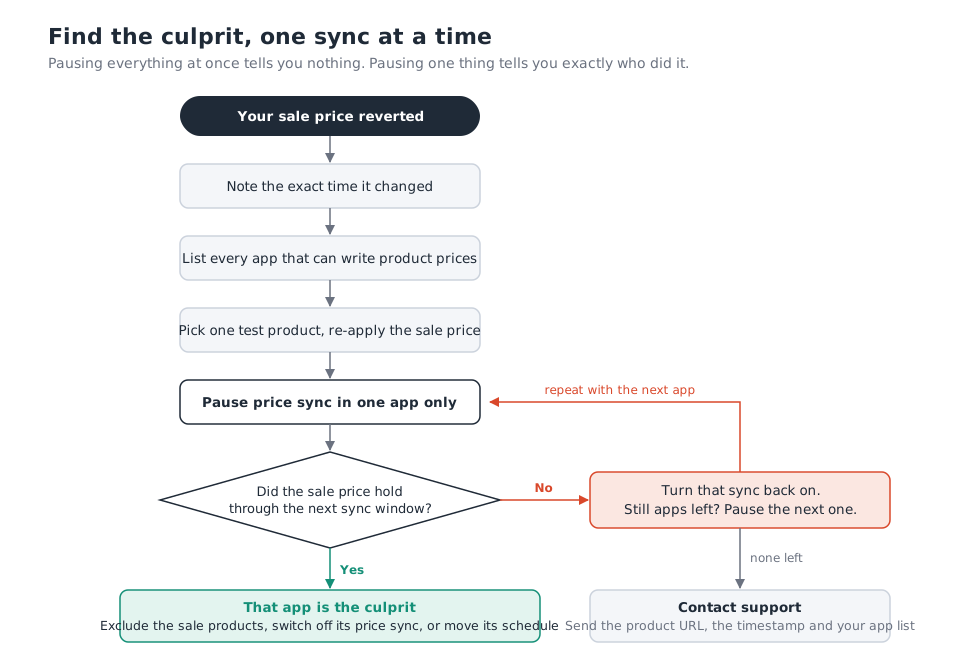 1. **Note the exact time the price changed.** Compare it with when you applied the sale. The gap is your first clue about which schedule you're colliding with. 2. **List every app that can write product prices.** In your Shopify admin, each installed app shows what it has access to. Anything that can edit products is a candidate. Don't skip the ones you "only use for inventory"; that's where this usually hides. 3. **Pick one test product.** Re-apply the sale price on that product only. You don't need to touch the whole campaign to diagnose this. 4. **Pause price sync in one app.** Most sync tools let you turn off price sync while keeping stock sync. If yours doesn't, pause it for the test product, or pause the app briefly. 5. **Wait through the next sync window.** If the sale price is still there afterwards, you've found it. If not, turn that sync back on and pause the next app. Resist the urge to pause everything at once. If you do that and the price holds, you've learned nothing you can act on, and you'll be guessing again the moment you switch things back on. ## Four ways to stop it for good Once you know which system is doing the writing, pick one of these. In most stores the first or second option is enough. **1\. Turn off price sync in the other app.** Keep stock sync, drop price sync. This is the cleanest fix whenever that system doesn't actually need to own your retail prices, which is more often than people assume. **2\. Exclude the sale products from the sync.** Many ERP, feed and inventory tools can skip products by tag or collection. If your sale app tags campaign products automatically, that tag doubles as the exclusion rule. If it doesn't, one manual tag on the sale products does the job. **3\. Move the sync schedule.** If the other system must push prices, make it run *before* the campaign starts, not during it. 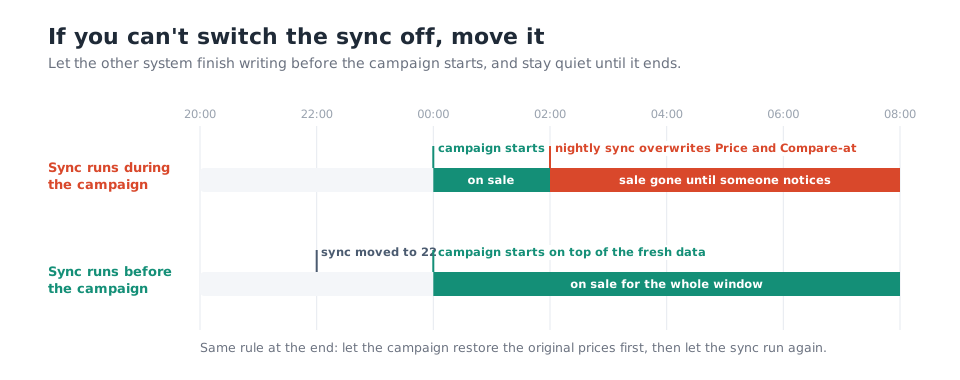 The same rule applies at the end: let the campaign restore the original prices first, then let the sync run again. If the sync fires in between, it can overwrite the reset with whatever it had cached. **4\. Pause the sync for the campaign window.** For a four-hour flash sale, simply pausing the other app is fine. Set a reminder to switch it back on; forgotten pauses cause their own problems. If your ERP is the real source of truth for pricing, there's a fifth option: put the sale price in the ERP and let it flow down. You'll lose scheduling, automatic reset and storefront elements from the sale app, but you'll have exactly one system writing prices, which is the only configuration where this can never happen. ## Before you deactivate and reactivate the campaign A sale app restores your original prices at the end of a campaign by using what it recorded at the start. That works as long as nothing else writes to the price fields in between. If another system has been rewriting prices mid-campaign, and you deactivate and reactivate the campaign a few times to "fix" it, the recorded originals and the live prices can drift apart. You can end up discounting from the wrong base, or restoring a price that isn't the one you meant. The safe sequence is: 1. Find and fix the sync first. 2. Re-apply the campaign once. 3. Spot-check a handful of products, including the end-of-campaign reset on a test product with a short schedule. And while a campaign is live, don't make manual price edits on the products in it. Every manual edit is one more write competing for the same field. ## A pre-launch checklist for your next sale Fill this in once, before a big campaign, and you'll rarely see this problem again. | System | Writes prices? | When does it run? | Owner | Tested with a sale product? | | ------------------------ | --------------------------- | ----------------- | ----------- | --------------------------- | | ERP / accounting | Yes | Nightly 02:00 | Finance | Moved to 22:00, tested | | Inventory sync | Stock only (price sync off) | Every 15 min | Ops | Tested | | Product feed / PIM | Yes | Hourly | Marketing | Sale tag excluded | | Marketplace connector | No (one-way) | Continuous | Ops | Not needed | | Supplier / POD app | On cost change | Event-based | Ops | Sale products excluded | | Currency / Markets tool | | | | | | CSV imports / bulk edits | Anyone with product access | Ad hoc | Store owner | Freeze during campaign | The rows above are examples; the point is that every system with product access appears on the list, with a named owner and a yes or no in the last column. ## When to bring in support If you've tested every price-writing app and prices still revert, it's time for a support ticket. Send: - the product URL (or a few), - the exact time or times the price changed, - the list of apps that have product access, and which ones you've already paused. That's the information Product Essentials support asks for, and it's what turns a week of back-and-forth into one reply. If you're running your sale with Disco, the [help article on why another app can overwrite your prices](https://help.productessentials.app/article/54-why-disco-discounts-appear-then-disappear-later?ref=productessentials.app) walks through the same steps from inside the app, including the recommended fixes for the most common integrations. Disco records the original prices when a campaign starts and restores them when it ends, so as long as nothing else writes to those fields in between, you won't need to do any of this by hand. If you'd like scheduled sale prices that start, stop and reset on their own, [see the current plans](https://productessentials.app/#pricing) and test it on a small group of products first. [Install Disco from the Shopify App Store →](https://apps.shopify.com/discount-app?referrer=pe&utm%5Fsource=productessentials.app&utm%5Fmedium=blog&utm%5Fcampaign=shopify-sale-price-keeps-reverting) --- **Next:** [Shopify compare-at price: how to show strikethrough pricing](https://productessentials.app/blog/shopify-compare-at-price-complete-guide/) covers the two price fields every sync in this post fights over, and [How to schedule a Shopify sale that starts and ends automatically](https://productessentials.app/blog/schedule-shopify-sale-starts-ends-automatically/) shows how Disco records and restores prices so the reset isn't a manual job. ### How countdown timers actually increase conversions URL: https://productessentials.app/blog/countdown-timers/ Last updated: 2026-06-22T13:31:01.000Z Countdown timers have a reputation. Used badly, they feel like a cheap pressure tactic. Used well, they do something genuinely useful: they remove ambiguity. A shopper who knows a price ends Sunday at midnight can make a decision. A shopper who isn't sure when - or whether - the deal expires will simply leave and 'think about it.' ## Why a deadline converts Most abandoned carts aren't rejections - they're deferrals. People intend to come back, then life happens. A visible, honest deadline reframes the decision from 'someday' to 'now or never,' which is exactly the nudge an interested-but-hesitant buyer needs. ## Put the timer where the decision happens A timer buried in the footer does nothing. The moment that matters is on the product page, right beside the price, where the shopper is weighing the purchase. Showing the time left on each discounted product keeps the deadline in view at the point of decision. > Urgency only works when it's true. A countdown that resets every time someone reloads the page trains shoppers to ignore you. ## Keep it honest The fastest way to burn trust is a fake timer. If the sale ends Sunday, the timer should end Sunday - and the price should actually go back up afterwards. When your urgency is real, the timer becomes a credibility signal instead of a gimmick. ## Match it to your brand A timer that clashes with your storefront reads as spam. Style it to match your theme's colors and type so it looks like a native part of your store, not a banner ad bolted on top. Subtlety converts better than flashing red numbers. Done right, a countdown timer isn't pressure - it's clarity. And clarity is what turns browsers into buyers. ### Flash sales vs. sitewide sales: which fits your store? URL: https://productessentials.app/blog/flash-vs-sitewide/ Last updated: 2026-06-22T13:31:02.000Z Not every sale should look the same. A flash sale and a sitewide sale solve different problems, and reaching for the wrong one can either underwhelm your audience or quietly wreck your margins. Here's how to tell them apart. ## The flash sale: deep, narrow, short A flash sale is a sharp discount on a focused selection for a short window - a weekend, a day, sometimes hours. It's built for urgency and attention. Use it to clear a specific collection, spotlight a hero product, or give your email list a reason to open today rather than next week. ## The sitewide sale: broad, moderate, longer A sitewide sale applies a more modest discount across most or all of your catalog, usually over several days. It's the right tool for seasonal moments - BFCM, end of season, an anniversary - when the goal is volume and you want every visitor to feel included. > Flash sales create urgency. Sitewide sales create participation. Pick the one that matches what you actually need this month. ## How to choose Ask what you're optimizing for. If you need to move specific stock or spike attention on a quiet week, go flash. If you're riding a seasonal wave and want broad reach, go sitewide. And if you run frequent flash sales, vary the products and cadence so shoppers don't simply learn to wait for the next one. ## You can run both Mature stores often layer the two: a sitewide seasonal sale with a daily flash deal inside it to keep people coming back. The key is scheduling them as distinct campaigns with clear start and end times so the offers never collide. Whichever you choose, the mechanics are the same - select products, set the discount, add urgency, schedule. The strategy is just deciding how deep and how wide. ### Stop discount stacking and protect your margins URL: https://productessentials.app/blog/stop-stacking/ Last updated: 2026-06-22T13:31:02.000Z You set a 30% sitewide sale. A shopper applies a 'WELCOME10' code at checkout. Now they're getting 40% off, your margin is thinner than you planned, and you may not even notice until you reconcile the month. Multiply that across a busy weekend and discount stacking becomes a real, invisible cost. ## Why it happens Most stores accumulate discount codes over time - welcome offers, influencer codes, win-back campaigns. They're easy to forget about, and they don't automatically switch off when you launch a sale. So during your biggest promotions, when traffic is highest, they quietly combine with your sale prices. ## The real cost The damage isn't just the extra percentage. It's that your advertised price is no longer your floor, which makes forecasting unreliable and can turn a 'successful' sale into a barely-profitable one. Worse, savvy shoppers share stackable combinations, and the leak spreads. > Your sale price should be the lowest price. If a code can go underneath it, you've lost control of your own promotion. ## The fix Block other discount codes from applying while a sale is running. With stacking turned off, your sale price holds as the genuine floor - shoppers still get the deal you advertised, and you keep the margin you planned for. When the sale ends, your codes can resume as normal. It's a small setting with an outsized effect: predictable margins, honest pricing, and no end-of-month surprises. ### Launch your first storewide sale: a no-code guide URL: https://productessentials.app/blog/first-storewide-sale/ Last updated: 2026-06-22T13:31:03.000Z If you've never run a proper storewide sale, the idea can feel daunting - editing hundreds of prices, remembering to change them back, hoping nothing breaks. It doesn't have to be. Here's how to launch your first one start to finish, without writing any code. ## Step 1: Decide the offer Keep your first sale simple. A single, clear discount - say 20% off everything - is easier to communicate and easier to manage than a tangle of tiered offers. You can get fancier once you've run a few. ## Step 2: Select your products Rather than ticking products one by one, filter by collection, tag, type or vendor to bulk-select. If there are items you never want discounted - new arrivals, thin-margin lines - add them as exclusions now. ## Step 3: Add your storefront elements Turn on sale badges so discounted products are obvious, an announcement bar so visitors know a sale is on, and a countdown timer to give it a deadline. These are added through the storefront widget - no theme editing, no developer. > The first sale is the hardest. After that it's a repeatable checklist you can run in minutes. ## Step 4: Schedule it Set a start and end time. The sale will switch on and off by itself, and - importantly - every price reverts to normal automatically when it ends. No frantic Sunday-night price resets. ## Step 5: Tell people A sale nobody knows about doesn't convert. Email your list, post on social, and point everyone at your sale collection. Then let the automation do the rest. That's it. Five steps, no code, and a sale that runs itself. ### Set it and forget it: the case for scheduling sales URL: https://productessentials.app/blog/schedule-sales/ Last updated: 2026-06-22T13:31:03.000Z There's a particular kind of stress that comes from launching a sale manually: staying up to flip prices at midnight, setting phone alarms to turn the sale off, praying you didn't fat-finger a discount. Scheduling removes all of it. ## Plan when you're calm, not when you're busy The best time to set up a sale is days or weeks before it runs, when you have time to think clearly. Scheduling lets you do exactly that - configure everything in advance, then trust it to launch on the date you chose. ## No manual start, no manual stop A scheduled sale switches on at its start time and off at its end time. Prices revert automatically, so there's no window where you're accidentally still discounting on Monday morning because you forgot to end it Sunday night. > If your sale depends on you being awake to start it, it isn't really planned - it's just hoped for. ## Run several at once Scheduling also lets you line up multiple campaigns without conflict - a weekend flash sale, a month-end clearance, a holiday push - each with its own dates. You can see the whole quarter laid out instead of improvising week to week. ## Build a rhythm Once sales are scheduled rather than scrambled, you can establish a predictable promotional calendar. That consistency is good for your team's sanity and good for training customers to anticipate your sales rather than wait for random ones. Set it up once, schedule it, and get your evenings back. ### Daily deals that don't cannibalize full-price sales URL: https://productessentials.app/blog/daily-deals/ Last updated: 2026-06-22T13:31:04.000Z A daily deal is a fantastic traffic driver - a fresh reason to visit every day. But run carelessly, it teaches your most loyal customers a dangerous lesson: never pay full price, just wait for the rotation. Here's how to get the traffic without the training. ## Rotate the spotlight, not the whole store Feature a different product or small collection each day rather than blanket-discounting everything. The deal feels special and scarce, and the rest of your catalog keeps selling at full price alongside it. ## Vary the products that go on deal If the same hero product is on sale every Friday, regulars will simply buy it on Fridays. Mix in seasonal items, overstock, and lower-stakes products so there's no predictable pattern to game. > A good daily deal feels like a discovery. A bad one feels like a coupon your customers learn to wait for. ## Give each deal a hard deadline The whole point of a daily deal is that it's gone tomorrow. A countdown timer makes that real and pushes the decision into today. Without a visible deadline, 'deal of the day' is just a permanent discount with extra steps. ## Protect your margins Keep new arrivals and core full-price lines out of the rotation with exclusions, and don't let other codes stack on top of the daily price. The deal should be a controlled, deliberate offer - not an open door. Done well, daily deals build a daily habit. Done poorly, they build a discount expectation. The difference is discipline. ### Building urgency without being pushy URL: https://productessentials.app/blog/urgency-without-pushy/ Last updated: 2026-06-22T13:31:04.000Z Urgency is one of the most effective tools in commerce and one of the easiest to overdo. The line between 'helpful nudge' and 'aggressive pressure' is real, and crossing it costs you trust. Here's how to stay on the right side of it. ## Lead with information, not manipulation Honest urgency simply tells shoppers something true and useful: this price ends Sunday, this is the last weekend, stock is limited. You're giving them the facts they need to decide. Manufactured urgency - fake timers, invented scarcity - does the opposite and erodes credibility. ## One clear signal beats five loud ones A page screaming with banners, popups, blinking timers and 'ONLY 2 LEFT' badges doesn't feel urgent - it feels desperate. Pick the strongest, truest signal for the moment and let it stand on its own. > Trust is the thing that makes urgency work. Spend it carefully. ## Design urgency to match your brand Urgency cues should look like they belong in your store. A countdown timer and sale badge styled to your theme read as a thoughtful, time-limited offer. The same elements in clashing colors read as a scam. Restraint signals confidence. ## Respect the shopper's intelligence Your customers have seen every dark pattern. Treating them as smart - real deadlines, real stock, clear copy - is not only more ethical, it converts better over time because they come back. Pushy tactics win one sale and lose the relationship. The best urgency doesn't feel like pressure at all. It feels like clarity, delivered at the right moment. ### Make your sale collection work in email and on-site URL: https://productessentials.app/blog/sale-collection-everywhere/ Last updated: 2026-06-22T13:31:05.000Z Setting up a great sale is only half the job. If the only people who find it are the ones already browsing your store, you're leaving most of the upside on the table. The trick is to make one sale collection do the work across every channel you have. ## Start with a single source of truth When your sale auto-generates a dedicated collection, you get one URL that always reflects exactly what's on offer. That link becomes the anchor for everything else - no rebuilding product lists per channel, no broken links when items sell out. ## On-site: make it impossible to miss Feature the sale collection in your main navigation, link the announcement bar straight to it, and add it to your homepage hero. Every visitor, regardless of where they land, should be one tap from the deals. > Build the collection once, then point every channel at the same link. Consistency is what makes a sale feel coordinated. ## Email: lead with the link Your sale email should send people straight to the collection, not a generic homepage. Pull a few hero products into the email as a teaser, then let the collection page carry the full range. One clear call to action beats five competing ones. ## Social and beyond Drop the same collection link in your social bios, stories and posts, and in any paid traffic you're running for the sale. Because it's one maintained page, everything stays accurate even as the sale evolves. - Collection linked in main nav - Announcement bar points to it - Homepage hero features it - Email CTA sends straight to it - Social bios and posts use the same link One collection, every channel, zero busywork. That's how a sale reaches everyone it should. ### 4 Tips to Upsell through Flash Sales URL: https://productessentials.app/blog/4-tips-to-upsell-through-flash-sales/ Last updated: 2020-01-06T20:26:39.000Z ## 1\. Discount Your Hard-to-Sell & Out-of-Season Items. Some stores run sales by adding a flat discount rate to the entire store. If you do this, you miss an obvious opportunity to upsell. Instead, you should take advantage of the increased traffic in your store to upsell your hottest items at retail price. Specifically, you should primarily discount the products you want to clear out, such as: - last-season items - hard-to-sell items (e.g. items with a high shelftime) By doing this, you leave the customer the option of adding one of your full-priced items and increase your profit by customer. ## 2\. Announce Your Sale & Collect Emails In the period before your sale starts, announce the sale on your store and offer your customers the option of getting notified when the sale starts. This helps you create a connection to your customers and build your email list. One way you can do this is by using [Disco](https://apps.shopify.com/discount-app?referrer=blog-4-tips-1&ref=productessentials.app) to create a sale announcement in your announcement bar as seen in the image below.  Collect emails through a sale announcement on your online store running up to the sale. Then, when the sale is scheduled to start, you notify people on your e-mail list that the sale is now running and encourage them to check it out before it ends. ## 3\. Split Your Sale into Multiple Offers Increase your potential visitors and upsales by splitting your sale into multiple smaller sales scattered over a time period. For example, instead of having one sale for a week on a product group, split the product group in two and run two separate sales in separate weeks. This has a range of benefits: - You can introduce your e-mail list with offers multiple times, which drives more traffic to your site. - You can create a higher sense of scarcity and urgency around each offer. - The increased exposure raises the probability of upselling. ## 4\. Urge Customers to Act with Time-Limited Offer Urge interested customers to engage with your Call-to-Action by speaking to their fear of missing out. You can do this by time-limiting your sale in a way that is visible to the customer. This will nudge potential customers into acting now rather than later. One way to add urgency is by creating a specific time limit for your sale and making this visible to the customers with a clear message to act before it expires. This naturally gives the customer a feeling of being in a hurry to act on the offer. 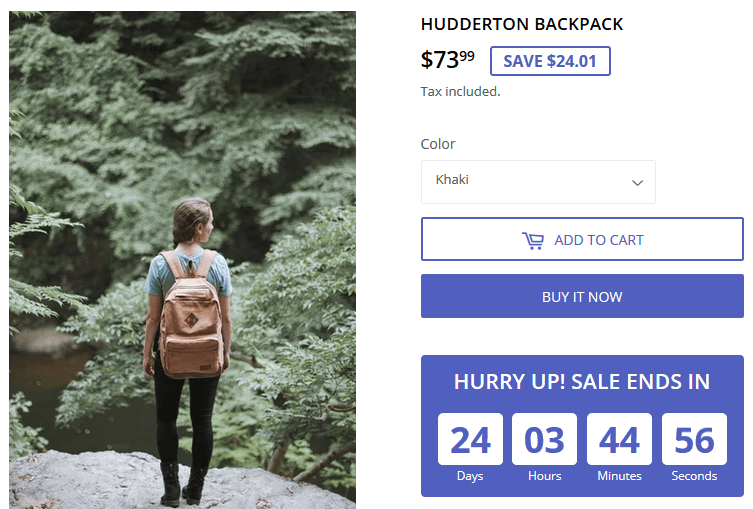 Create urgency with a visible time limit on your offer and speak to your customer's fear of missing out. Some stores use what is called dark patterns to create scarcity and urgency. This means they deceive the customer by showing fake stock numbers and time limits. **We do not recommend this.** It is misleading and ultimately, it will result in a loss of credibility in your store among your customers. **We recommend** that you run real time-limited offers that deactivate when they expire which creates real urgency in your sales. In Shopify you can do this by using our app [Disco](https://apps.shopify.com/discount-app?referrer=blog-4-tips-2&ref=productessentials.app), which handles flash sale scheduling, price editing and urgency creation all-in-one. It is even possible to show your active sales in the top announcement bar on your store as seen on the image below. To read more, visit our [Shopify app store listing](https://apps.shopify.com/discount-app?referrer=blog-4-tips-2&ref=productessentials.app). 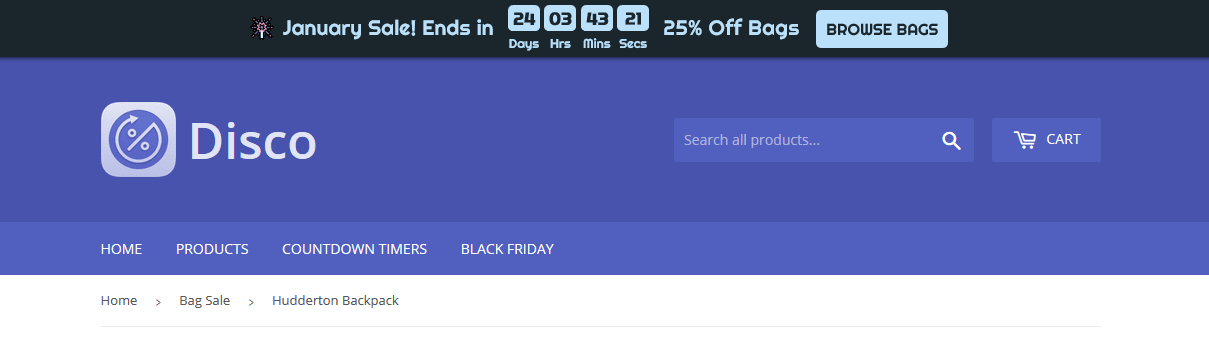 Announcement bar with countdown timer and visible call to action. Disco automatically creates this for flash sales you create with the app. [Try Disco](https://apps.shopify.com/discount-app?referrer=pe&ref=productessentials.app) ### Getting started with Disco URL: https://productessentials.app/blog/getting-started-with-disco/ Last updated: 2020-01-02T21:59:22.000Z The Disco app runs sales by reducing prices on the products in your store. To create urgency and awareness of the sale you can add a **Sale Announcement Bar** displaying each sale and a **Countdown Timer** on the product page. ## Creating your first sale To create your first sale, open the app and click **Create discount**. You will be met with the following page: 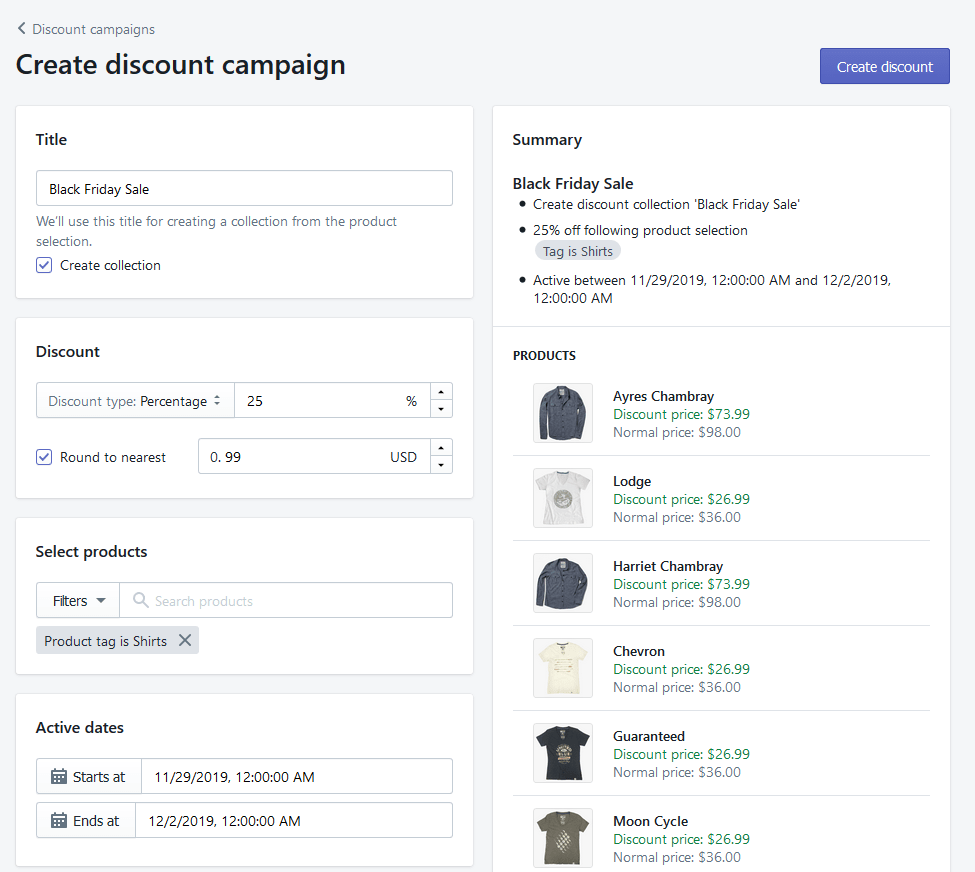 Fill out the following information about the sale: - **Title** Input your sale title. - **Create collection** Check, if you want to create a collection for the sale. - **Discount** Input a percentage or fixed amount discount. - **Round to nearest** Check, if you want the price rounded to a certain decimal. - **Select products** Based on title, product type, tag, vendor or collection. - **Active dates** Select when the discount should start and end. ## Add Announcement Bar and Countdown Timer Now you are ready to specify the sale announcement and countdown timer settings for the sale. Scroll down until you see the following: 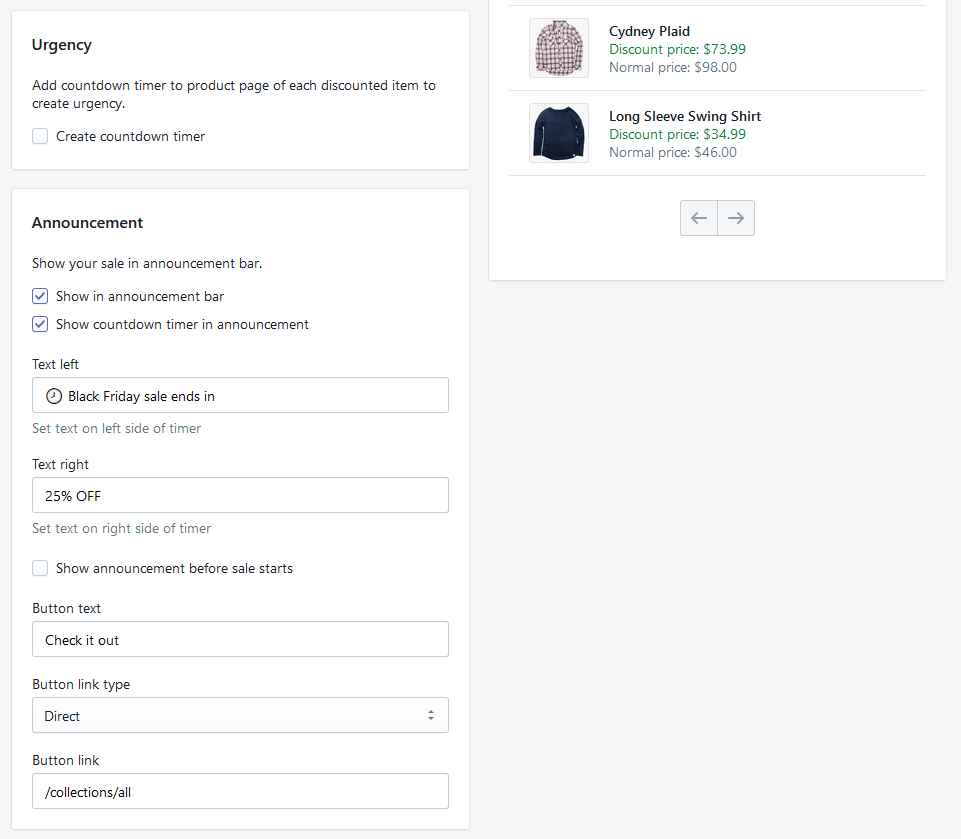 If you want to enable the countdown timer for each discounted product, check the **Create countdown timer** box. Now, go ahead and fill out the **Announcement** to specify how you want to announce the specific sale: - **Show in announcement bar** Check, if you want to show this sale in the announcement bar. - **Show countdown timer in announcement** Check, if the announcement should include a countdown timer. - **Text left** Input text to be shown on left side of countdown timer. - **Text right** Input text to be shown on right side of countdown timer. - **Show announcement before sale starts** Check, if you want to announce sale prior to its scheduled start. *Use this to collect e-mails.* - **Button text** Input text to be shown on your Call-To-Action button. - **Button link** Input the link your Call-To-Action button should redirect to. The inputs from above will result in the following announcement bar:  Finally, when you are done, hit the **Create discount** button in the upper right corner. ## Customize colors and layout You can customize the layout of the announcement bar and countdown timer to fit perfectly into your store theme by going to **Settings** from the app front page. 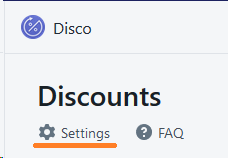 Here, you have the option of changing colors, text, font, font size and much more while getting a live preview. Look below to see our Black Friday theme. 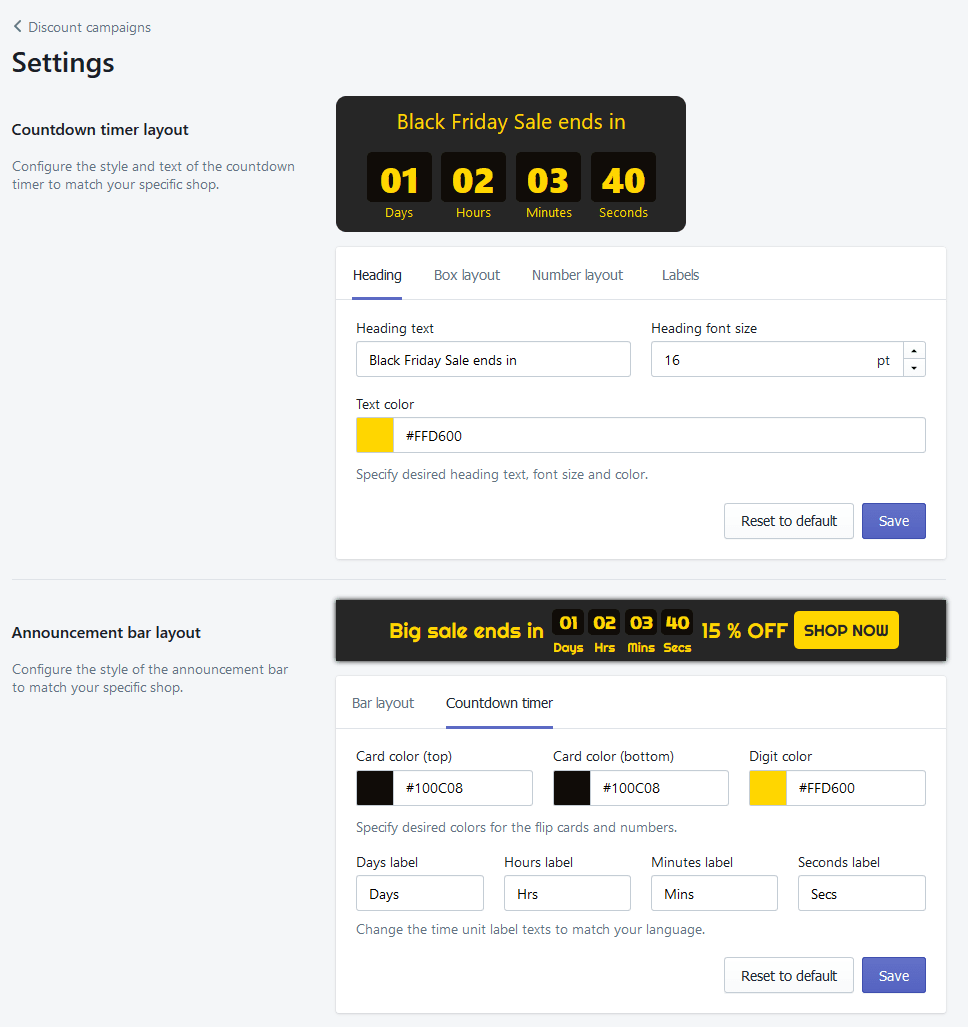 When you are done with adjusting the layout to your store theme, hit the **Save** button. And do not worry - you can always go back to Settings and modify it.