

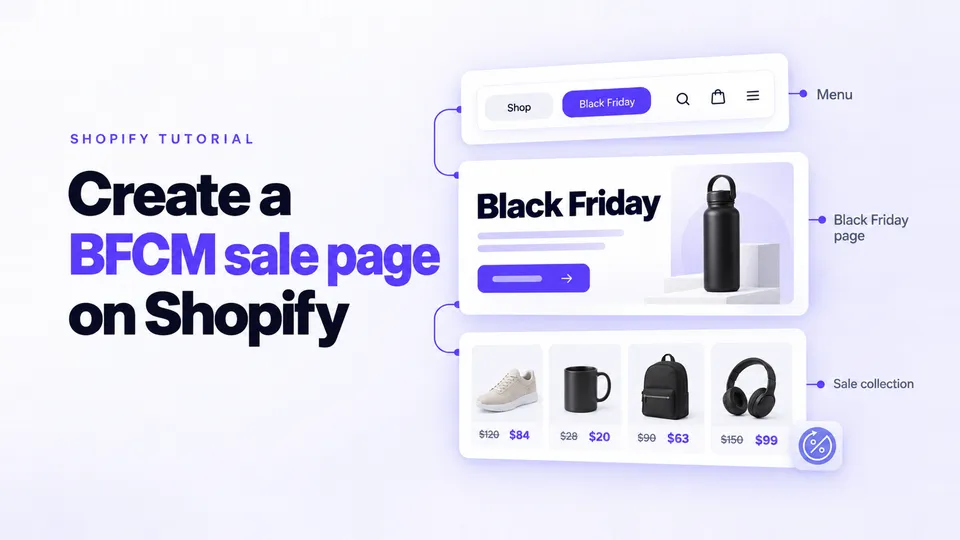
Here's how to create a sale page on Shopify for BFCM: a collection that fills itself with your discounted products, a Black Friday landing page on top of it, a link in your menu, and a cleanup after Cyber Monday. Disco names the collection after the sale, publishes the sale page when the sale starts and takes it down when it ends.
In this guide
- How do you set up a Shopify automatic sale collection with compare at price?
- How do you create a Black Friday collection on Shopify?
- What should a Shopify BFCM sale page include?
- How do you build a Shopify Black Friday landing page?
- How do you add a sale collection to your Shopify menu?
- How do you hide or remove the sale page after BFCM?
- FAQ
- When should you build your BFCM sale page?
How do you set up a Shopify automatic sale collection with compare at price?
A Shopify automatic sale collection uses one condition on compare at price: Compare at price is set (in admins still on smart collections: Compare-at price is not empty). Every product with a compare-at price joins on its own. Disco writes the compare-at price when your sale starts, so the sale's products fill it with no tagging.
In Shopify you bulk-edit Price and Compare-at price, but after the sale you clear every compare-at price by hand, or the products stay in the sale collection. Disco resolves this by restoring the saved prices when the sale ends, so products that had no compare-at price before the sale leave the collection.
How to create the compare-at sale collection in Shopify
- Add the collection. From your Shopify admin, go to Products > Collections and click Add collection.
- Name it. Click Add title and enter a name such as "Sale".
- Add the condition. In the Products source, click Add condition, then choose Compare at price and is set.
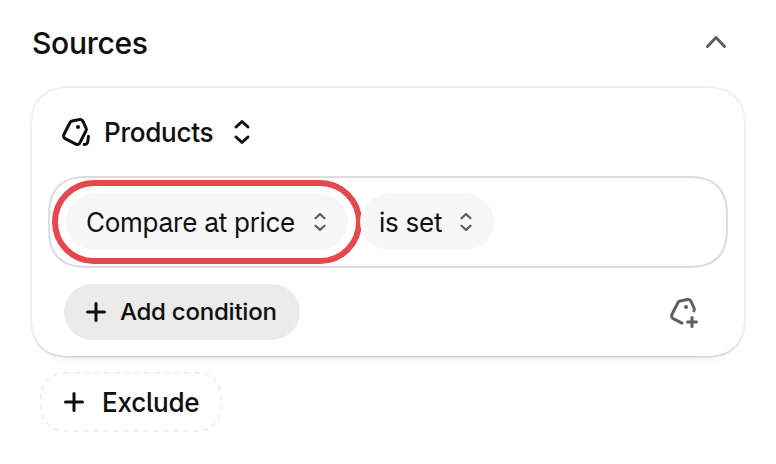
- Choose how conditions match. If you add a second condition, for example a tag to keep gift cards out, select Match all conditions.
- Save. Click Save. Shopify adds every matching product automatically.
- Check where it shows. Under Sales channels, keep the Online Store selected. You can also set a date to publish it.
If your admin still shows a Collection type section, click Smart, select all conditions, then choose Compare-at price and is not empty (see examples in the Shopify Help Center).
What the condition catches
- A compare-at price of 0 counts. Shopify treats any value as set, 0 included.
- Every variant, in the new model. The is set rule requires every variant to have a compare-at price, so a product with one size on sale stays out. The older is not empty requires only one.
- Permanent "was" prices. Products with permanent compare-at prices join too. This catches every marked-down product, so Black Friday needs its own collection.
How do you create a Black Friday collection on Shopify?
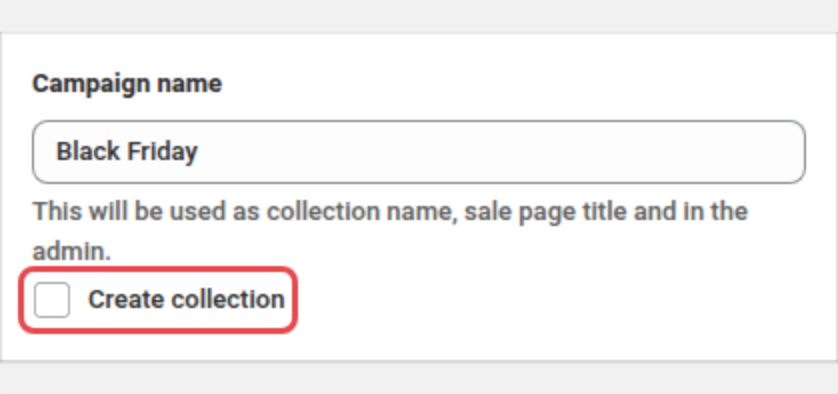
Create the Black Friday sale in Disco, name it "Black Friday" and check Create collection: Disco builds a collection of just that sale's products, named after the sale (free Starter plan). On the Professional plan, Autotagging adds a tag when the sale starts and removes it when it ends, to feed a collection you already have.
In Shopify you can make an automated collection with a tag condition, but you tag and untag every product by hand. Disco resolves this by building the collection from the sale's products or tagging them on its dates.
How to create a Black Friday collection in Disco
- Create the sale. Click Create sale and choose Same discount.
- Name it "Black Friday". Type the name shoppers will see, then check Create collection under it. Disco uses it as the collection's name, the sale page's title and the sale's name in the admin.
- Pick the products. On the Include products tab, choose All products or Select products, collections, tags or types.
- Set the discount and the dates. Choose Percentage, Amount off or New price, then set Active dates from November 27, 2026, 12:00 AM to November 30, 2026, 11:59 PM.
- Feed an existing collection (optional). In the Autotagging card, turn on Add tag to products on sale (Professional plan and up), then use that tag as the condition of an automated collection (help doc).
- Save.
What should a Shopify BFCM sale page include?
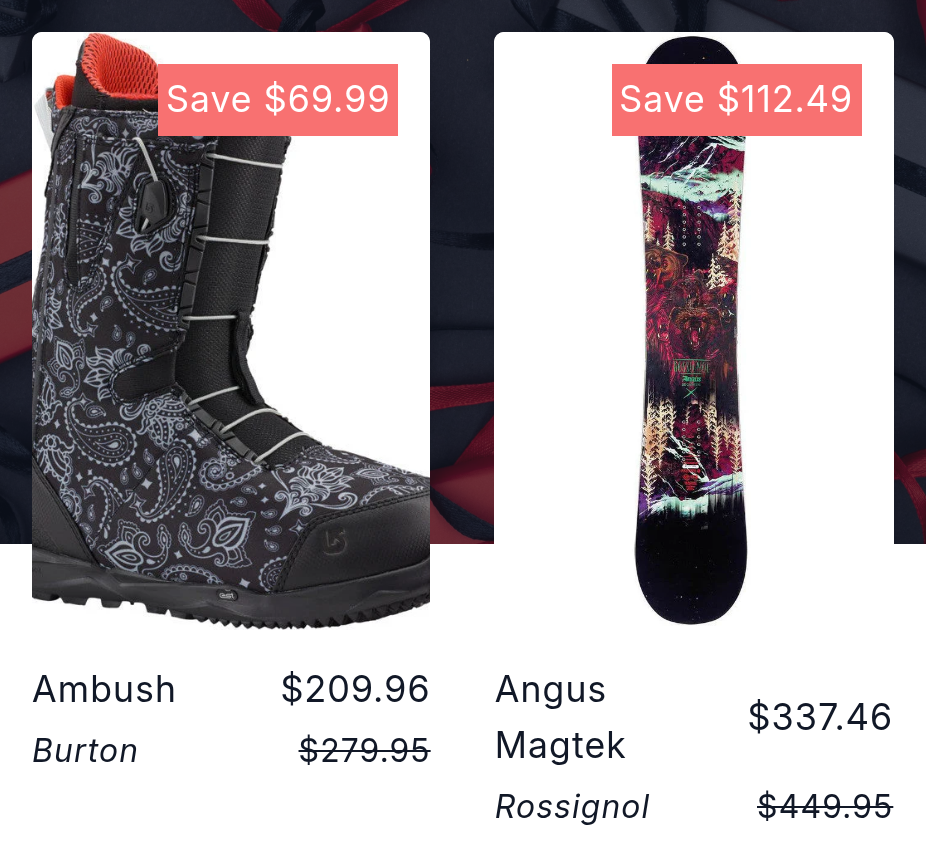
A Shopify BFCM sale page shows the start and end, the sale price with the real original struck through, a timer that ends with the sale, filters, a layout that works on a phone, and the same offer as your ads. Disco handles the prices and the timer; the rest is your page.
| What it needs | Why | In Disco |
|---|---|---|
| Dates and times | Shoppers plan around them; your page should match your ads' wording and dates (Shopify) | Active dates set the start and end |
| The sale price with the original struck through | The saving shows before checkout. Shopify's advice: the "was" price must be a real previous selling price | Disco writes Price and Compare-at price, so product and collection pages show both |
| A timer to the real end | Shopify's BFCM checklist lists countdown timers as an urgency tool (Shopify) | Show countdown timer on product page, free Starter plan |
| Filters and sorting | Shopify's checklist: "Enable site-wide search and filtering for faster navigation." | Your theme's collection filters |
| A phone-first layout | 46.9 million consumers shopped online by mobile device on Cyber Monday 2025, Shopify reports, citing the NRF | Open the sale page on your phone once you save, and again after the start |
| The same offer as your ads | Shopify: "The offer in your Meta or Google ad should match exactly what's on the page it points to." | One sale sets the discount for the collection, the page and the widgets |
If you sell to the EU, use our Omnibus directive guide to show the lowest price from the last 30 days.
How do you build a Shopify Black Friday landing page?
In Disco, turn on Add flash sale page (Professional plan and up) and Add Coming Soon sale page for the Black Friday sale. A coming soon version goes up when you save and can collect emails. At 12:00 AM on November 27 the same URL becomes the live sale page, and Disco takes it down when the sale ends.
In Shopify you can build one with Online Store > Pages > Add page and a page template you create in the theme editor (Create template), with a section showing your Black Friday collection. The page doesn't follow the sale: you can schedule it to publish, but you switch the copy at midnight and hide it afterward by hand. Disco resolves this by switching the page on the sale's dates.
How to create a Black Friday landing page in Disco
- Open the Black Friday sale. Use the Black Friday sale you created above, with its Active dates.
- Turn on the live page. In the Flash sale page card, turn on Add flash sale page. Disco uses the sale's name as the page title.
- Add the teaser version. In the Coming soon page card, turn on Add Coming Soon sale page.
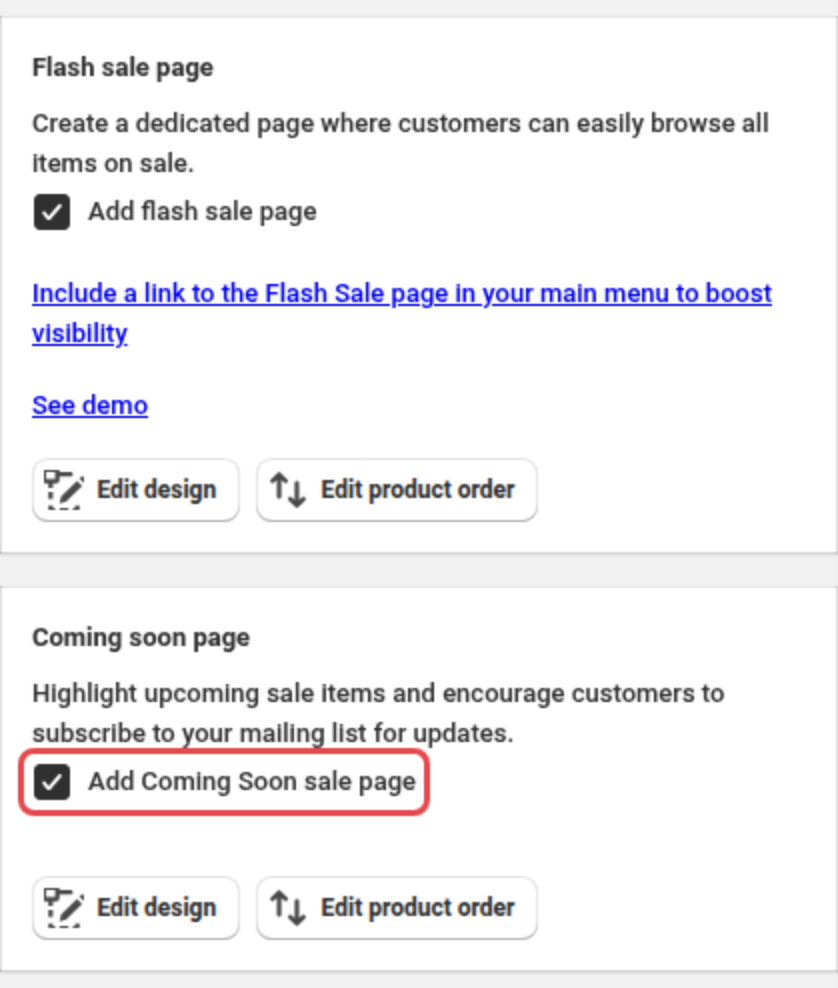
- Save on the day the teaser should start. The coming soon page goes up as soon as you save.
Open the page on your phone once you save, and again a few minutes past 12:00 AM. Right after it is created, it may show original prices for up to 5 minutes. Collected emails land in Shopify Customers, tagged newsletter, disco and the sale's name. See our teaser and waitlist guide and the help doc for settings.
How do you add a sale collection to your Shopify menu?
In Shopify, go to Content > Menus, open your main menu, click Add menu item, pick the collection under Collections (or paste the sale page's link), then click Save menu. Disco's sale page keeps one URL from teaser to live sale, so you can add the menu item the day you save the sale.
Disco's help doc shows where to copy the sale page's link.
- Open the menu. From your Shopify admin, go to Content > Menus and click your main menu.
- Add the item. Click Add menu item and type a name in Name, such as "Black Friday".
- Pick the link. If the Black Friday collection doesn't exist yet, create it first. Click Search or paste a link, choose Collections and select the Black Friday collection, or paste the URL of the Disco sale page. Click Add.
- Move it to the front. Drag it by its handle to where shoppers look first, then click Save menu.
How do you hide or remove the sale page after BFCM?
Disco takes the sale page down at 11:59 PM on November 30, restores prices, deletes the collection Create collection built and removes the Autotagging tag. You remove the menu item, hide a collection you keep, and redirect the old URL so nobody lands on an empty page.
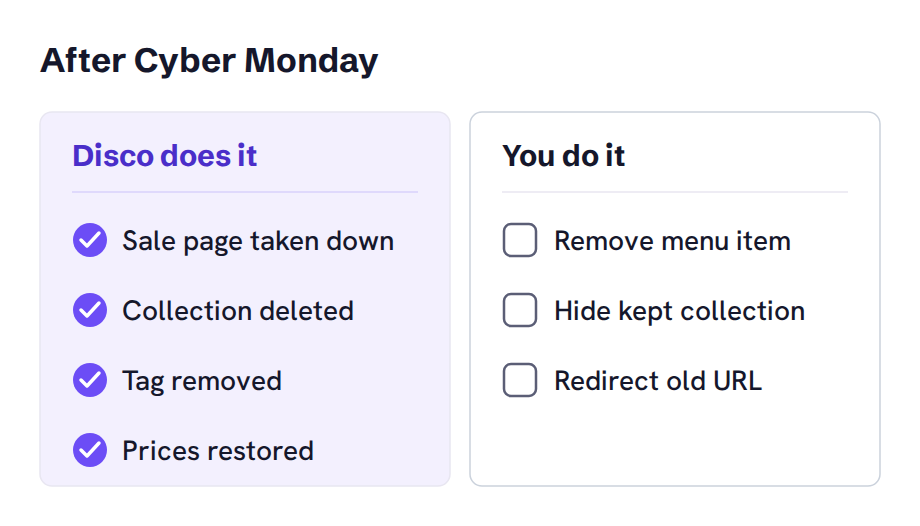
- Remove the menu item. In Content > Menus, open the menu, hover over the item, click the trash icon, click Remove, then Save menu. The deleted Black Friday collection's menu item goes with it.
- Hide a collection you keep. For a collection fed by Autotagging, open it in Products > Collections, deselect the Online Store in Sales channels, and click Save. Keep it for next year.
- Redirect its URL. In Content > Menus, click View URL Redirects, then Create URL redirect. Enter the old collection URL (for example
/collections/black-friday) in Redirect from and your year-round sale collection in Redirect to, then click Save redirect. - Check it in a private window. Open the old URL and three products that were on sale.
A redirect needs a 404, which a hidden or deleted collection returns. If you make a hidden collection visible again, Shopify deletes the redirect. Your year-round compare-at sale collection stays up.
FAQ
How to create a sale page on Shopify for free?
Disco's free Starter plan includes Create collection for up to 30 discounted products and 2 campaigns; the flash sale page starts on the Professional plan. A Shopify page or collection costs nothing but changes by hand.
How to create Black Friday collection on Shopify without tagging every product?
Check Create collection in a Disco sale named "Black Friday", or turn on Autotagging (Professional plan) to feed an automated collection.
Does a Shopify automatic sale collection compare at price include every variant?
With the new model's is set rule, it matches a product only when all variants have a compare-at price. The older is not empty condition includes a product when any variant has one.
How to add sale collection to Shopify menu before the sale starts?
Go to Content > Menus and add a menu item for your collection. Link Disco's sale page, which keeps one URL from the coming soon page to the live sale.
When should you build your BFCM sale page?
Build your Shopify Black Friday landing page this week, well before Friday, November 27, 2026. Shopify's own checklist says to build and publish your BFCM collection pages and landing pages before the weekend. Install Disco, build the Black Friday sale, and save it on the day the coming soon page should go up.
Install Disco from the Shopify App Store →
Next: our teaser and waitlist guide builds the run-up to the sale, and the compare-at price guide explains the two price fields behind every sale page.