

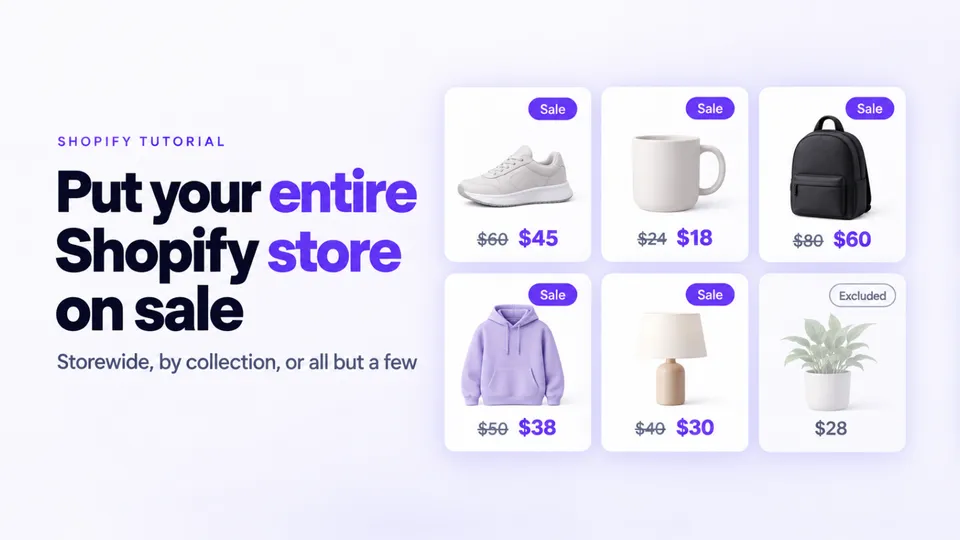
To put your entire Shopify store on sale in Disco, click Create sale, choose All products, and set the discount and Active dates. Then exclude what must stay at full price. Shoppers see the sale price with the original struck through before checkout. Every price goes back when the sale ends.
In this guide
- How do you put your entire Shopify store on sale at once?
- How do you put a collection on sale in Shopify?
- How do you exclude products from a sale on Shopify?
- Method 1: change sale prices with Shopify's bulk editor
- Method 2: bulk change Shopify prices with a CSV file
- Check these before changing hundreds of prices
- Which method should you use to put your store on sale?
- Frequently asked questions
- Get the next bulk sale off your to-do list
How do you put your entire Shopify store on sale at once?
In Disco, one sale covers the whole store: click Create sale, Same discount, All products, then the discount and Active dates. Disco writes each product's sale price and keeps the original in the compare-at price. Shoppers see the saving before checkout, and Disco restores every price when the sale ends.
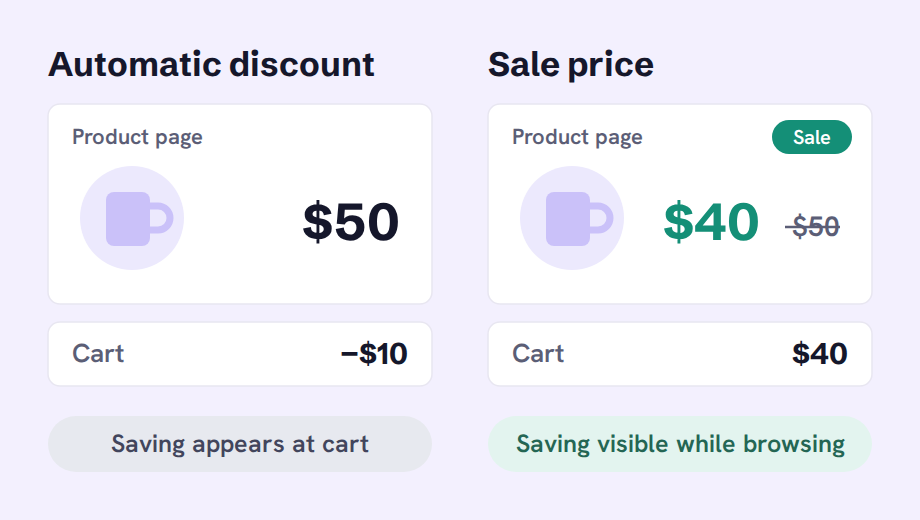
In Shopify you can use an automatic Amount off orders discount or bulk-edit Price and Compare-at price. The discount applies in the cart and at checkout; crossed-out prices on product pages need a third-party app. The bulk edit lacks an end date, leaving you to reset prices manually. Disco resolves this by showing the sale price on product and collection pages and restoring every price when the sale ends.
Read our guide on how to show sale prices on Shopify product pages before checkout. Here's how the three options compare, from browsing to the end of the sale:
| Disco | Automatic discount | Bulk edit or CSV | |
|---|---|---|---|
| Product and collection pages | Sale price, original struck through | Full price | Sale price, original struck through |
| Cart and checkout | Sale price | Discount applied | Sale price |
| Discount codes on top | Block discount codes on sale products (Business plan) | Follow your combination settings | Can still apply (stop stacking) |
| When the sale ends | Prices restored automatically | Stops on its end date | You reset every price |
How to put your entire store on sale in Disco
Before you start, check your plan's discounted-product limit: Starter covers 30 products, Lite 300, Professional 1,500, Business 7,500 and Unlimited has no limit (compare plans).
- Click Create sale, then choose Same discount.
- Pick the discount type: choose Percentage, Amount off or New price. Turn on Round to nearest for clean prices.
- Choose All products on the Include products tab.
- Name it in Title: Disco uses this in the admin and on the sale page.
- Set the Active dates: the exact start and end date and time (how scheduling works).
- Add the storefront pieces: Show countdown timer on product page, the announcement bar's Show while the sale is active (Lite plan and up), or Create collection for a sale collection.
Fixed international prices are not discounted. Help doc: storewide sale.
How do you put a collection on sale in Shopify?
In Disco, choose Select products, collections, tags or types on the Include products tab, pick the collection, then set the discount and Active dates. Each product in it shows the sale price before checkout and goes back to full price when the sale ends. Products added to the collection after launch need Synchronize.
In Shopify you can create an automatic Amount off products discount for Specific collections, or filter the collection in Products and bulk-edit prices. The discount shows savings only in the cart and at checkout. The bulk edit has no end date. Disco resolves this by showing the sale price on product pages and restoring the original price when the sale ends.
How to put a collection on sale in Disco
- Click Create sale and choose Same discount.
- Pick the collection: on Include products, choose Select products, collections, tags or types. To select by product data instead, use Add product(s) by tag, type, title or vendor.
- Set the discount: choose Percentage, Amount off or New price.
- Set the Active dates and save.
- Press Synchronize if you add products to the collection while the sale runs.
A different discount per collection means one sale per collection. Starter includes 2 sales, Lite 10. A different discount per product within one sale requires Different discounts, available from Professional. Help doc: sale on a collection.
How do you exclude products from a sale on Shopify?
In Disco, open the Exclude products / collections tab and add the products or whole collections that must keep full price. The sale skips them even when they match All products or a filter. Tick Exclude draft and archived products too. Exclusion rules come with the Lite plan and up.
In Shopify you build a smart collection with the condition Tag does not include no-sale, then apply an automatic Amount off products discount to it. The saving shows only in the cart and at checkout. With the bulk editor you leave products unselected, but reset every other price by hand. Disco resolves this by skipping excluded products, showing sale prices on product pages and restoring prices when the sale ends.
How to exclude products from a sale in Disco
- Set what's included first: choose All products or a collection.
- Open Exclude products / collections and add the items to keep at full price, such as new arrivals or low-margin lines.
- Tick Exclude draft and archived products.
- Set the Active dates and save.
Set exclusions before launch: changing products on a running sale needs Edit entire sale, which causes a brief sale downtime. On Starter, narrow the selection with a collection or filter instead. Help docs: exclude products, exclude a collection.
Method 1: change sale prices with Shopify's bulk editor
The bulk editor is the tool most merchants reach for first, and for small sales it's the right call.
To use it:
- In Products, filter and select the products for your sale.
- Click Bulk edit to open the table of products and variants.
- Open Columns and add Compare-at price beside Price.
- Enter the original and sale prices for each variant, then save.
Where it's good:
- It's free and built in, so there's nothing to install and nothing new to learn.
- Changes are live the moment you save.
- A small collection is easy to review in one table.
Where it starts to hurt:
- Large selections take more checking. If you work in batches, keep track of which products you've updated and include all their variants.
- Prepare the new prices first. For a percentage sale, calculate the values in a spreadsheet before pasting them into the editor.
- Rollback is entirely manual. When the sale ends, someone has to put every
Priceback and clear everyCompare-at price, by hand, from a record of the original prices that you had to remember to keep. - There's no clock. The sale starts when you click save and ends when you click save again.
Use the bulk editor when: you have fewer than about 50 products, the sale is a one-off, the end time doesn't need to be exact, and you're happy to do the rollback yourself.
Method 2: bulk change Shopify prices with a CSV file
CSV works well when you already manage product data in spreadsheets. It gives you room to calculate and review many prices, but the import needs careful checking.
The workflow is:
- Export the products and keep an untouched backup.
- In a working copy, copy the current prices into the compare-at column.
- Calculate the sale prices and check the results.
- Test a small import before updating the full selection.
- At the end of the sale, restore prices from the backup, accounting for any other changes made since the export.
Where CSV makes sense:
- Permanent repricing, where there is no "end" to roll back to.
- Catalog restructures where you're changing many fields at once, not just price.
- Teams that already manage the catalog in spreadsheets and have a clear owner for the file.
The risks you need to manage:
- Check every included column. An import can overwrite more than prices. Accidental blanks or misplaced formulas can affect other product data.
- Matching is unforgiving. A changed handle or a variant that doesn't line up creates duplicates or silently skips products.
- Formatting breaks prices. Decimal commas versus decimal points, currency symbols, or a spreadsheet "helpfully" reformatting a column can turn 249.00 into something Shopify rejects, or worse, accepts.
- Allow time for processing. Someone must start both imports, and a large import may continue running after your intended launch time.
- Rollback is a second import. If you restore by re-importing the original file, any price you legitimately changed during the sale gets reverted too.
If you use CSV, keep the untouched export as your rollback file, and always test the import on a filtered export of ten products before you run it on the full catalog.
Use CSV when: the change is permanent or structural, you have a data owner, and precise start and end timing doesn't matter.
Check these before changing hundreds of prices
Run this check before the sale, whichever method you choose.
- Test on ten products first. Every method, every time. Check the product page, the collection page, and the cart, then end the test and verify the reset.
- Check every variant, not just the parent product. Sizes and colors sometimes carry their own prices. Make sure the sale applied to all of them and that
Compare-at priceis higher thanPriceon each; Shopify won't show a strikethrough otherwise. - Find everything that writes prices. ERP, inventory sync, PIM or product feed apps, marketplace connectors, supplier and print-on-demand apps, dynamic-pricing tools, currency apps, and other bulk editors. Shopify keeps the latest write to the price fields, so any of these can put your prices back mid-sale. Pause the sync, exclude the sale products, or move the sync job to before the campaign starts. ProductEssentials has a dedicated help doc on price-sync conflicts with the exact steps.
Which method should you use to put your store on sale?
Use Disco for a timed storewide or collection sale that shows the saving on product pages, skips specific products and resets itself. Use the bulk editor for small sales you reset by hand. Choose CSV for permanent repricing. Pick an automatic discount when a cart-only saving is enough.
| Your sale | Use |
|---|---|
| A few products, one-off, you'll reset prices yourself | Shopify bulk editor |
| A permanent price change or catalog restructure | CSV import |
| A storewide or collection offer where a saving shown only in the cart is fine | Shopify automatic discount |
| A timed storewide or collection sale with sale prices on product pages, exclusions and an automatic reset | Disco |
Frequently asked questions
Does Disco replace Shopify's bulk editor?
Use the bulk editor or CSV for permanent price changes. Disco suits temporary sales that need a scheduled start, storefront promotion, and an automatic reset.
Can I run a percentage on one group and a fixed amount on another?
Yes. Each campaign has its own discount rule, and you can run multiple campaigns at the same time, so "25% off Autumn" and "$100 off all boots" can run side by side with different products, different timing, and different exclusions.
How to put a collection on sale in Shopify and add products later?
In a Disco sale, choose the collection under Select products, collections, tags or types. Products added to the collection after the sale starts are only discounted once you press Synchronize.
How to exclude products from a sale on Shopify after it has started?
In Disco, use Edit entire sale and add them on the Exclude products / collections tab. The sale is deactivated and reactivated with the new settings, so expect a brief sale downtime.
How to put entire Shopify store on sale for Black Friday?
Run a short ten-product test sale first, then set up one Disco sale with All products and Active dates from Black Friday, November 27, 2026, through Cyber Monday, November 30, 2026. Every price goes back when the sale ends.
Get the next bulk sale off your to-do list
Choose the method that fits the whole job: setting prices, checking the offer, and restoring the originals. For a timed campaign, create a free Disco campaign and test it on ten products. Once the launch and reset work as expected, use that setup for the larger sale.
Next: How to schedule a Shopify sale that starts and ends automatically covers the timing and the reset for the campaign you just built, and The 2026 BFCM playbook: plan your biggest sale months ahead is where a bulk sale becomes a season plan.