

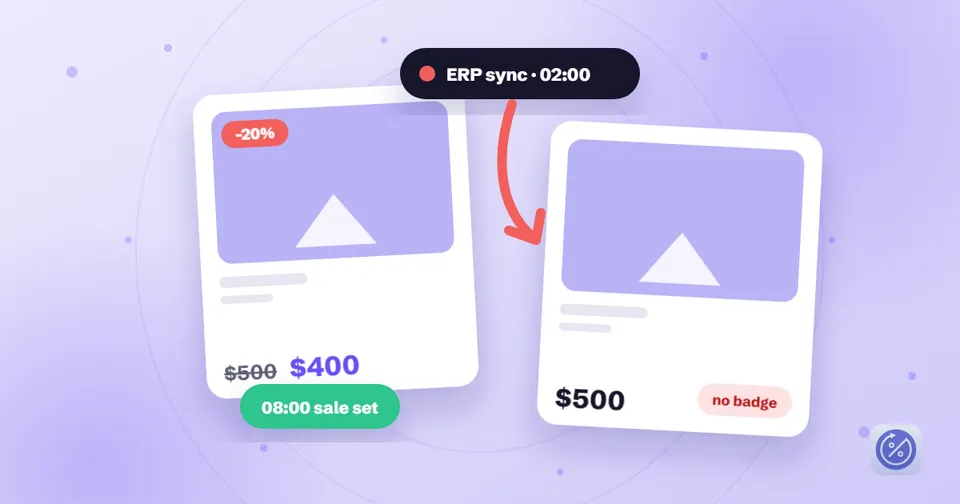
You set the sale up. You opened a product page to check: strikethrough price, sale badge, all there. Then a customer emails, or you spot it yourself the next morning: full price again, no compare-at, no badge. You re-apply the discount. A few hours later it's gone again.
If you run sales by changing the product's Price and Compare-at price, whether by hand, with the bulk editor, through a CSV, or with a sale app like Disco, this is almost always the same issue: another system in your stack writes to those same two fields, and Shopify keeps whatever was written last.
This post covers why it happens, which apps to suspect, how to find the culprit in about twenty minutes, and how to make sure it doesn't come back.
The short version: last write wins
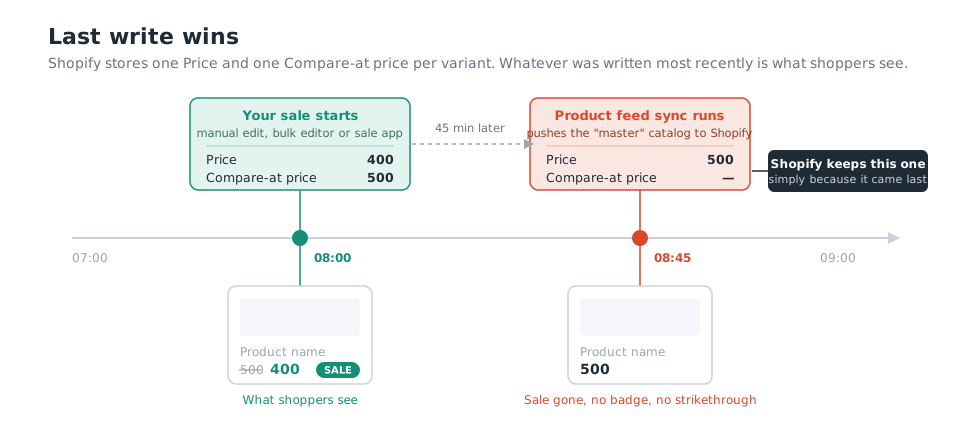
A sale price set with compare-at isn't a rule that sits on top of your catalog. It is your catalog. Shopify stores exactly one Price and one Compare-at price per variant, and any app with permission to edit products can change them. There's no merging and no "this one is on sale, leave it alone" flag. The most recent write is what's stored, and what shoppers see.
So when your ERP pushes its nightly catalog at 02:00, it has no idea a sale is running. It sees a Price of 400 where its own master data says 500, "corrects" it, and blanks the compare-at field because its own record doesn't have one. As far as the storefront is concerned, the sale never happened.
Two things follow from this:
- How you set the sale price doesn't matter. Manual edit, bulk editor, CSV, Disco: the sync can't tell the difference and doesn't care. This isn't a bug in the sale app or in Shopify. It's two systems disagreeing about who owns the price.
- Re-applying the discount only resets the clock. Next sync run, same result. That's why the usual "just apply it again" advice feels like it works for a day and then doesn't.
One thing that is not on this list: discount codes and automatic discounts. Those live in Shopify's discount system and never touch the product's price fields. If a code stopped working, you have a different problem, and the sales vs. discount codes post is the better place to start.
The usual suspects
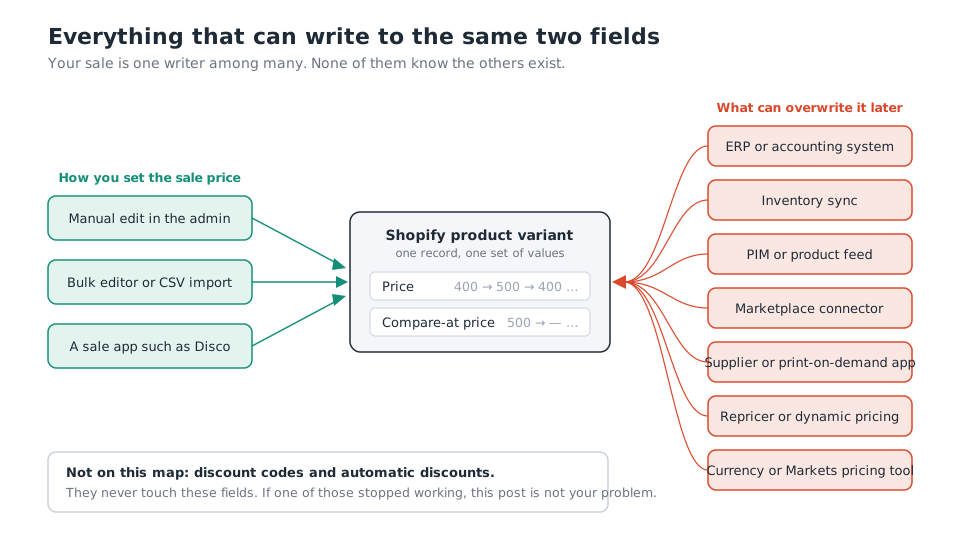
Work through your app list with this question: does it have permission to edit products, and does it ever push prices? The usual answers, roughly in order of how often they turn out to be the cause:
- ERP or accounting system. Usually the "source of truth" for the business, and therefore the system most likely to overwrite Shopify on a schedule.
- Inventory sync apps. Many sync price alongside stock levels by default, even if you only ever wanted the stock part.
- PIM or product feed tools. They push the whole product record, price included.
- Marketplace connectors. Some are two-way and copy the marketplace price back into Shopify.
- Supplier, dropshipping and print-on-demand apps. They recalculate your retail price whenever the supplier's cost changes.
- Repricers and dynamic-pricing tools. Changing prices is their whole job. They'll "fix" yours.
- Currency and Shopify Markets pricing tools. Can rewrite base or per-market prices.
- CSV imports and the bulk editor. The human version. A colleague re-uploading last week's spreadsheet overwrites every price in it.
A useful tell: if the price flips back at the same time every day, or on a round hour, you're looking at a scheduled sync. If it flips back within minutes of you saving a product, you're looking at an app that reacts to product updates.
Find the culprit in about twenty minutes
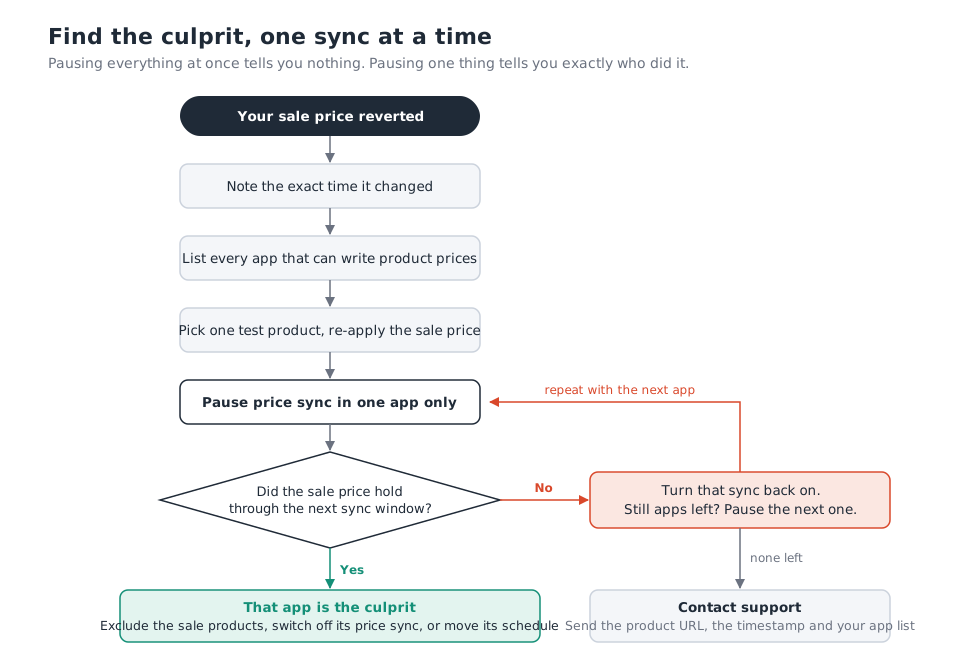
- Note the exact time the price changed. Compare it with when you applied the sale. The gap is your first clue about which schedule you're colliding with.
- List every app that can write product prices. In your Shopify admin, each installed app shows what it has access to. Anything that can edit products is a candidate. Don't skip the ones you "only use for inventory"; that's where this usually hides.
- Pick one test product. Re-apply the sale price on that product only. You don't need to touch the whole campaign to diagnose this.
- Pause price sync in one app. Most sync tools let you turn off price sync while keeping stock sync. If yours doesn't, pause it for the test product, or pause the app briefly.
- Wait through the next sync window. If the sale price is still there afterwards, you've found it. If not, turn that sync back on and pause the next app.
Resist the urge to pause everything at once. If you do that and the price holds, you've learned nothing you can act on, and you'll be guessing again the moment you switch things back on.
Four ways to stop it for good
Once you know which system is doing the writing, pick one of these. In most stores the first or second option is enough.
1. Turn off price sync in the other app. Keep stock sync, drop price sync. This is the cleanest fix whenever that system doesn't actually need to own your retail prices, which is more often than people assume.
2. Exclude the sale products from the sync. Many ERP, feed and inventory tools can skip products by tag or collection. If your sale app tags campaign products automatically, that tag doubles as the exclusion rule. If it doesn't, one manual tag on the sale products does the job.
3. Move the sync schedule. If the other system must push prices, make it run before the campaign starts, not during it.
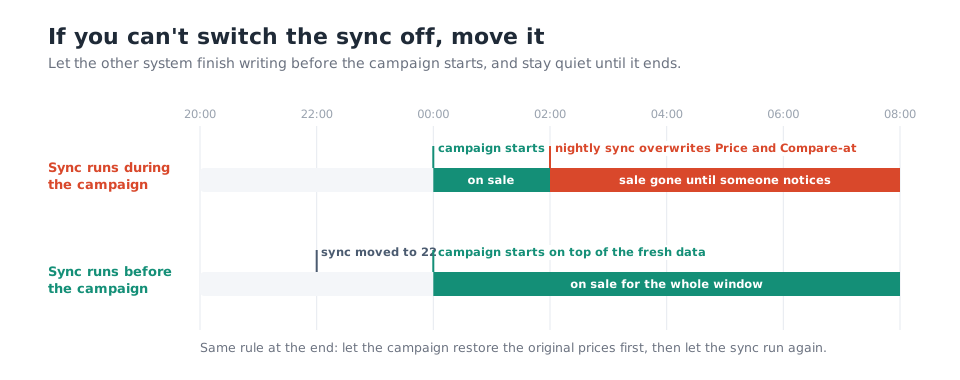
The same rule applies at the end: let the campaign restore the original prices first, then let the sync run again. If the sync fires in between, it can overwrite the reset with whatever it had cached.
4. Pause the sync for the campaign window. For a four-hour flash sale, simply pausing the other app is fine. Set a reminder to switch it back on; forgotten pauses cause their own problems.
If your ERP is the real source of truth for pricing, there's a fifth option: put the sale price in the ERP and let it flow down. You'll lose scheduling, automatic reset and storefront elements from the sale app, but you'll have exactly one system writing prices, which is the only configuration where this can never happen.
Before you deactivate and reactivate the campaign
A sale app restores your original prices at the end of a campaign by using what it recorded at the start. That works as long as nothing else writes to the price fields in between.
If another system has been rewriting prices mid-campaign, and you deactivate and reactivate the campaign a few times to "fix" it, the recorded originals and the live prices can drift apart. You can end up discounting from the wrong base, or restoring a price that isn't the one you meant. The safe sequence is:
- Find and fix the sync first.
- Re-apply the campaign once.
- Spot-check a handful of products, including the end-of-campaign reset on a test product with a short schedule.
And while a campaign is live, don't make manual price edits on the products in it. Every manual edit is one more write competing for the same field.
A pre-launch checklist for your next sale
Fill this in once, before a big campaign, and you'll rarely see this problem again.
| System | Writes prices? | When does it run? | Owner | Tested with a sale product? |
|---|---|---|---|---|
| ERP / accounting | Yes | Nightly 02:00 | Finance | Moved to 22:00, tested |
| Inventory sync | Stock only (price sync off) | Every 15 min | Ops | Tested |
| Product feed / PIM | Yes | Hourly | Marketing | Sale tag excluded |
| Marketplace connector | No (one-way) | Continuous | Ops | Not needed |
| Supplier / POD app | On cost change | Event-based | Ops | Sale products excluded |
| Currency / Markets tool | ||||
| CSV imports / bulk edits | Anyone with product access | Ad hoc | Store owner | Freeze during campaign |
The rows above are examples; the point is that every system with product access appears on the list, with a named owner and a yes or no in the last column.
When to bring in support
If you've tested every price-writing app and prices still revert, it's time for a support ticket. Send:
- the product URL (or a few),
- the exact time or times the price changed,
- the list of apps that have product access, and which ones you've already paused.
That's the information Product Essentials support asks for, and it's what turns a week of back-and-forth into one reply. If you're running your sale with Disco, the help article on why another app can overwrite your prices walks through the same steps from inside the app, including the recommended fixes for the most common integrations.
Disco records the original prices when a campaign starts and restores them when it ends, so as long as nothing else writes to those fields in between, you won't need to do any of this by hand. If you'd like scheduled sale prices that start, stop and reset on their own, see the current plans and test it on a small group of products first.
Install Disco from the Shopify App Store →
Next: Shopify compare-at price: how to show strikethrough pricing covers the two price fields every sync in this post fights over, and How to schedule a Shopify sale that starts and ends automatically shows how Disco records and restores prices so the reset isn't a manual job.