

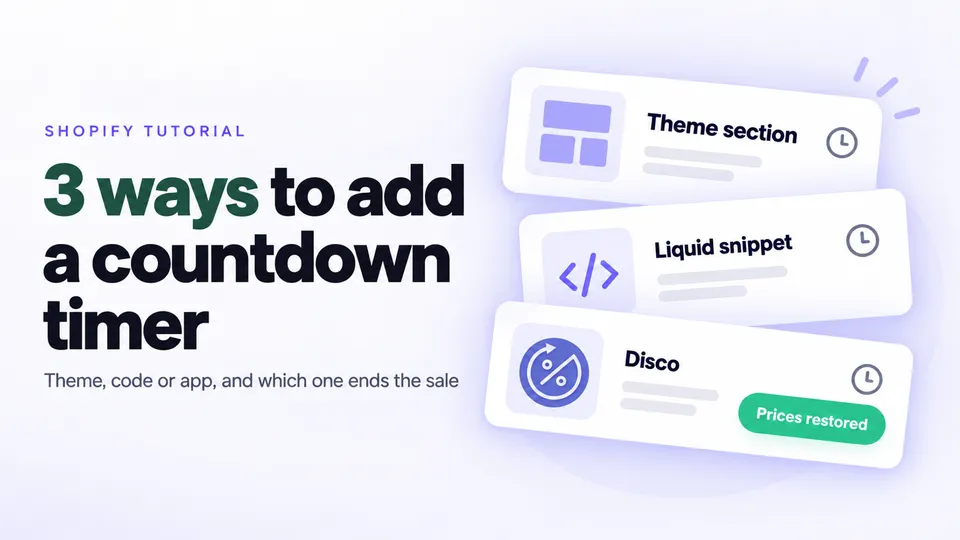
Here's how to add a countdown timer to a Shopify product page: use your theme's countdown section if it has one, paste a short Liquid snippet into a Custom liquid block, or use an app. Disco ties the timer to the sale's real end. It shows on every discounted product page while the sale runs, and at the end Disco restores the prices and hides the timer. No code needed.
In this guide
- Which way should you add a countdown timer to your product page?
- How do you add a countdown timer to a Shopify product page in Disco?
- Does your Shopify theme have a countdown timer built in?
- Can you add a Shopify countdown timer without an app?
- How do you add a Shopify announcement bar with a countdown timer?
- Which Shopify Black Friday countdown timer do you need: pre-launch or sale-ending?
- Why is your Shopify countdown timer not showing?
- FAQ
- When should you set up your Black Friday countdown timers?
Which way should you add a countdown timer to your product page?
Use Disco when the timer should match a real sale and the prices should go back on their own when it ends. A theme countdown section or the Liquid snippet is enough for a deadline you manage by hand, because both count down to a date you type and leave prices alone.
| Disco | Theme countdown section | Liquid snippet | |
|---|---|---|---|
| Cost | Free Starter plan includes the product-page timer | Comes with the theme; the two named below are premium | Free |
| Setup | No code: switch it on in the sale | Theme editor, no code | Paste code, edit the date for every sale |
| Counts down to | The sale's Active dates | A date you type in the section | A date you type in the code |
| At zero | Sale ends, prices restored, timer gone | Prices don't change | Timer disappears; sale price stays |
| Shows on | Every product in the sale, plus an announcement bar with a timer (Lite plan and up) | Wherever the theme lets you add it | Products on that template with a compare-at price above the price |
| Limits | Starter: 30 discounted products, 2 campaigns; announcement bar, badges and styling from Lite; shows only while a Disco sale is active | Only if your theme has one | One date per template; prices unchanged at zero |
How do you add a countdown timer to a Shopify product page in Disco?
Create a sale with Active dates, then turn on Show countdown timer on product page on the free Starter plan. The timer counts down to the sale's real end on every discounted product page. At the end, Disco automatically restores the prices and hides the timer.
In Shopify you can show a timer with a theme section or a Liquid snippet, but both count down to a date you type. At zero, you restore every Price and Compare-at price by hand. Disco resolves this by scheduling the sale and restoring the prices for you.
How to add a countdown timer to a product page in Disco
- Turn on the app embed. In Disco's Setup guide, click Install app embed, then save the theme. On Online Store 2.0 themes this needs no code (help doc).
- Create the sale. Click Create sale and choose Same discount.
- Pick the products. On the Include products tab, choose All products or Select products, collections, tags or types.
- Set the discount. Choose Percentage, Amount off or New price.
- Name the sale. Disco uses the name for the sale collection, the sale page title and the admin.
- Set the end in Active dates. Enter the exact start and end date and time. The timer counts down to this end.
- Turn on the timer. In the Countdown timers card, turn on Show countdown timer on product page.
- Add badges and match your theme (optional). Turn on Sale badges, and style the timer in Disco > Widgets → Countdown timer settings (both Lite plan and up).
- Save. At the end time, the timer and badges stop showing.

You can move it on the product page or add it to the home or a collection page.
Does your Shopify theme have a countdown timer built in?
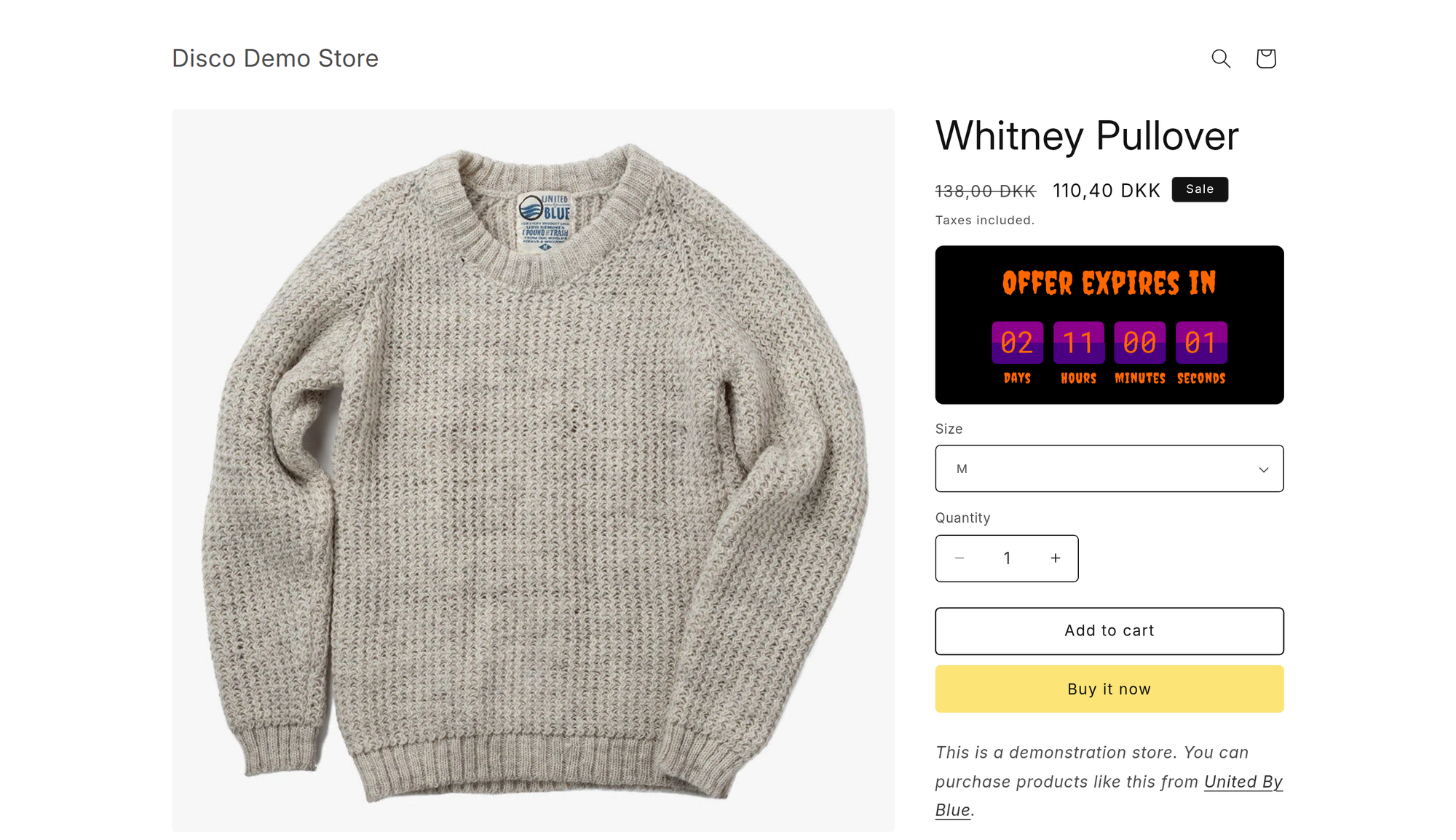
Some Shopify themes include a countdown section or block. To check, open the theme editor, click Add section and search for "countdown", then search under Add block in the product template's Product information section. If neither finds one, your theme doesn't have one. A built-in countdown needs no code and matches your theme's design.
You can also search the Shopify Theme Store by feature. Shopify's 2026 theme roundup lists Woodstock and Be Yours as premium themes with a countdown timer. The drawback: it counts down to a date you type and leaves your prices alone.
Can you add a Shopify countdown timer without an app?
Yes, you can add a Shopify countdown timer without an app by pasting a Liquid snippet into a Custom liquid block on your product template. This code counts down to a fixed end date you type, but it won't end your sale or restore your prices when it hits zero.
{%- if product.compare_at_price > product.price -%}
<p class="sale-timer" style="font-weight: 600;"
  data-end="2026-11-30T23:59:00-05:00">
  Sale ends November 30 at 11:59 PM ET
</p>
<script>
  (function () {
    var script = document.currentScript;
    var box = script.previousElementSibling;
    var end = new Date(box.getAttribute('data-end')).getTime();
    function tick() {
      var left = end - Date.now();
      if (left <= 0) {
        box.remove();
        clearInterval(timer);
        return;
      }
      var d = Math.floor(left / 86400000);
      var h = Math.floor(left / 3600000) % 24;
      var m = Math.floor(left / 60000) % 60;
      var s = Math.floor(left / 1000) % 60;
      box.textContent = 'Sale ends in ' + (d > 0 ? d + 'd ' : '') +
        h + 'h ' + m + 'm ' + s + 's';
    }
    var timer = setInterval(tick, 1000);
    tick();
  })();
</script>
{%- endif -%}
It shows only on products whose compare-at price is higher than their price, so full-price products get no timer. The -05:00 is the time-zone offset (US Eastern Time in November), so use your own. Every shopper sees the same deadline wherever they are. Without JavaScript, shoppers see the fallback line "Sale ends November 30 at 11:59 PM ET", so edit it too.
It does the countdown in the browser because Shopify can serve a cached page: Liquid's 'now' reflects the time the page was last rendered. We tested the countdown on a copy of Dawn and in the browser with four time zones, an expired date, and two timers on one page.
How to add the snippet to Dawn
- Duplicate your theme. From your Shopify admin, go to Online Store, open the theme's actions menu, and click Duplicate so you can go back.
- Open the product template. Click Edit theme on the copy, then select Products > Default product.
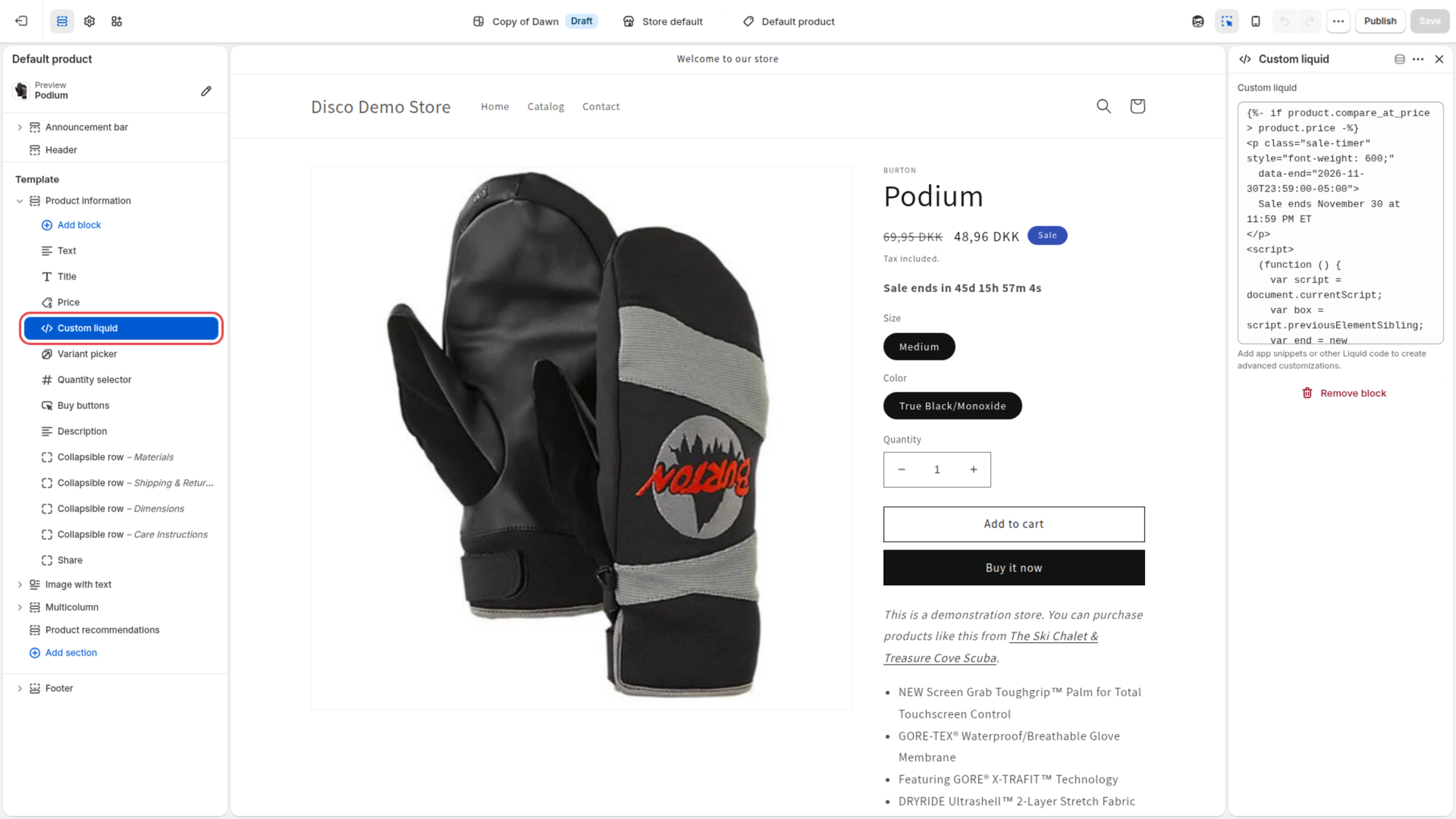
- Add a Custom liquid block. Hover over Product information, click Add block and choose Custom liquid. Drag it under the price.
- Paste the snippet. Change the date, the offset, and the fallback line to your sale's end.
- Save. Check a discounted product in the preview, then publish the copy.
What the snippet can't do
- It doesn't end the sale or restore prices. At zero the timer disappears, but a $60 product on sale at $45 stays at $45 until you change every Price and Compare-at price back yourself.
- It uses one end date for every product on that template, so a new sale means editing the code again.
- If you end the sale early or extend it, the timer shows the old deadline until you edit the code.
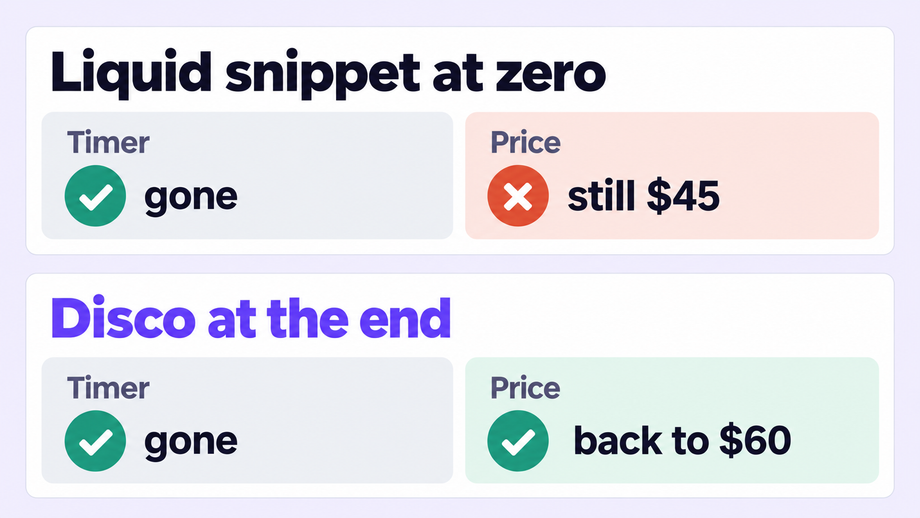
Disco resolves this: it counts down to the Active dates and restores the prices automatically.
How do you add a Shopify announcement bar with a countdown timer?
In Disco, on the Lite plan and up, turn on Show while the sale is active and Show countdown timer in announcement: a thin banner at the top of every page then counts down to the sale's end and disappears with it. Before the sale, use Show before the sale starts to collect emails.
In Shopify, your theme's Announcement bar section takes announcements with a Text field and an optional Link. It has no timer and no scheduling settings, so you change it by hand at each phase. Disco resolves this with a bar that switches on and off with the sale's dates and carries the countdown.
How to add a countdown timer to your announcement bar in Disco
- Open the sale. Create it, or open the one you scheduled, with its Active dates.
- Turn on the live bar. Turn on Show while the sale is active (Lite plan and up, like the bar settings below).
- Add the timer. Turn on Show countdown timer in announcement.
- Add a teaser (optional). Turn on Show before the sale starts with the Get notified! button to collect emails before the start.
- Match your theme. Style the bar in Disco > Widgets → Announcement bar settings.
- Save.
For ready-made teaser, launch and last-hours lines, see our Shopify Black Friday discount ideas.
Which Shopify Black Friday countdown timer do you need: pre-launch or sale-ending?
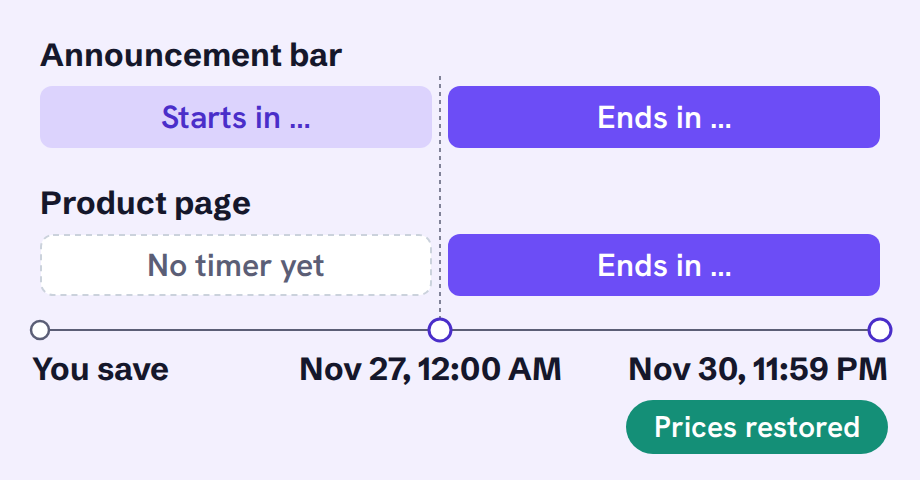
Run both. A pre-launch Shopify Black Friday countdown timer in the announcement bar runs from the day you save the sale until Friday, November 27, 2026. Sale-ending timers on product pages and in the bar count down to the end, like 11:59 PM on Monday, November 30, 2026. In Disco one sale does both.
| Pre-launch timer | Sale-ending timer | |
|---|---|---|
| Counts down to | The sale's start: 12:00 AM, November 27, 2026 | The sale's end: 11:59 PM, November 30, 2026 |
| Shows in | The announcement bar; the product-page timer shows only while the sale is active | Product pages and the announcement bar |
| Its job | Get people back at the start; the Get notified! button collects emails | Show how long the sale price lasts |
| Runs from | The moment you save the sale | The sale's start |
| In Disco | Show before the sale starts with Show countdown timer in announcement, Lite plan and up | Show countdown timer on product page (Starter) and Show while the sale is active with the bar timer (Lite plan and up) |
How to set up Black Friday countdown timers in Disco
- Schedule the weekend. Set Active dates from Friday, November 27, 2026, 12:00 AM to Monday, November 30, 2026, 11:59 PM.
- Turn on the pre-launch bar. Turn on Show before the sale starts with Get notified! and Show countdown timer in announcement (Lite plan and up).
- Turn on the sale-ending timers. Turn on Show countdown timer on product page and, for the bar, Show while the sale is active (Lite plan and up).
- Save it on the day the teaser should start. The pre-launch bar goes up as soon as you save, so save a week out for a one-week teaser.
- Change the last-hours line without stopping the sale. Use What do you need to edit? → Edit Promotional widgets or End date only.
Keep the deadline you show and don't extend it: honest countdown timers are the ones shoppers trust.
Run a short flash sale inside the weekend as a separate sale in Disco: its timer shows on its products, because the widgets of the sale that started last apply.
Why is your Shopify countdown timer not showing?
Your countdown timer is usually missing because the app embed is turned off, the sale has not started yet, or the product is excluded from the campaign. If all three look right, check for theme conflicts and a cached page next.
- Check the app embed. App embeds are switched on per theme, so click Install app embed in Disco's Setup guide, or open App embeds in the live theme's editor and turn on the Disco App Embed, then click Save (Shopify Help Center).
- Check that the sale has started. The product-page timer shows only while the sale is active, so before the start only the Show before the sale starts bar appears.
- Check that the product is in the campaign. Look at the Include products and Exclude products / collections tabs; products added to a collection after the start aren't discounted until you press Synchronize.
- Check that the timer is on. Make sure Show countdown timer on product page is turned on.
- Look for theme conflicts. On a legacy (non-Online Store 2.0) theme the timer is placed with a snippet; on a 2.0 theme you can move it. Remove any old timer app or snippet from the same page.
- Rule out caching. Your browser can keep an old copy of the page, so open it in a private window after a change.
- Check recent product changes. A CSV product import can remove the timer, so reactivate the sale (FAQ). For the Liquid snippet, the product needs a Compare-at price above its Price.
FAQ
How to add countdown timer to Shopify product page for free?
Disco's free Starter plan includes Show countdown timer on product page for up to 30 discounted products and 2 campaigns. The Liquid snippet is free too but doesn't restore prices.
Does a Shopify countdown timer without an app end the sale?
No. At zero it disappears, but the sale prices stay until you change them back yourself.
When should a Shopify Black Friday countdown timer start?
Start the pre-launch bar (Lite plan and up) about a week before Black Friday by saving the sale that day. The product-page timer starts on its own at 12:00 AM on November 27, 2026.
Why is my Shopify countdown timer not showing after I saved the sale?
The product-page timer shows only once the sale starts. If it's live, check the app embed and that the product is in the campaign.
Does a Shopify announcement bar with countdown timer show on every page?
Disco's bar is a thin banner at the top of every page while the sale runs. You can hide it on some pages with this help doc.
When should you set up your Black Friday countdown timers?
Install Disco now, build your Black Friday sale and save it on the day you want the teaser to start, for example a week before November 27, 2026. Then open a product page in a private window to check that the pre-launch bar (Lite plan and up) is up.
Install Disco from the Shopify App Store →
Next: How to run a flash sale on Shopify adds a short flash sale to your weekend, and Shopify Black Friday discount ideas has bar lines for every phase.