

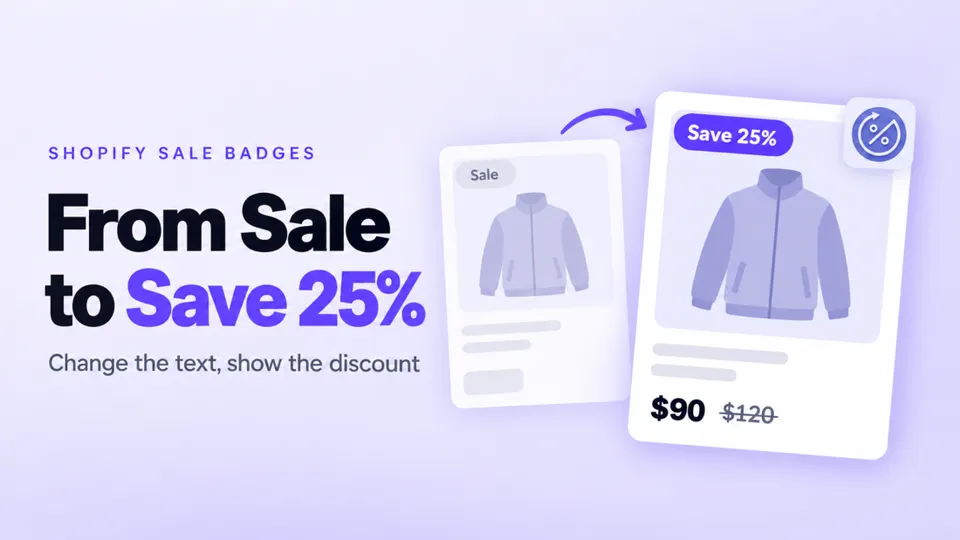
Most Shopify themes add a "Sale" badge automatically when a product's Compare-at price is higher than its Price. Setting those two prices is how to add a sale badge to Shopify products without code. The theme prints one fixed word across your store, and the badge stays until you restore every price by hand. For a percentage-off badge that ends on schedule, turn on sale badges inside a Disco sale.
How do Shopify sale badges work?
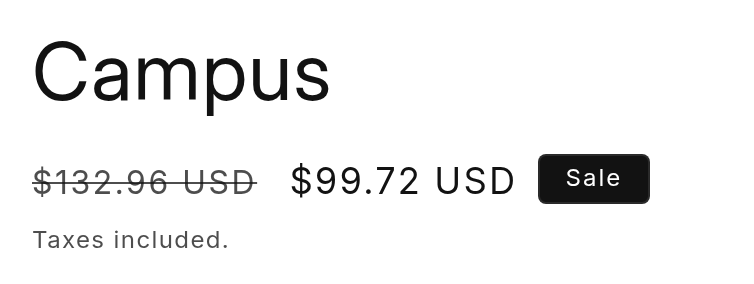
Shopify has no separate "on sale" switch in the admin. Your theme adds a Sale badge to a product automatically when its compare-at price is higher than its price, and takes the badge away when it isn't. The theme itself decides where the badge sits and what it looks like.
Set a $60 item's Price to $45 and Compare-at price to $60, and your theme shows $45 beside a struck-through $60 with a badge. Dawn puts it in the bottom left corner of the product card by default. See our compare-at price guide and Shopify's sale pricing help page.
How do you add a sale badge with the percentage off?
In a Disco sale, tick the Show sale badge on product images checkbox inside the Sale badges card. The badge's default text, "Save {percent}%", fills in each product's discount automatically, and the badge appears on your store only while the scheduled sale is active.
In Shopify you can trigger the theme's badge by setting a Compare-at price above the Price, including in the bulk editor. However, free themes like Dawn only print the static word "Sale" unless you edit Liquid code, and you restore every price by hand when the sale ends. Disco resolves this by showing a percentage badge during your scheduled sale and restoring the original prices afterward.
How to add sale badges in Disco
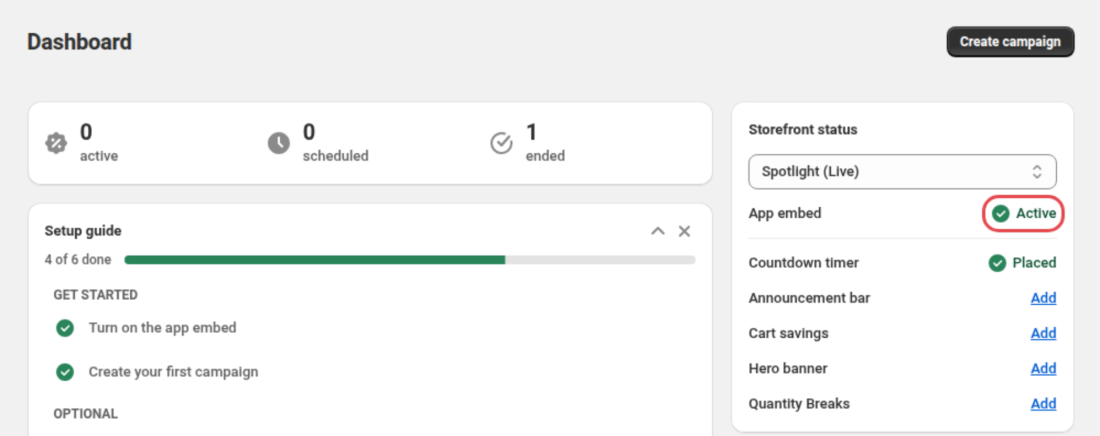
- Check the app embed. On Disco's Dashboard, find the Storefront status card. Its App embed row should read Active. If it doesn't, the app embed help guide shows how to turn it on.
- Create the sale. Click Create campaign, then choose Same discount. On the first page, pick your products and discount, and set the start and end in the Active dates card. See our guide on scheduling a sale.
- Go to the second page. Click Next to reach Highlight your sale on store pages.
- Turn on the badges. In the Sale badges card, tick Show sale badge on product images.

- Save the sale. Click Next, then click Save.
- Check a collection page. Once the sale is active, open a collection on your storefront to see the badges.
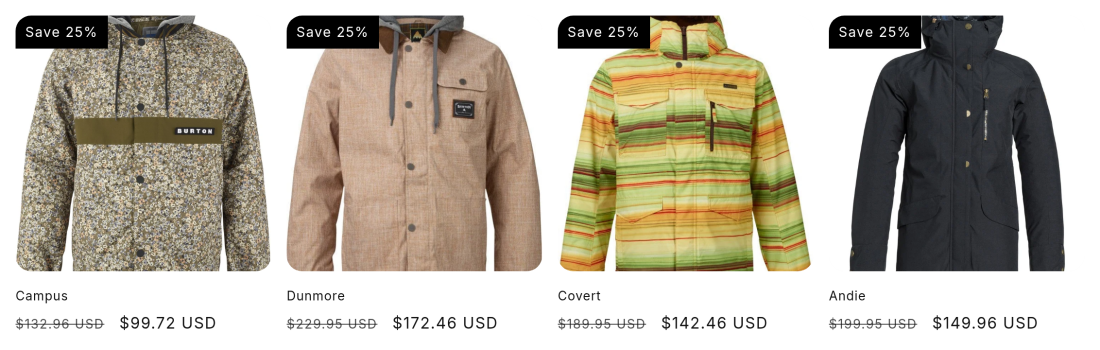
Disco's badges appear on collection pages automatically, including any sale collection you build for the campaign.
On the home page, badges show for collections chosen in the App Embed's Featured collections (on home page) setting. Clicking Select collections in Disco's Setup guide opens that setting in your live theme's editor; see the home page badges help article.
On product pages and search results, badges appear where your theme renders the pe-manual-sale-tag-integration snippet. You add it to your theme code, as the product and search page badge guide shows.
How do you customize a sale badge in Shopify?
In Disco, open Edit sale badge design in the sale's Sale badges card. Write the badge's text in Content, where {percent} or {amount} inserts each product's discount, and pick its corner in the Position: setting. For your theme's built-in badge, you change its look in the theme editor and its word under Edit default theme content.
In Shopify, click Edit theme, then the settings icon, and open Badges to change position, shape, and color. For the word, open the theme's menu under Online Store, click Edit default theme content, and replace "Sale" with your own. Every product still gets that one word, and in Dawn a number needs a Liquid edit. Disco resolves this with {percent} or {amount}, which insert each product's discount.
How to customize the sale badge in Disco
- Open the badge design. On the second page of your sale setup, click Edit sale badge design inside the Sale badges card.
- Write the text. In Content, keep "Save {percent}%" or write your own text, with {percent} or {amount} where the discount goes.
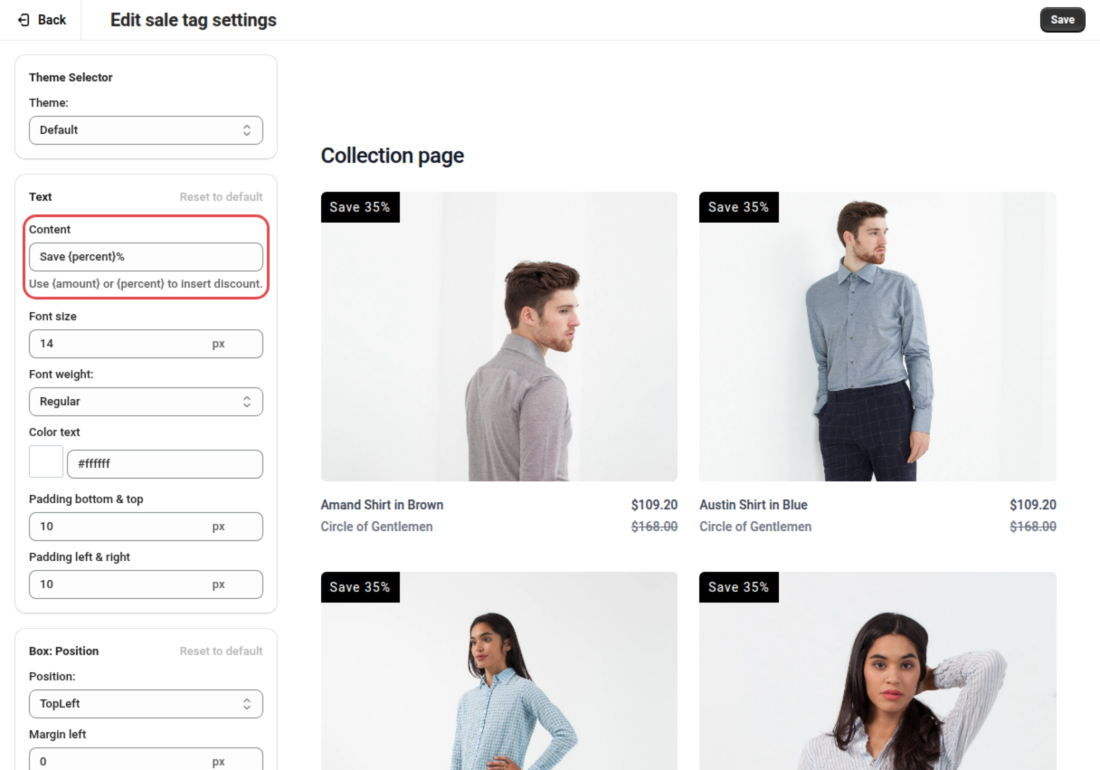
- Pick the corner. Choose a corner in the Position: setting.
- Save the design. Click Save at the top right of the dialog.
- Save the sale. Click Next, then click Save.
When do you need code or an app for a sale badge?
Your theme's settings and Edit default theme content cover the built-in badge's word, color, shape, and corner. In Dawn and other free themes, a percentage or amount in the badge needs custom code. So does Disco's badge on product pages and search results. You need an app when badges and sale prices must run on a schedule.
| What you want | How | Needs |
|---|---|---|
| A "Sale" badge on discounted products | Set a Compare-at price above the Price | Nothing: the theme adds it |
| Another word, color, shape or corner | Edit default theme content; theme settings → Badges | Nothing |
| The percentage or amount off | A Liquid edit in Dawn's price and card snippets, or Disco's {percent} or {amount} | Code, or an app |
| Badges that start and end with a sale | A Disco sale with Show sale badge on product images | An app |
| Disco's badge on the home page | Featured collections (on home page) in the App Embed | No code |
| Disco's badge on product pages and in search | The pe-manual-sale-tag-integration snippet |
Code |
For the code route on a free theme like Dawn, this Shopify Community answer shows how to calculate a percentage in price.liquid and your card snippet. Always duplicate your theme first.
Why do sale badges disappear after a sale?
Sale badges disappear after a sale because the badge follows the product's price fields. Once the campaign ends and the price is no longer lower than the compare-at price, the theme removes its badge. Disco restores the original prices at the end, so the theme's badge goes, and Disco's own badge shows only during the sale.
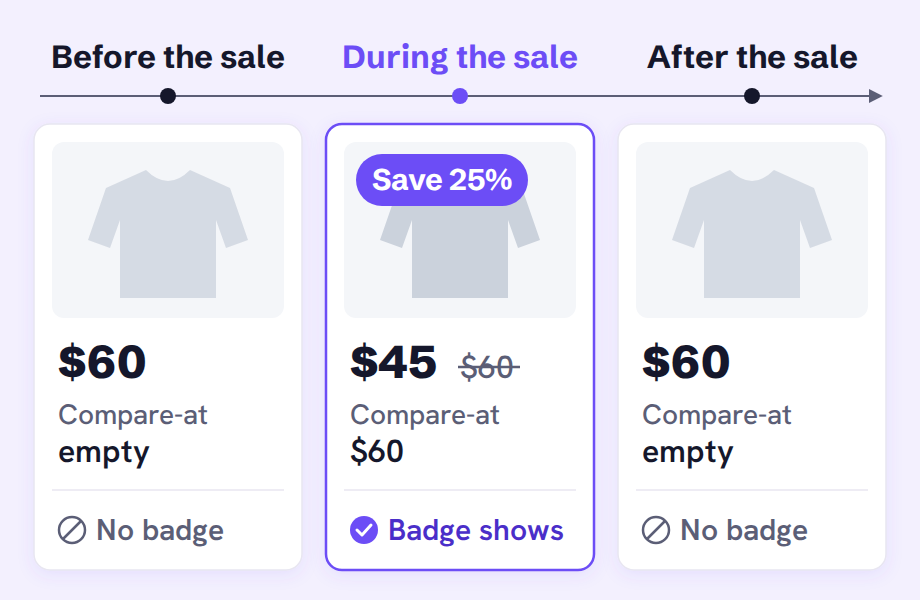
If a badge is missing or vanishes during an active sale, check three causes:
- Another app rewriting prices. An ERP, inventory sync, or CSV import overwriting price fields removes the discount and badge. Pause that sync, then deactivate and reactivate the Disco sale. See why sale prices revert and our disappearing discounts help article.
- Products added after the start. A product added to one of the sale's collections after it starts isn't discounted automatically. In Disco, open Campaigns and click Synchronize on the sale's row so the sale picks up the product, applying its discount and badge.
- Inconsistent variants. If a product's variants mix blank compare-at prices with $0.00 values, collection cards won't show the product as on sale. Shopify doesn't treat $0.00 as an empty field.
If a theme badge stays after a manual sale ends, the compare-at price field still holds a higher number. Clear the field completely instead of typing $0.00.
FAQ
How to add sale badge to Shopify products without an app?
Open the product in your Shopify admin and set a Compare-at price higher than the Price, and your theme will add its Sale badge automatically. To change the word "Sale", go to Online Store, open the menu beside your theme, and click Edit default theme content to edit the badge label.
Can you customize sale badge Shopify text for each product?
A theme's built-in badge uses one static word across the whole store unless you edit your theme's Liquid code. In Disco, adding {percent} or {amount} in the badge's Content field fills in each product's specific discount automatically.
Why is my sale badge not showing on the product page?
For a native badge, your theme controls whether badges appear on product pages or only on collection cards. For Disco's badge, product pages and search results show the badge only after you add the pe-manual-sale-tag-integration snippet to your theme code.
Do Disco sale badges show on the home page?
They show on the home page only for products belonging to the collections you select in the App Embed's Featured collections (on home page) setting. That setting supports up to 50 collections and the first 250 products of each, and it requires the App Embed's Override collection page size to be set to 0.
When should you turn on sale badges?
Turn on sale badges when you first create the sale, on the wizard's second page. To switch them on for a sale that is already running, you edit it with Edit entire sale. That deactivates and reactivates the sale, with a brief sale downtime.
On that same page, you can also enable a countdown timer to show the deadline on product pages.
Install Disco from the Shopify App Store →
Next: Shopify compare-at price: how to show strikethrough pricing covers the two price fields behind every badge, and How to add a countdown timer to a Shopify product page adds a deadline to the same sale.