

Yes, you can schedule a price change on Shopify, and for most stores the quickest way is Disco. Pick the products, the new price or discount, and the start and end times; Disco changes the prices and puts them back by itself. Shoppers see the Shopify schedule price change on product pages, before checkout. Shopify's own tools and other apps cover what Disco doesn't, such as a price increase.
In this guide
- Three kinds of scheduled price change
- How do you set up a Shopify scheduled price update?
- Why a scheduled price change beats a scheduled discount
- Getting the old prices back when the sale ends
- What Shopify can do without an app
- Can you use Shopify Flow to schedule a price change?
- How do you schedule a price increase in Shopify?
- Every route side by side
- What to check before the start time
- FAQ
- Start with a small test campaign
Three kinds of scheduled price change
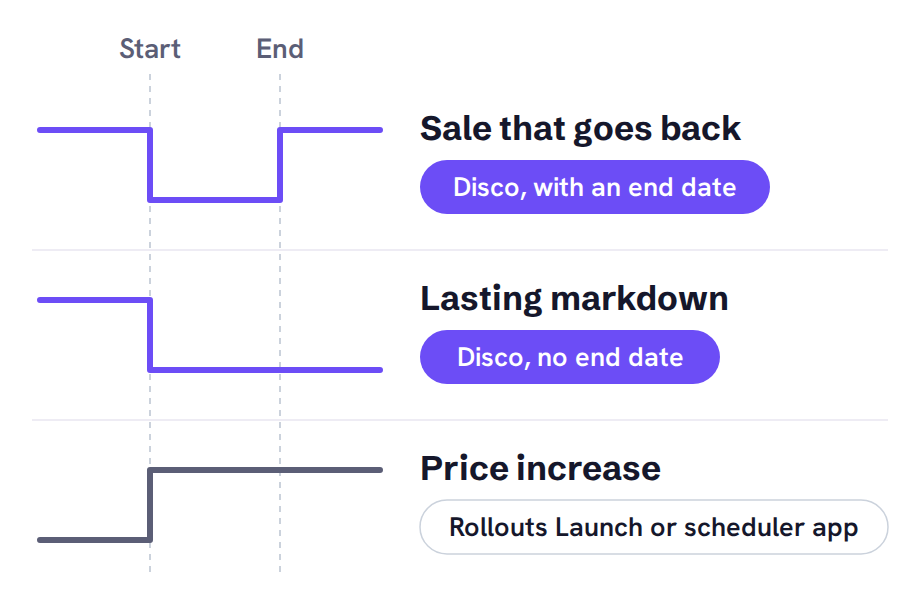
Before choosing a tool to schedule price changes on Shopify, check which of three jobs you have: a temporary change that goes back (a sale), a lasting change on a date, or a repeating one. Disco covers sale prices and lasting markdowns, while a scheduled price increase needs a Rollouts catalog or a scheduler app.
| Job | Example | Route that fits |
|---|---|---|
| A temporary change that goes back | 20% off a collection for a weekend | A Disco sale with an end date |
| A lasting change on a date | A markdown on last season's stock; a supplier price rise | A Disco sale with no end date for a markdown; a Rollouts Launch or a scheduler app for an increase |
| A repeating change | Weekend or happy-hour prices | Several Disco campaigns scheduled ahead, one per weekend; a developer-built Flow workflow for anything more frequent |
For a short promotion with a timer and banners, see how to run a flash sale on Shopify.
How do you set up a Shopify scheduled price update?
For the most common job, a sale price that goes back, set up a Shopify scheduled price update in Disco: create a campaign, pick the discount and products, and set Active dates. Disco writes the new prices and compare-at prices at the start time and restores the old prices at the end time. The free Starter plan includes scheduling.
In Shopify you can change Price and Compare-at price on the product page, in the bulk editor or with a CSV import, but none of them can be scheduled: changes apply as soon as you save, and you have to restore every price by hand. Disco resolves this by applying the new prices at your start time and restoring the saved pre-sale prices when the campaign ends.
How to schedule a price change in Disco
Suppose you want 20% off a spring collection from Friday at 9 AM (09.00) to Sunday at 11:59 PM (23.59).
- Click Create campaign on Disco's Dashboard or Campaigns page.
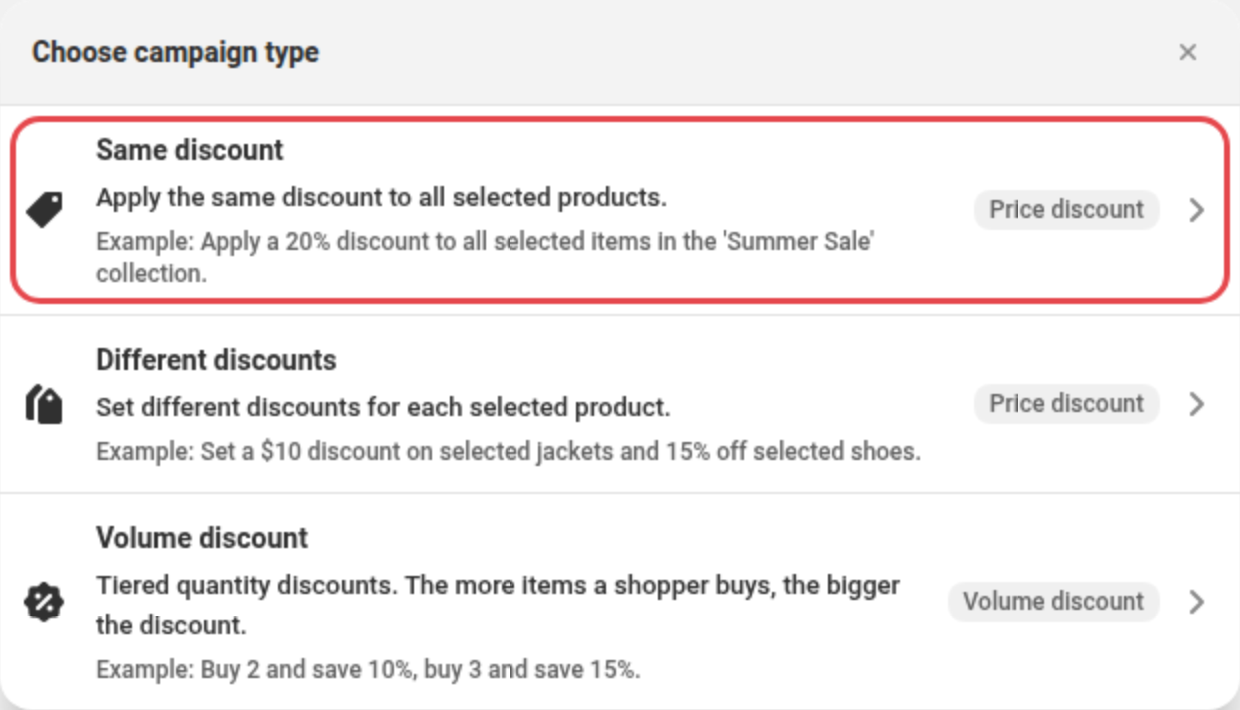
- Pick Same discount in the Choose campaign type dialog.
- Choose the discount type in the Discount card: Percentage, Amount off or New price (a fixed sale price).
- Enter the discount or the new price, for example 20 for 20% off.
- Choose the products on the Include products tab: pick Select products, collections, tags, or types and add the spring collection with Add collection(s).
- Set the start in the Active dates card: enter Start date and Start time in your computer's time zone, such as Friday at 9 AM (09.00). Left empty, the sale starts as soon as you save.
- Tick Set end date.
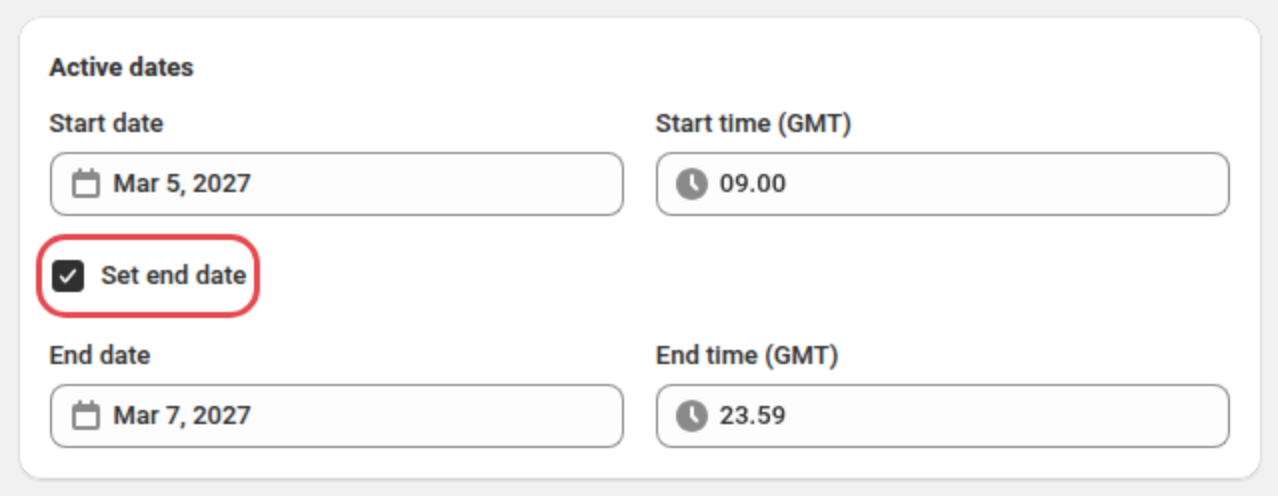
- Set the end: enter End date and End time, such as Sunday at 11:59 PM (23.59). Ticking Set end date fills in an end one hour after the start, so change both fields.
- Click Preview price changes to check the new prices before you save (it previews up to 200 of the selected products).
- Click Save in Shopify's top save bar. A new sale has every widget and the sale page switched off, so a sale that only changes prices can skip the wizard's widget and landing-page steps and save right from the first page. Disco opens Campaigns and says "Campaign created successfully".
The tab in step 5 also has All products for a storewide sale and Add product(s) by tag, type, title or vendor for a filter. To discount your entire catalog at once, see putting a whole store or collection on sale.
Until a scheduled sale starts, you can edit its products and discount.
To add a countdown timer and announcement bar, read how to schedule a sale on Shopify.
Why a scheduled price change beats a scheduled discount
When the sale starts, Disco writes each product's price and compare-at price in Shopify, so shoppers see the sale price and the struck-through original on product and collection pages before checkout. A native automatic discount or discount code with start and end dates leaves product prices untouched, so the discount only shows in the cart or at checkout.
Shopify's discounts FAQ notes that showing crossed-out prices on product and collection pages requires a third-party app or custom solution. See sales vs discount codes for when each type of offer fits, and the compare-at price guide for how the struck-through price works. A scheduled native discount still fits a code-only offer or a checkout threshold rule.
Getting the old prices back when the sale ends
When the sale you set up reaches its end time or you click Deactivate, Disco puts back each product's prices automatically, using the values it saved before the sale started. The store setting Price reverts to controls whether Disco restores the Old price (the default) or the Compare at price. Manual price edits made while the sale runs are overwritten when it ends.
How to choose what prices revert to in Disco
You can change this setting only while no sale is active.
- Open Settings in Disco's navigation.
- Choose Old price or Compare at price under Price reverts to.
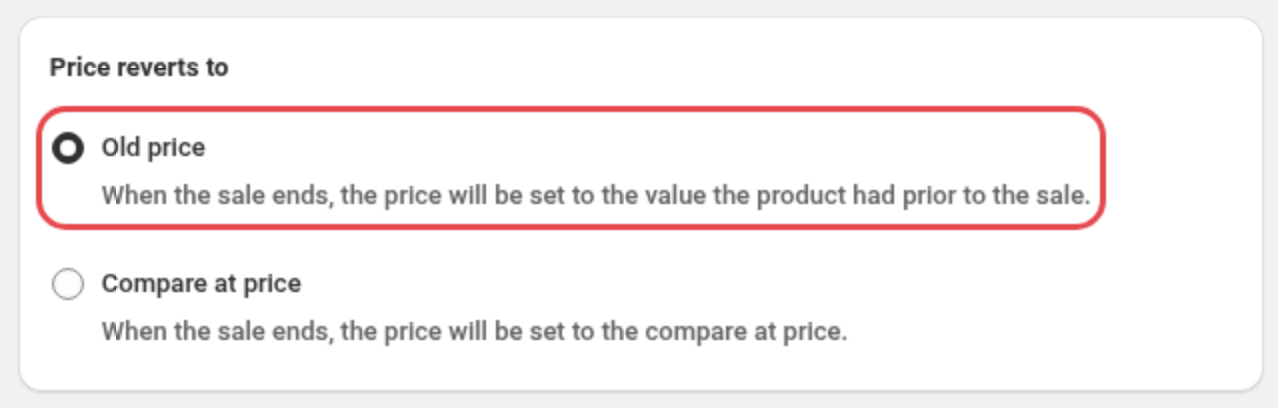
With Old price, both the price and the compare-at price return to what the product had before the sale. With Compare at price, each product's compare-at price becomes its price and the compare-at field is cleared.
What Shopify can do without an app
Shopify's product page has no scheduling field, so without an app you need one of the tools below. Rollouts (Basic plan and up) and Launchpad run on a schedule; the others work only when you start them by hand or a developer schedules them in code.
Rollouts. A rollout sets a Markets catalog to Active or Draft at a set date and time. A Launch merges the change permanently; an Event publishes it for a set period and rolls it back at its end date.
A rollout set to less than 100% of visitors reaches only the online store. At 100%, it can also update POS and the Google & YouTube product feeds. A percentage Price adjustment moves compare-at prices by default unless Include compare-at price is off.
Per Rollouts requirements and considerations, a rollout keeps no copy of old prices. When an Event ends, the catalog's current prices apply, and any edits made during the Event stay. POS and the feeds return to those prices only on their next sync, so they can show the Event's prices until then.
Launchpad (Shopify Plus only). Launchpad changes product pricing at an event's start and end. During the event, compare-at prices show pre-sale prices; at the end, both return to pre-event values, undoing manual edits made during the event.
Bulk editor and CSV import. The bulk editor and a CSV import update Price and Compare-at price only when you click Save or start the upload. Neither can be scheduled, and a CSV import cannot be canceled once started.
Admin API. From their own cron job or worker, developers can set price and compareAtPrice with the productVariantsBulkUpdate mutation (Shopify's API reference).
Can you use Shopify Flow to schedule a price change?
Not by itself. Shopify Flow's Scheduled time trigger starts a workflow on a schedule, but none of Flow's built-in actions sets a product price or compare-at price. A developer can build a Shopify Flow schedule price change with Send Admin API request, plus a second workflow to restore prices. Disco schedules and restores sale prices without code.
Flow is free on the Basic, Grow, Advanced and Plus plans. Its Scheduled time trigger can repeat as often as once every 10 minutes, and Send Admin API request can use most mutations in the GraphQL Admin API. A developer-built workflow suits a price change that repeats more often than once a weekend, such as happy-hour prices.
How do you schedule a price increase in Shopify?
Disco schedules sale prices, not price increases. For an increase on a future date, prepare a Markets catalog with the higher prices and schedule a Rollouts Launch, use a scheduled bulk-edit app, or schedule a spreadsheet import. Disco's lasting change is a markdown: a sale without Set end date runs until you stop it.
Several apps on the Shopify App Store schedule bulk price edits, including increases (checked November 21, 2026):
- NA Bulk Price Editor: runs, schedules and reverts price-change jobs by percentage or flat amount, supports Markets fixed prices; free for 100 changes/month, paid plans currently from $9.95/month.
- Hextom: Bulk Product Edit: schedules bulk edits and CSV imports, with scheduled tasks on its Professional plan, currently $19.99/month.
- Matrixify: schedules and auto-repeats spreadsheet import jobs, with paid plans currently from $20/month.
How to schedule a lasting markdown in Disco
A lasting markdown is the weekend sale from above without an end date:
- Set up the campaign with steps 1 to 6 above, choosing the campaign type, discount, products and start time.
- Leave Set end date unticked in the Active dates card.
- Click Save. On Campaigns, the sale's row shows "No end date", and the markdown stays active until you stop it.
For end-of-season stock, see the clearance sale guide.
Every route side by side
For a sale price that shoppers see on product and collection pages, with the old prices restored on time, use Disco. For a permanent price increase on a date, use a Rollouts Launch or a scheduler app. For a checkout-only offer or promo code, use a native Shopify discount with active dates.
| Route | Plan or price | Changes | Starts on its own | Goes back on its own | Keeps the old prices | Markets fixed prices |
|---|---|---|---|---|---|---|
| Disco | Free Starter plan includes scheduling (plans) | Product price and compare-at price | Yes | Yes, at the end date | Yes, saved before the sale | Yes, with Apply discounts to Markets with fixed prices (Business and up) |
| Automatic discount or code with active dates | Built into Shopify | Checkout total only | Yes | Yes, it expires | Prices never change | Prices never change |
| Rollouts Event (Markets catalog) | Basic plan and up | Catalog prices | Yes | Yes, to the catalog's current prices | No copy kept | Yes, the catalog holds them |
| Rollouts Launch | Basic plan and up | Catalog prices | Yes | No, it's permanent | No copy kept | Yes, the catalog holds them |
| Launchpad | Shopify Plus only | Product price | Yes | Yes | Yes, both prices go back | Not stated in Shopify's docs |
| Flow + Admin API | Flow is free on Basic and up | Whatever your mutation writes | Yes | Only with a second workflow | Only if you store them | Only if you build it |
| Bulk editor or CSV import | Built into Shopify | Product price and compare-at price | No | No | No | Manual, with a catalog CSV |
| Scheduler app (e.g. NA Bulk Price Editor) | Free plan; paid from $9.95/month (currently) | Product price and compare-at price | Yes | Can revert a job | Can revert a job | Yes, per its listing |
What to check before the start time
Whichever route you pick, a scheduled price change affects more than your product pages. Check these five things before your start time.
- Markets fixed prices. Fixed market prices override currency conversion. Disco discounts them only when you tick Apply discounts to Markets with fixed prices in the Markets card on the wizard's first page (Business and up); otherwise fixed-price markets stay at full price while converted markets follow the sale.
- Other apps that write prices. Shopify's price fields follow a last-write-wins rule: if an ERP sync, inventory tool, feed app or CSV import rewrites prices after Disco starts a sale, the discount disappears. Turn off price syncing in that app or exclude the sale products, then Deactivate and Reactivate the campaign; see why a sale price keeps reverting.
- Google Shopping. Feeds sync on their own schedule, so an ad can show the old price for a while, and Google or Meta can delist products when ad and landing-page prices mismatch (Shopify on rollouts and external channels). Google shows its sale annotation only when you charged the base price for at least 30 non-consecutive days in the past 200 days and the sale price is 5% to 90% below it (Shopify's Google Shopping guide).
- The EU 30-day rule. When announcing an EU price reduction, you must show the lowest price charged in the previous 30 days (Shopify Help Center). A scheduled sale shortly before a bigger event lowers that baseline; see the Omnibus Directive on Shopify.
- Time zones. Disco's Start time and End time use your computer's time zone and show it in the label, such as "Start time (GMT+1)". Native Shopify discounts, Rollouts and Flow use the store's time zone from Settings > General in the Shopify admin (a Flow trigger can pick another). Neither Shopify's Launchpad pages nor the App Store listings of the three scheduler apps above say which time zone they use.
FAQ
Can Shopify Flow schedule a price change?
Not with a built-in action, because none of Flow's actions sets a price or compare-at price. A developer can build a Shopify Flow schedule price change with the Scheduled time trigger and the Send Admin API request action, plus a second workflow to put the old prices back.
Can I schedule a price change for one country?
Natively, yes: schedule a Rollouts catalog change for that country's market, or limit a native discount with active dates to that market (the native discount shows only in the cart and at checkout). A Disco sale changes the product's own price, so it reaches every market that converts from that price; on Business and up, it can also discount Markets with fixed prices.
Is a Shopify scheduled price update free?
Yes: Disco's free Starter plan includes scheduled sales (see plans). Among native tools, Rollouts is included on the Basic plan and up, while Launchpad requires Shopify Plus.
Is there a schedule price increase Shopify setting?
No: Shopify's product page has no field for scheduling a price increase. To schedule a price increase for a future date, use a Rollouts Launch on a prepared Markets catalog, a bulk price scheduler app or a scheduled spreadsheet import; Disco schedules sale prices and lasting markdowns, not increases.
Start with a small test campaign
Start in Disco with a short test campaign on two or three products. Click Preview price changes to check the new prices, then let the test run so you can see the prices change at the start time and restore themselves at the end time before you schedule the real campaign.
Install Disco from the Shopify App Store →
Next: How to schedule a sale on Shopify (starts and ends automatically) adds the countdown timer and banners, and How to put your entire Shopify store on sale applies one scheduled campaign to a large catalog.